

Photoshop is Taking Requests Now
How Adobe’s New AI Assistant Changes Photo Editing

The gap between knowing what you want and knowing how to get it has always been the real cost of creative tools.
You have a great idea in your head. You can picture exactly what the image should look like. And then you open Photoshop.
Suddenly you’re deep in a tutorial you didn’t plan to watch, troubleshooting a layer you never meant to touch, and the creative momentum is gone before you make a single change.
For decades, the "Photoshop Skill Gap" has been the graveyard of good ideas. You either spent years mastering the technical syntax of layers and masks, or you settled for "good enough."
That’s the gap Adobe just closed.
Adobe’s AI Assistant in Photoshop is now in public beta on web and mobile. You describe the edit you want and it executes. And a step-by-step mode walks you through the how as it works, so you’re building the skill at the same time. So the idea and the output are finally on the same timeline.
Here’s what’s actually in the release, and what you can start using today.
Your New Role: Art Director
Using Photoshop to edit photos looks like talking your way through a vision instead of getting lost in the layers of your project.
Now you’re telling an assistant that you want to: remove that person in the background, change the sky to overcast, and soften the lighting. You're directing a scene and letting it handle the execution.
When you work with the AI Assistant, you choose how involved you are in the process.
Auto mode applies the edit and delivers the result.
Step-by-step mode walks you through each action as it executes, so you’re learning Photoshop on your own image, in real time. It’s not like watching a tutorial. You’re editing your actual image and learning how it works with a guide who can see what’s on your screen.
If Photoshop has always felt just out of reach, this is the on-ramp that was missing.
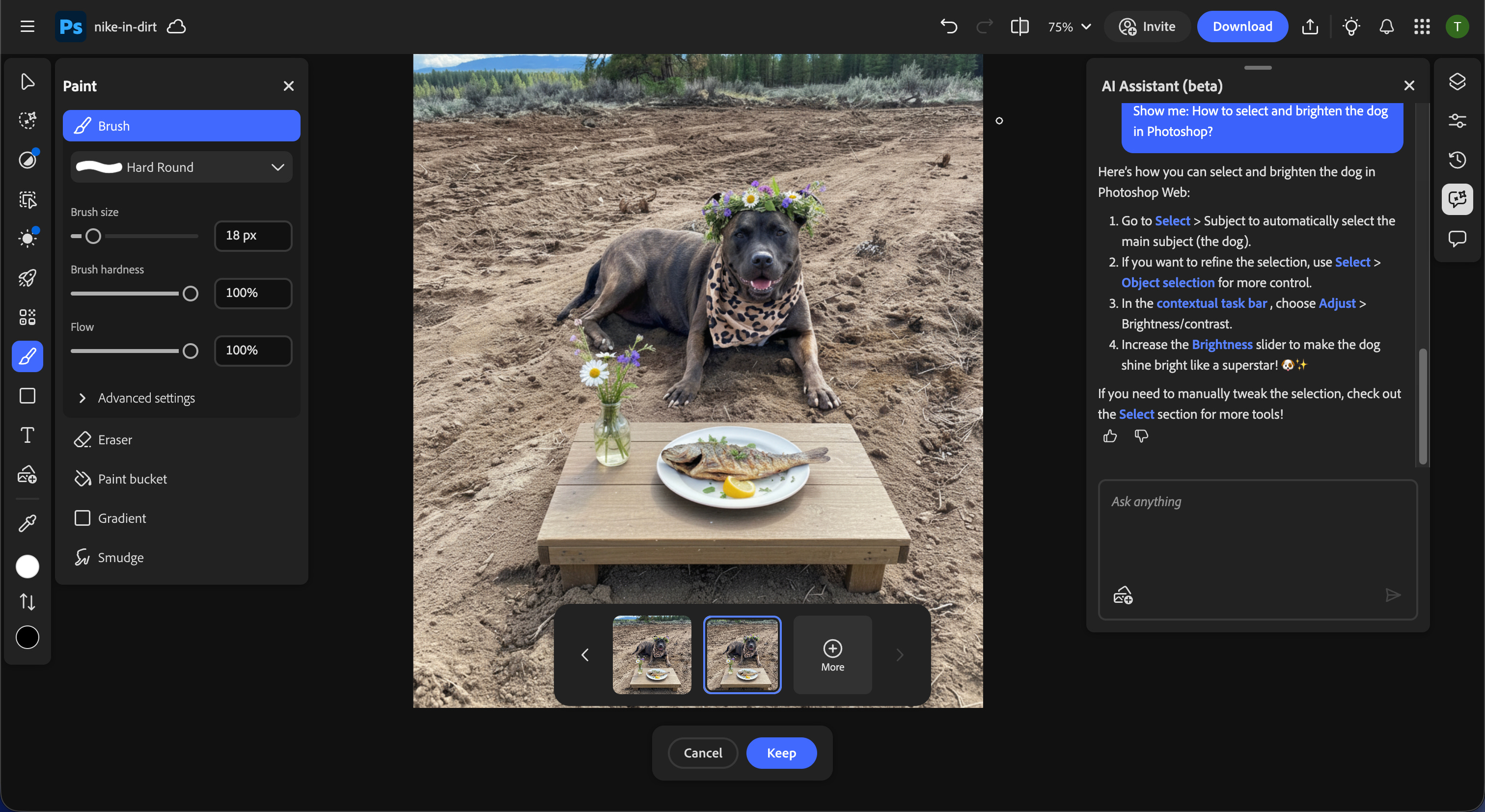
Voice editing is also live in the Photoshop mobile app. You can speak your edits instead of typing them. If you’re shooting content on your phone and want to make quick adjustments before posting, you can just talk to it.
Prompting the AI Assistant in Photoshop
Give the AI direction, color language, and a photographic reference:
Replace the background with a golden hour sky, warm amber tones, soft lens blur.
Chain a removal with a replacement in one prompt:
Remove the trash can on the left side of the frame, then add soft morning fog rolling across the lower third of the image.
Use your photography vocabulary directly:
Shift the lighting to overcast midday, reduce harsh shadows under the chin, and add a subtle rim light on the right shoulder.
Target one element while preserving the rest:
Warm up the background tones but keep the subject's skin neutral.
Draw It, Describe It, Done
Imagine circling the things you didn’t mean to capture in your photo, sketching out details you actually wanted to capture, and then watching your photo edit and update itself.
AI Markup turns scribbles into pixel-perfect edits.
Instead of just typing a general prompt, you can:
Circle a specific area (like a patch of ground).
Type what you want there (e.g., “add wildflowers”).
The edit will stay contained strictly to the area you drew.
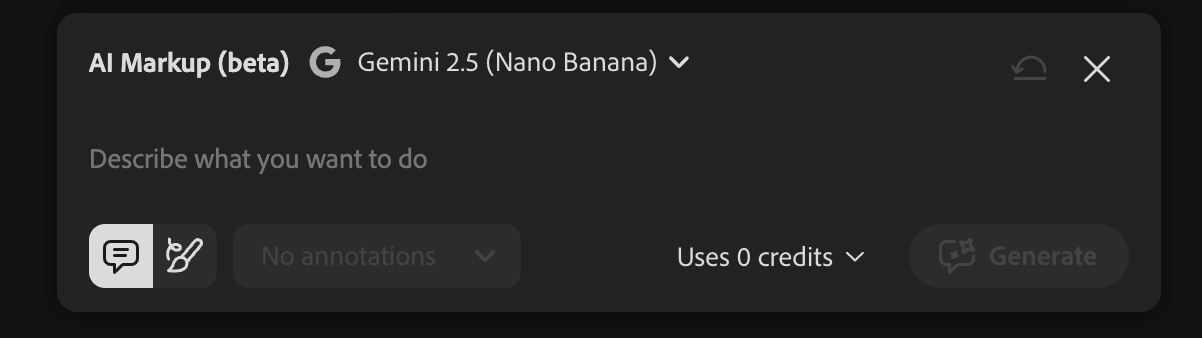
Draw directly on your image to mark where you want a change to happen, then type a prompt describing what you want there.
You mark the area, describe the result, and the edit lands exactly where you drew.
Mark a background, type “replace with a mountain landscape.” Circle a patch of ground, type “add wildflowers.” The change is contained to the area you specified, and the rest of the image stays untouched.
Or draw a messy outline where you want something new and tell Photoshop what it should be.
I scribbled a table and wrote “a plate of fish with a small vase of flowers.”
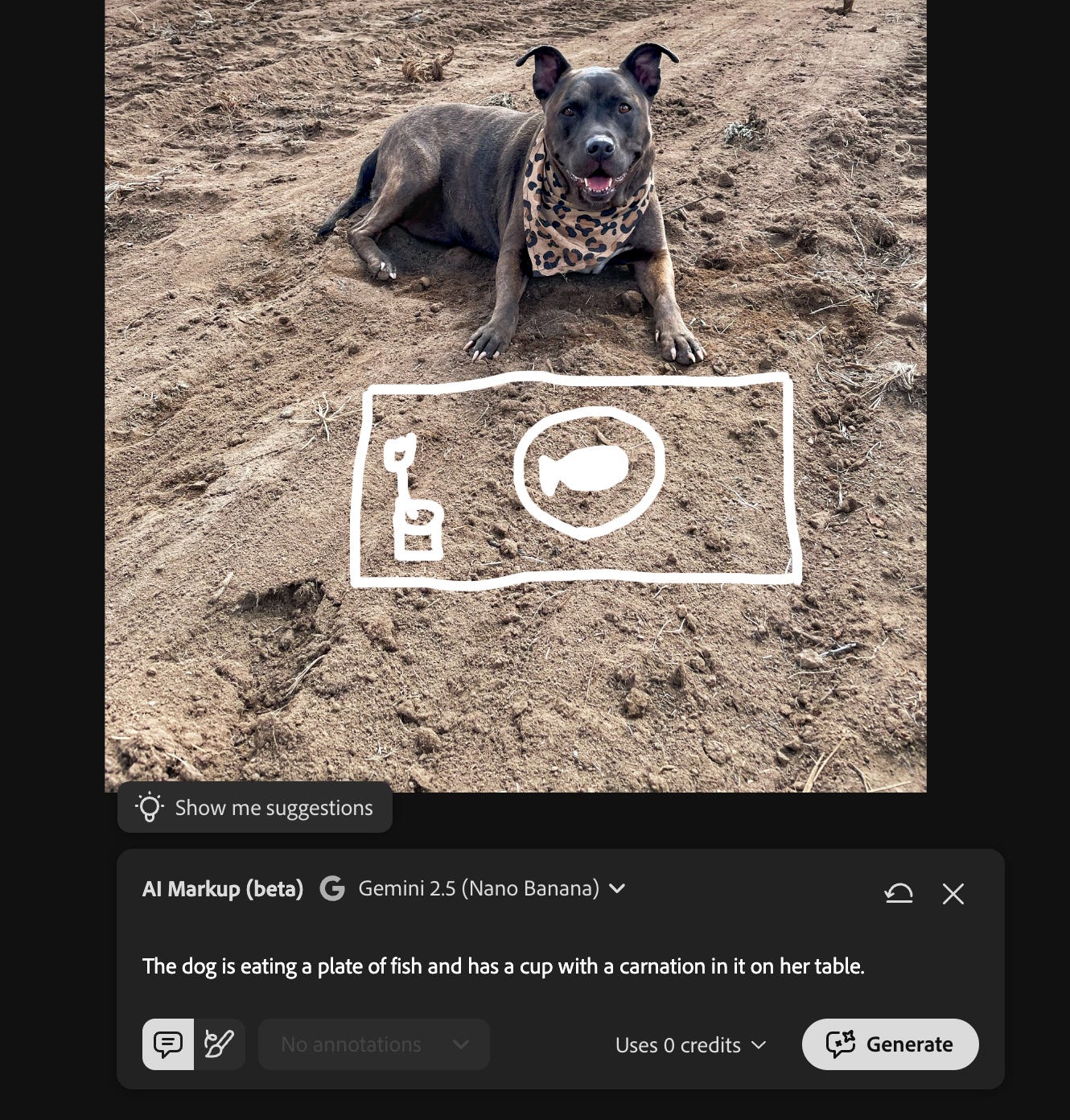
Photoshop generated the scene inside that area and kept the rest of the photo exactly the same.
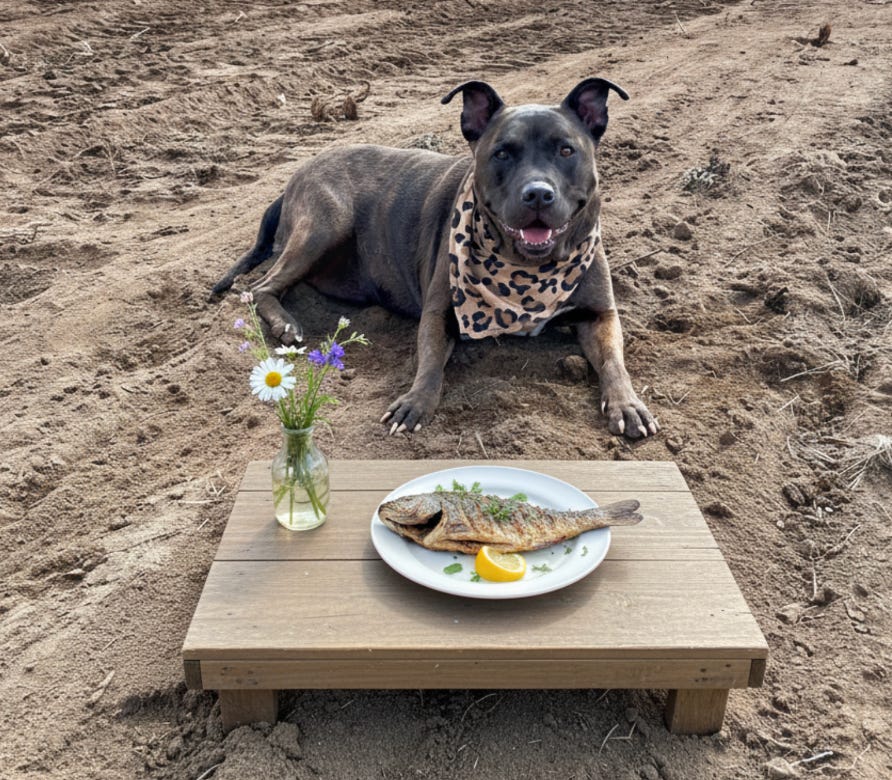
This fixes one of Photoshop’s oldest friction points. Precision editing in Photoshop has always required knowing the tools well enough to isolate exactly the right pixels.
AI Markup separates the intention (I want THIS area to change) from the technical execution (knowing how to select and mask it).
Photoshop handles the technical work behind the scenes.
Firefly and the Multi-Model Advantage
Firefly Image Editor is basically a full editing suite and a model roster in the same tab. Generative Fill, Generative Remove, Generative Expand, Generative Upscale, and background removal are all built in. You generate, edit, and refine without switching apps or losing your place.
The model selection is where it gets interesting. Every model has a personality:
Flux.2 [pro] nails photorealism and fine details like fabrics or faces.
Google’s Nano Banana 2 excels at consistent characters and scenes across generations.
Adobe Firefly stays commercially safe with seamless Photoshop integration for pro workflows.
OpenAI’s Image Generation pushes creative surrealism.
Runway Gen-4.5 delivers cinematic motion-ready visuals.
No single model rules them all. That’s why Firefly has more than 25 options to match your vibe.
![Table comparing AI image generation models and their strengths, including Flux.2 [pro] for photorealism and textures, Nano Banana 2 for consistent characters, Adobe Firefly for commercially safe edits, OpenAI Image Generation for surreal creativity, and Runway Gen-4.5 for cinematic visuals.](https://substackcdn.com/image/fetch/$s_!EHTI!,f_auto,q_auto:good,fl_progressive:steep/https%3A%2F%2Fsubstack-post-media.s3.amazonaws.com%2Fpublic%2Fimages%2F4f626d0d-5f21-4120-b99c-bfb6dca88071_1152x262.png "Table comparing AI image generation models and their strengths, including Flux.2 [pro] for photorealism and textures, Nano Banana 2 for consistent characters, Adobe Firefly for commercially safe edits, OpenAI Image Generation for surreal creativity, and Runway Gen-4.5 for cinematic visuals.")
Run the same prompt through two models and the difference is immediate. That’s the fastest way to understand what each one is built for, and it points you toward the right tool for the job without having to guess.
The advantage in Firefly’s multi-model setup is that you stay in one workspace, swap models, and keep your momentum.
Commercially Safe by Default
If you create content for clients or run a monetized platform, the model you generate with matters. Adobe Firefly is trained on licensed content, which means the outputs are cleared for commercial use. You’re not gambling on licensing terms buried in a terms of service you probably didn’t read.
Read more:

On unlimited generations:
Firefly subscribers have unlimited generations now
Photoshop paid subscribers (web and mobile) get unlimited generations through April 9
Free Photoshop web users get 20 generations to start
Putting It to Work
You don’t need to explore every feature today. Start Here:
Edit a photo with AI Assistant in Photoshop
Go to Photoshop web, open something you’ve been meaning to clean up, and type what you want to change. Just describe the edit like you’d describe it to someone standing next to you. “Remove the trash can in the lower left.” “Make the background blurry.” See what happens.
Learn to edit yourself with step-by-step mode
If Photoshop has felt out of reach, step-by-step mode is like having a custom tutorial based on your project to teach you any editing skill you want to learn, on demand. Watch how it moves through the edit. You’ll start learning the tools without getting lost on YouTube.
Use markup when the AI guesses wrong
If you need a specific part of an image changed and auto mode is hitting the wrong area, switch to Markup. Draw what you want, type your prompt. Much faster than masking, and more accurate than hoping a text prompt lands in the right spot.
Explore your options
Test Firefly’s model switcher before you commit. If you’re generating images in Firefly for a project, run the same prompt through two or three models before picking a direction. The differences will be immediate and obvious. You’ll find your model for that job in under a minute.
Your Editing Backlog Just Lost its Excuses
You downloaded those photos off your camera roll because you wanted to post them. But editing them requires time, focus, and energy you don’t have.
So they got stuck in a folder, for that day in the future. The magical day when you’ll have enough time to go through the 42 pictures you took on vacation three months ago.
Yeah, we’re done with that. Your unedited images? Content that just needed some direction.
The Bigger Picture
Adobe has been building toward this across every product: AI Assistants in Acrobat, Adobe Express, and now Photoshop. The pattern is the same everywhere: bring conversational AI into the tools people already use, in the places they’re already working.
What’s different about this release is that it hits Photoshop, the tool that has been both the industry standard and the biggest skill barrier in creative work for decades.
Photoshop just became easier to start without becoming less powerful. The people who already know Photoshop can move faster. The people who wanted in but couldn’t find the entry point finally have one.
It’s a practical release. Go test it.
Want to build AI into your creative workflow in a way that actually sticks? That’s exactly what we do inside AI Flow Club. 1,300+ creators building their own systems.

This is great Tiff! I've been hoping for it :)
Wow, I’m surprised I hadn’t heard about this. I always thought the death of Adobe at the hands of image models had been oversold, so not shocked they’re working to keep up here.
That said, it still feels like a big blow to their business model that I can do this stuff for pennies with no subscription in Google AI Studio. It’s good that Adobe is competing on product, but it’s gotta stay waaaay ahead if it wants to keep charging people huge monthly subscription fees. I don’t really see that happening.