

Your Camera Roll is a To-Do List With No Tasks
The iPhone shortcut system that turns screenshots into reminders, notes, files, and calendar events

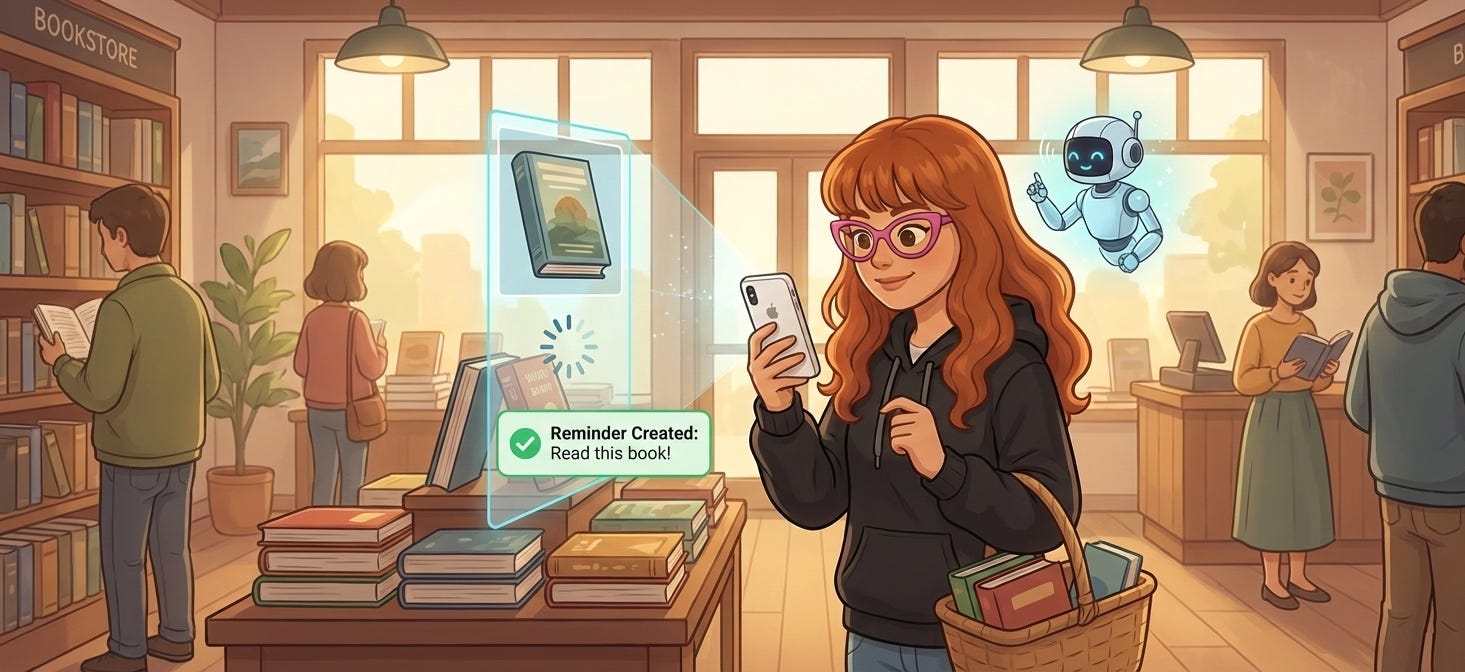
You Take Screenshots On Purpose. Your iPhone Doesn’t Care.
You’re hoarding screenshots like they’ll age into wisdom and then forgetting why you even took them. So you basically turned your camera roll into a to-do list with no tasks, just vibes, chaos, and unlabeled ideas.
You don’t take screenshots by accident. You take them because something matters right now.
Then your phone does what phones do, it dumps that screenshot into a folder with zero context, zero connection to your intent, and zero pathway to action. It just... sits there. Alongside the archive of other screenshots you’ve taken with equally specific plans that never materialized.
So I built a system to fix that. Now, when I take a screenshot, ChatGPT gives it a title and summary and drops it right where it needs to go.
One shortcut handles all of it. Your screenshots start working instead of collecting dust.
That’s what we’re building today.
The Drop
Your screenshots aren’t random. They’re unfinished decisions—tasks, references, files, or events with nowhere to go.
iPhone treats every screenshot the same, which is why your camera roll becomes a graveyard instead of a system.
One shortcut forces a decision at capture and routes screenshots to reminders, notes, files, or calendar events automatically.
The result: screenshots turn into action, context, and follow-through instead of forgotten images.
The Problem Isn’t Screenshots. It’s What Happens After
The moment you take a screenshot, you’re making a choice. Right now, your phone just ignores it.
Your screenshot can easily become something different else, depending on what you need:
An action item that needs follow-up
A reference you’ll need with context later
A file that should live in your project folders
An event that belongs on your calendar
But your phone treats every single one the same: save it, number it, bury it.
That’s the gap. Not the screenshot itself, but the complete absence of routing.
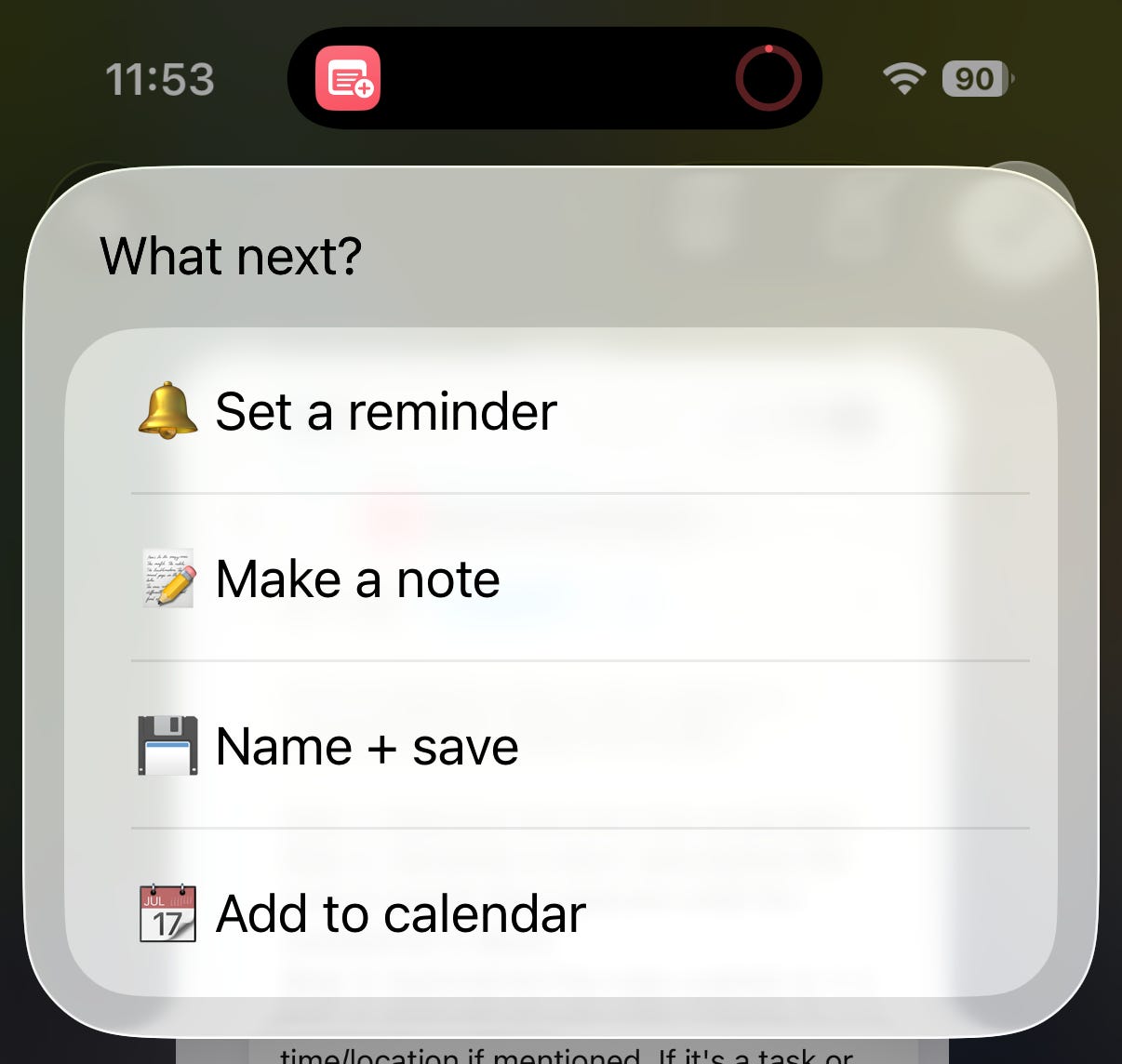
One shortcut fixes this. Four destinations. Your screenshots land where they belong instead of dying in your camera roll.
Where Your Screenshots Should Actually Go
Your screenshots shouldn’t be clutter, they’re clues. Here’s where they should land to actually do their job.
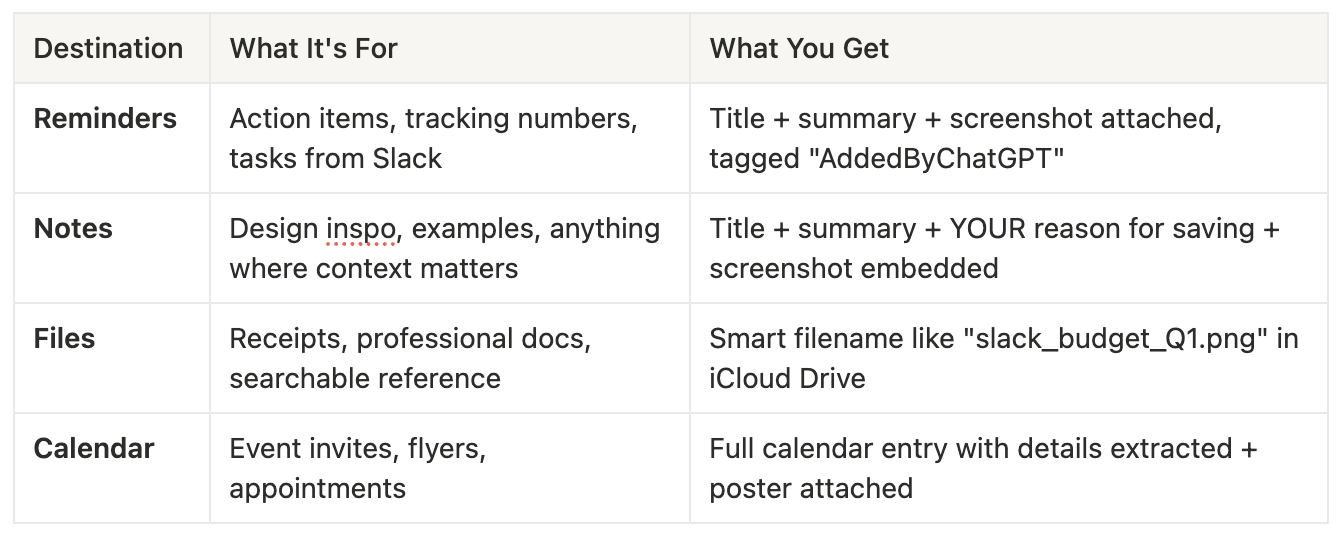
Reminders: For action items
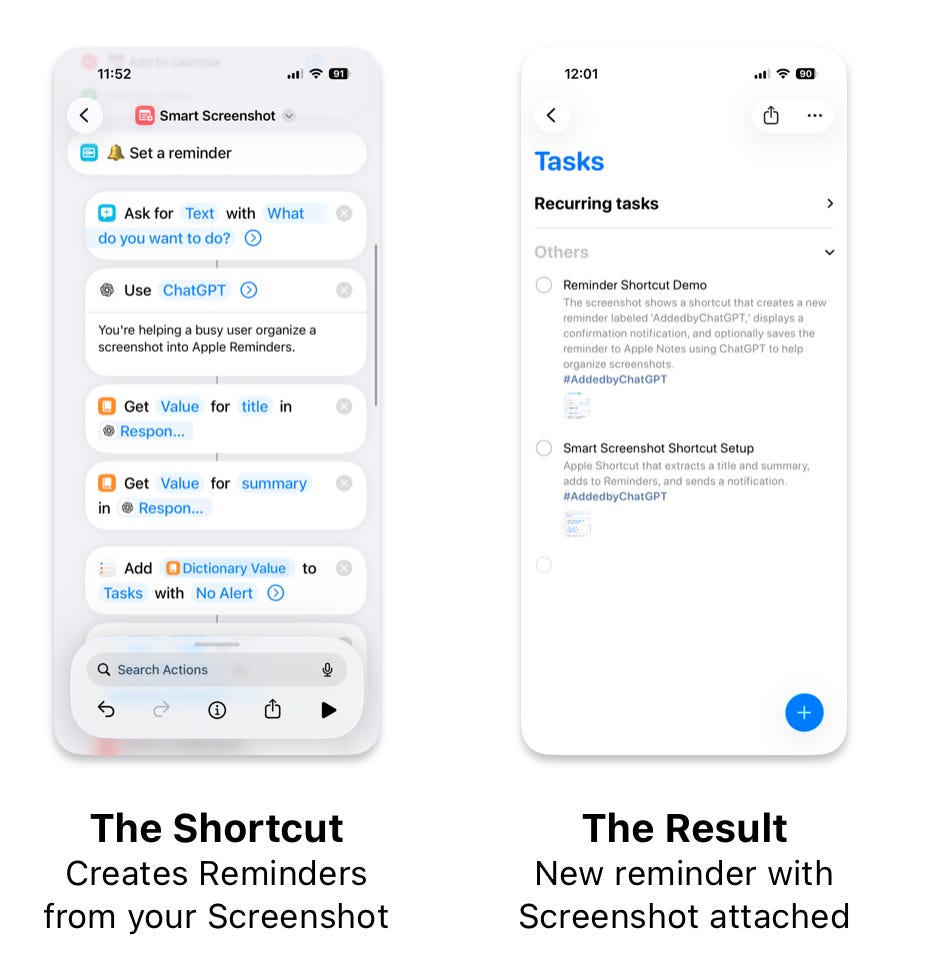
What it’s for: Order tracking numbers. Tasks from Slack screenshots. Confirmation codes for returns. Anything requiring you to DO something.
What happens: ChatGPT reads the screenshot, generates a title (max 6 words) and summary (1-2 sentences), creates a reminder in your Tasks list with the screenshot attached, and tags it “AddedByChatGPT” so you can filter later.
The result: “IMG_4582.png” becomes a reminder titled “Track Amazon Order” with the summary “Laptop arriving Tuesday” and the screenshot attached. You can search it, see it in your task list, and actually follow through.
Notes: For reference with context
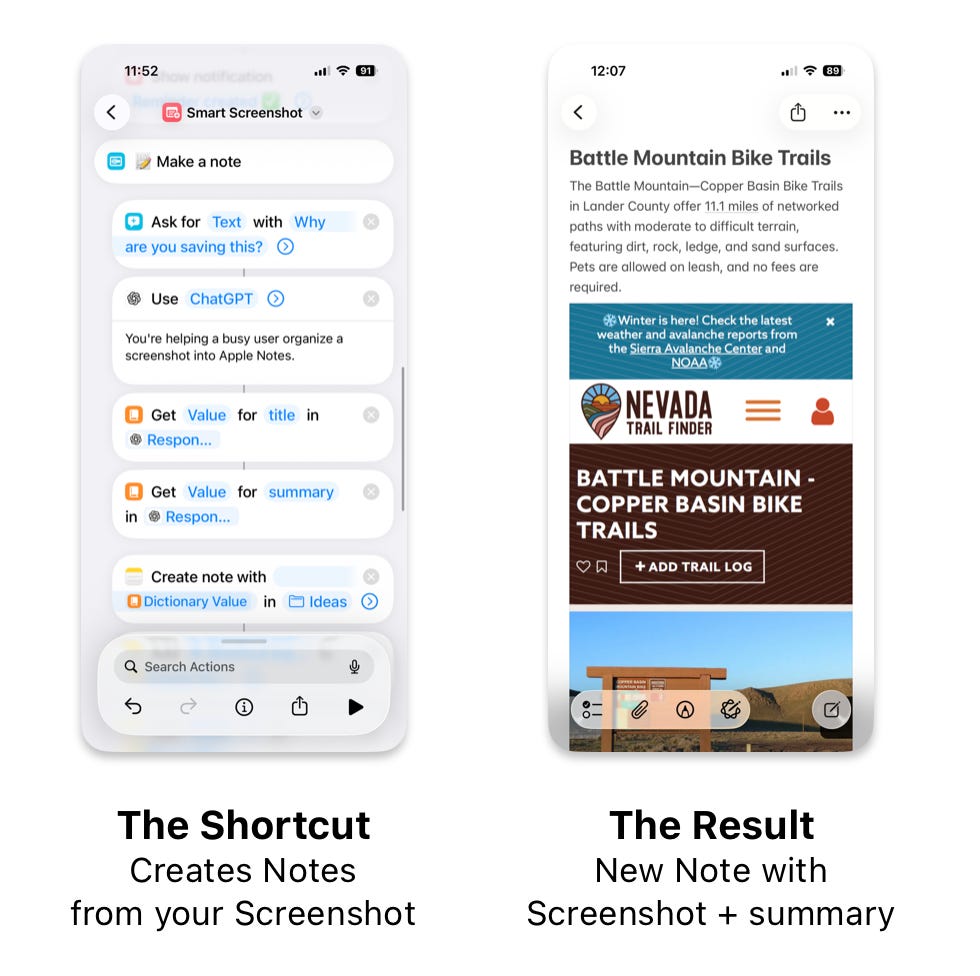
What it’s for: Design inspiration you want to remember WHY you saved. Interface examples for your projects. Slack threads with important decisions. Anything where the screenshot plus your reason matters.
What happens: You say WHY you’re saving it (voice or text), ChatGPT reads the screenshot, generates a title plus summary plus your context, and creates an Apple Note with everything organized and the screenshot embedded. Fully searchable.
The result: Your “website layout idea” becomes a Note titled “Minimal Nav Design - Homepage Inspiration” with your note “Use this color scheme for rebrand” plus ChatGPT’s description of what’s in the image. Six months later, you search “rebrand” and find it instantly.
Files: For professional organization
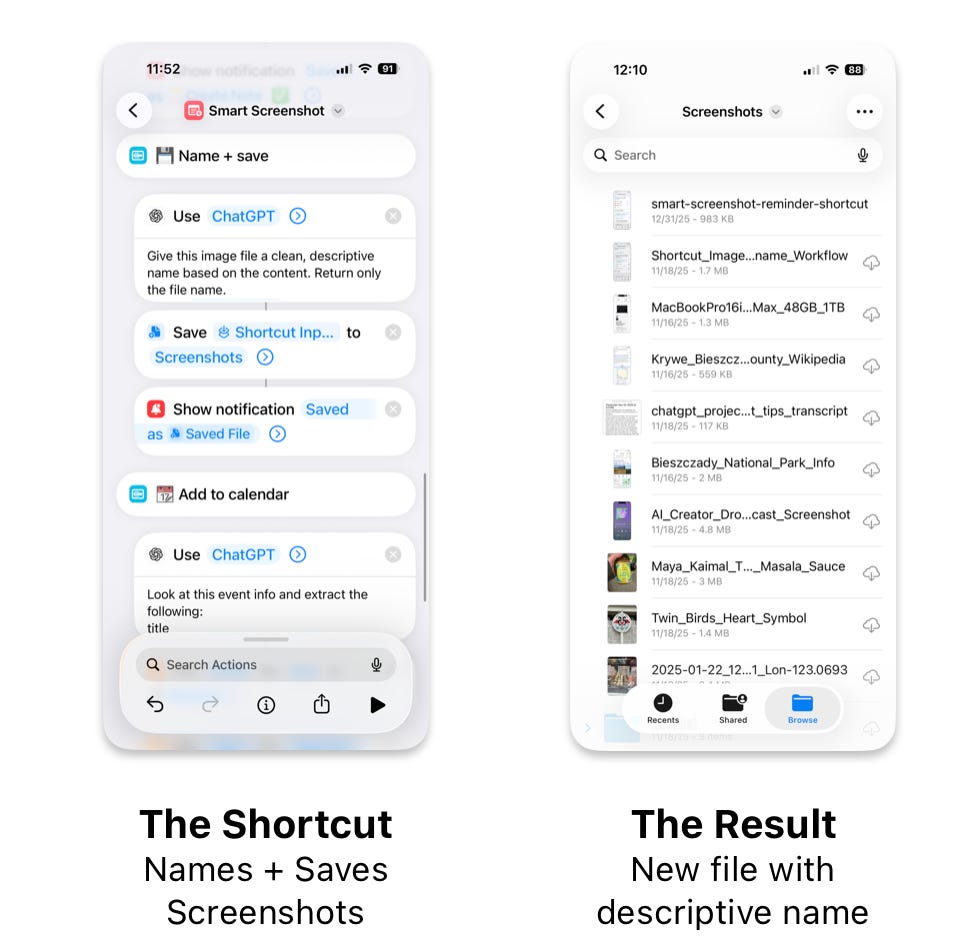
What it’s for: Receipts, invoices, contracts. Reference documents you’ll need later. Screenshots that need to live in project folders. Professional file organization.
What happens: ChatGPT reads the screenshot, generates an intelligent filename using lowercase and underscores, saves it to iCloud Drive with that name. Optional: delete from camera roll after saving.
The result: “IMG_4739.png” becomes “slack_budget_thread_Q1_priorities.png” in your Files app. Spotlight search works. Your future self doesn’t hate you.
Pro tip: I wrote an entire system for this in Your Screenshots Are a Graveyard. Here’s the Fix. if you want to go deeper on file naming.

Calendar: For events you screenshot instead of adding
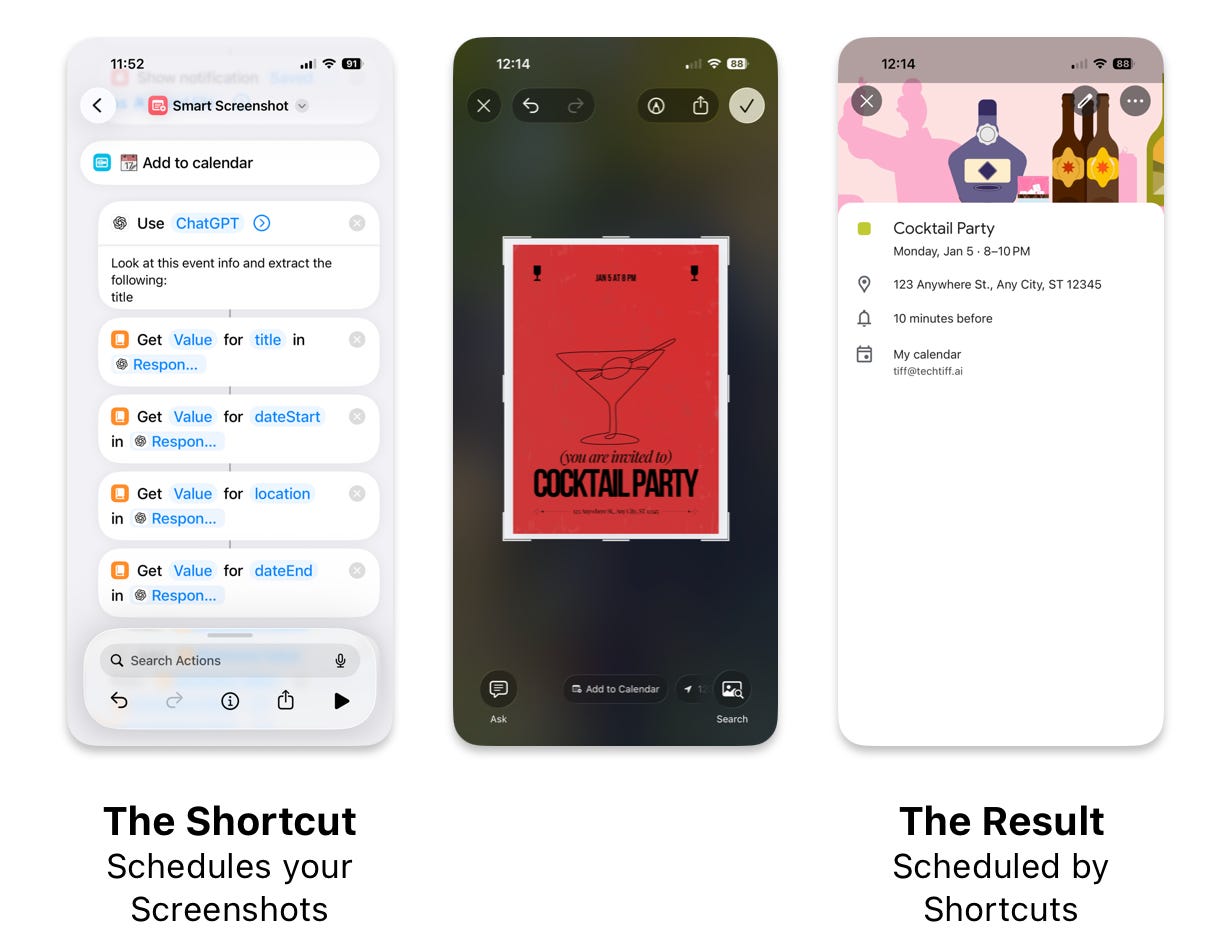
What it’s for: Event invites you screenshot instead of RSVP. Flyers with date/time/location. Appointment confirmations from texts. Anything you save to camera roll instead of adding to calendar.
What happens: ChatGPT extracts title, date, time, location, and end time. Creates a calendar event with all details. Attaches the screenshot to the event. If end time isn’t specified, assumes 2 hours.
The result: Screenshot of “Workshop: Jan 15, 3pm at Studio B” becomes a calendar entry with title, time, location, and the original poster attached. You stop apologizing for missing things you “saved.”
Want to customize it?
Change the menu emoji or labels to your preference
Adjust the ChatGPT prompts if you want different output styles
Set which specific lists or folders things route to by default
Ready to install?
I’ve packaged the full “Smart Screenshot” Shortcut (pre-loaded with the routing logic and prompts) along with the advanced installation guide below for subscribers.
