

Your PDFs Just Got Promoted: The Acrobat AI Playbook
Adobe's AI turns your PDFs into podcasts, presentations, and knowledge bases you can chat with

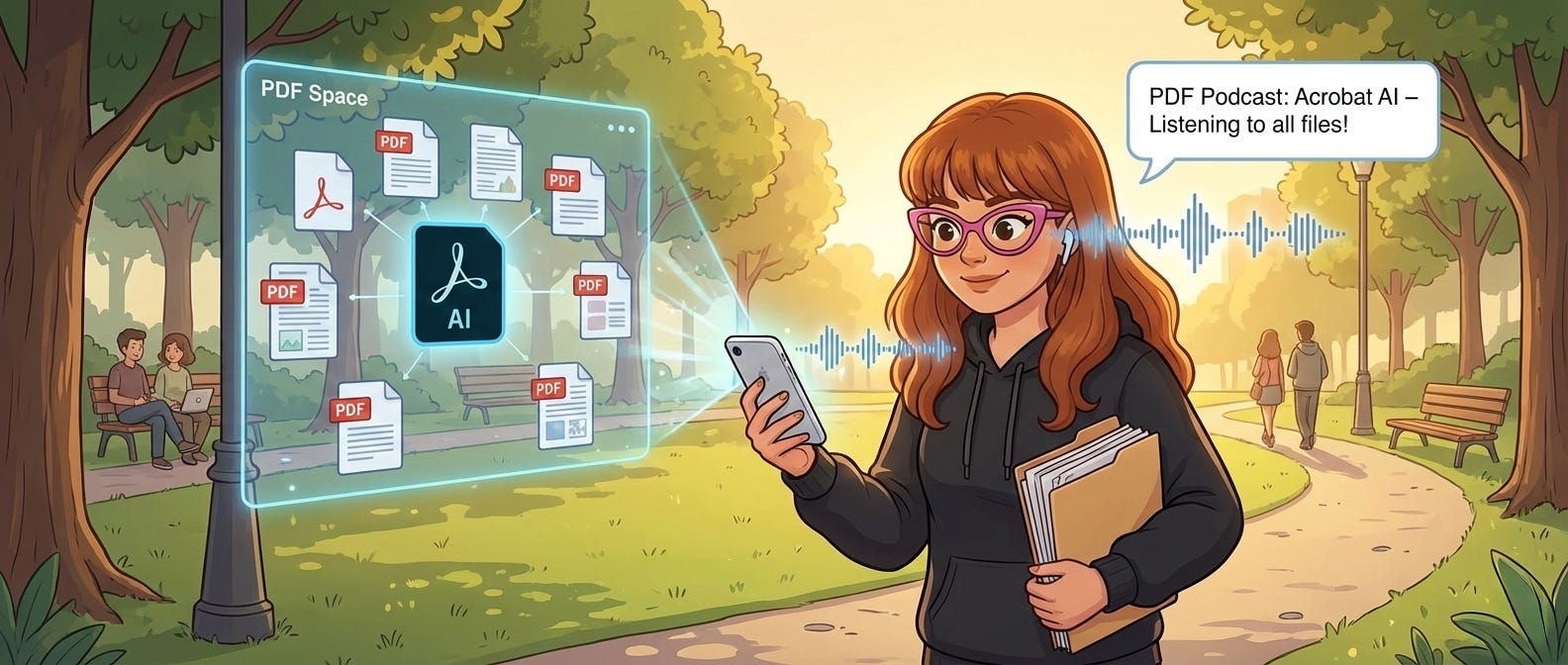
PDFs have always been passive. You open them, scroll, search, skim, and hope you didn’t miss the one line that matters.
Acrobat changed that: Adobe just turned your static pdfs into active employees.
Instead of reading, you can now ask a report to summarize itself. You can tell a contract to explain its own fine print. You can even turn a dense technical guide into an audio conversation and finish it while you walk the dog.
And you don’t have to upload your files to some sketchy website to do it. The AI is native to the document, meaning your private data stays private while your PDFs do the heavy lifting.
The “Studio” Power Stack
What drives these updates is the container they live in: Acrobat Studio. This is the unified environment that combines Acrobat Pro, Adobe Express Premium, and AI Assistant.
This matters because you aren’t just getting PDF tools; you’re unlocking the paid “Premium” tier of Adobe’s creative suite (Express) alongside the document engine. It’s a single control plane where reading, analyzing, editing, and designing happen in one continuous workflow without bouncing between apps.
New today in Acrobat Studio:
Generate Podcast: from docs and PDF Spaces.
Generate Presentation: from docs/Spaces into editable Express decks.
Chat to Edit: edit PDFs with voice commands.
Enhanced collaboration in PDF Spaces: Share Spaces with others, allow external users to access and add files, notes, comments.
The Drop (TL;DR)
Acrobat’s AI turns PDFs from static files into active systems.
You can:
Ask documents questions and get cited answers
Turn long PDFs into podcasts you can listen to
Generate slide decks directly from source files
Edit PDFs with plain-language commands
Analyze multiple documents at once inside shared PDF Spaces
Chat Across Multiple Files
Most of the time, the answer you need is scattered across files. One detail in one PDF, a number buried in another, and context hiding somewhere else. Getting a straight answer means jumping between documents, searching each one, and stitching the logic together yourself, while hoping you didn’t miss a critical line.
PDF Spaces creates a shared workspace where AI reads across multiple documents simultaneously. Upload an RFP, vendor contract, and invoice. Ask: “Does the invoice rate match the contract?” The AI pulls information from all three files to answer.
You’re not asking three separate questions and manually comparing the answers. You ask once. The AI looks across all the files you uploaded and gives you an answer based on information from multiple sources.
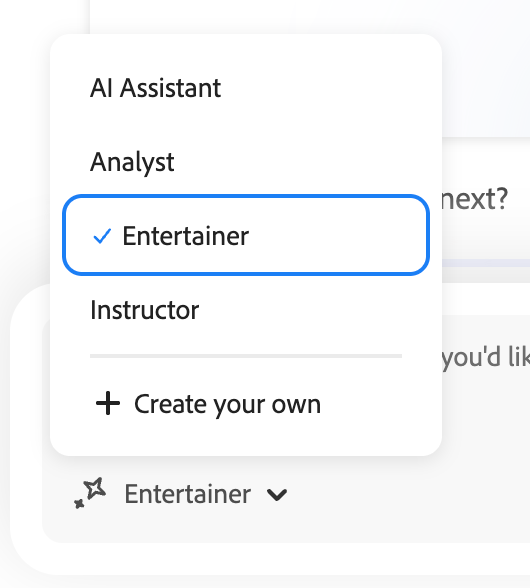
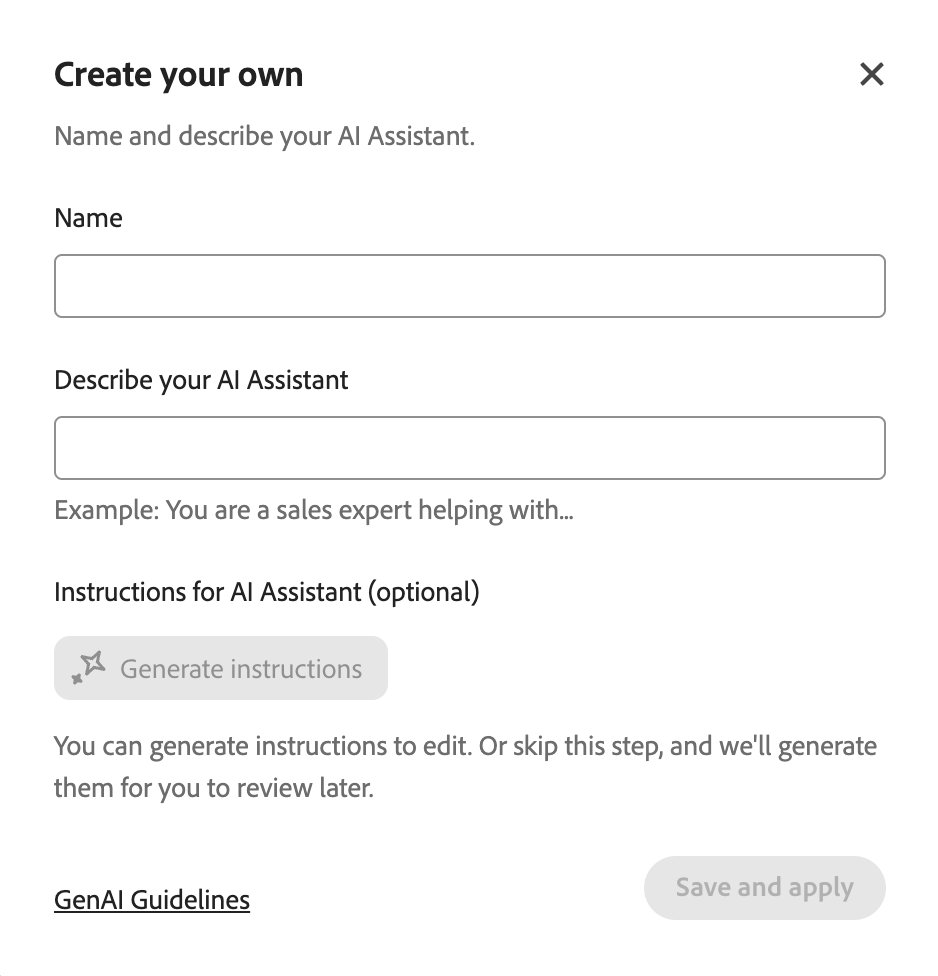
You can customize how the AI behaves. Built-in personas include Analyst, Entertainer, and Instructor. Plus you can create custom personas and switch between them while working with the same documents.
PDF Spaces now include AI summary for multiple files plus podcast generation.
You can also share View Only links to your PDF Spaces so anyone can read and ask the AI questions without logging in.
Use case: Upload procedure documents, FAQs, and policy files. The AI answers questions by pulling from that collection. Your team asks questions instead of searching through files. You’re building a knowledge base that responds to natural language queries instead of requiring people to know which document contains which information.
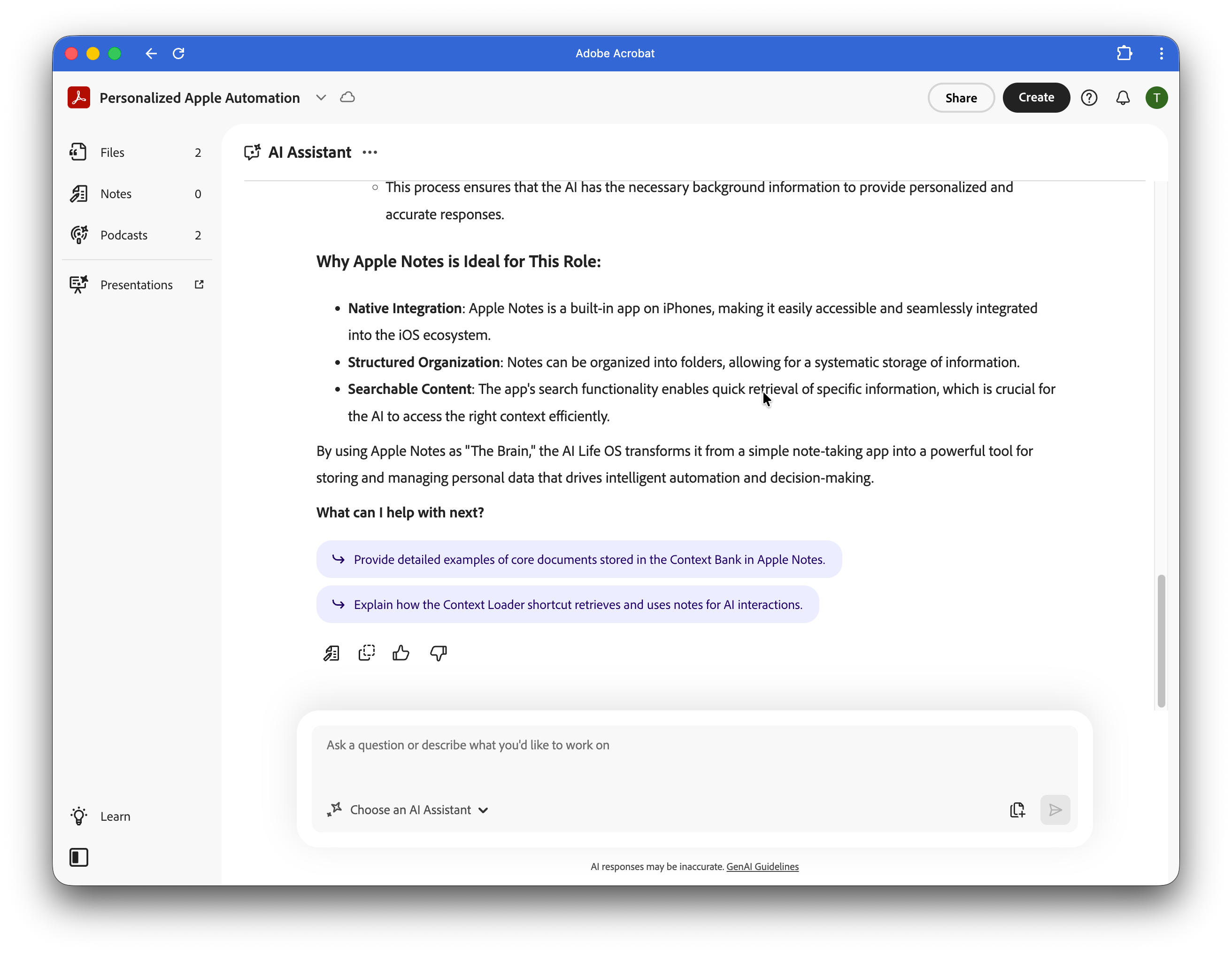
PDF Spaces give you access to cross-document analysis. The AI Assistant can read across the entire Space, so it turns a folder of disconnected files into a searchable knowledge base. Which means your whole team is working from the same set of facts.
Turn Your Backlog Into a Podcast
Long guides, onboarding docs, research papers, internal playbooks, that link you bookmarked three months ago: all technically important, all permanently postponed. Not because the content is bad, but because reading isn’t the right interface for absorbing it.
It’s Not Just for PDFs Anymore
Acrobat’s Generate Podcast changes the format without changing the source. And the source isn’t limited to just PDFs. You can now feed the AI web links, raw transcripts, meeting notes, and text files alongside your documents.
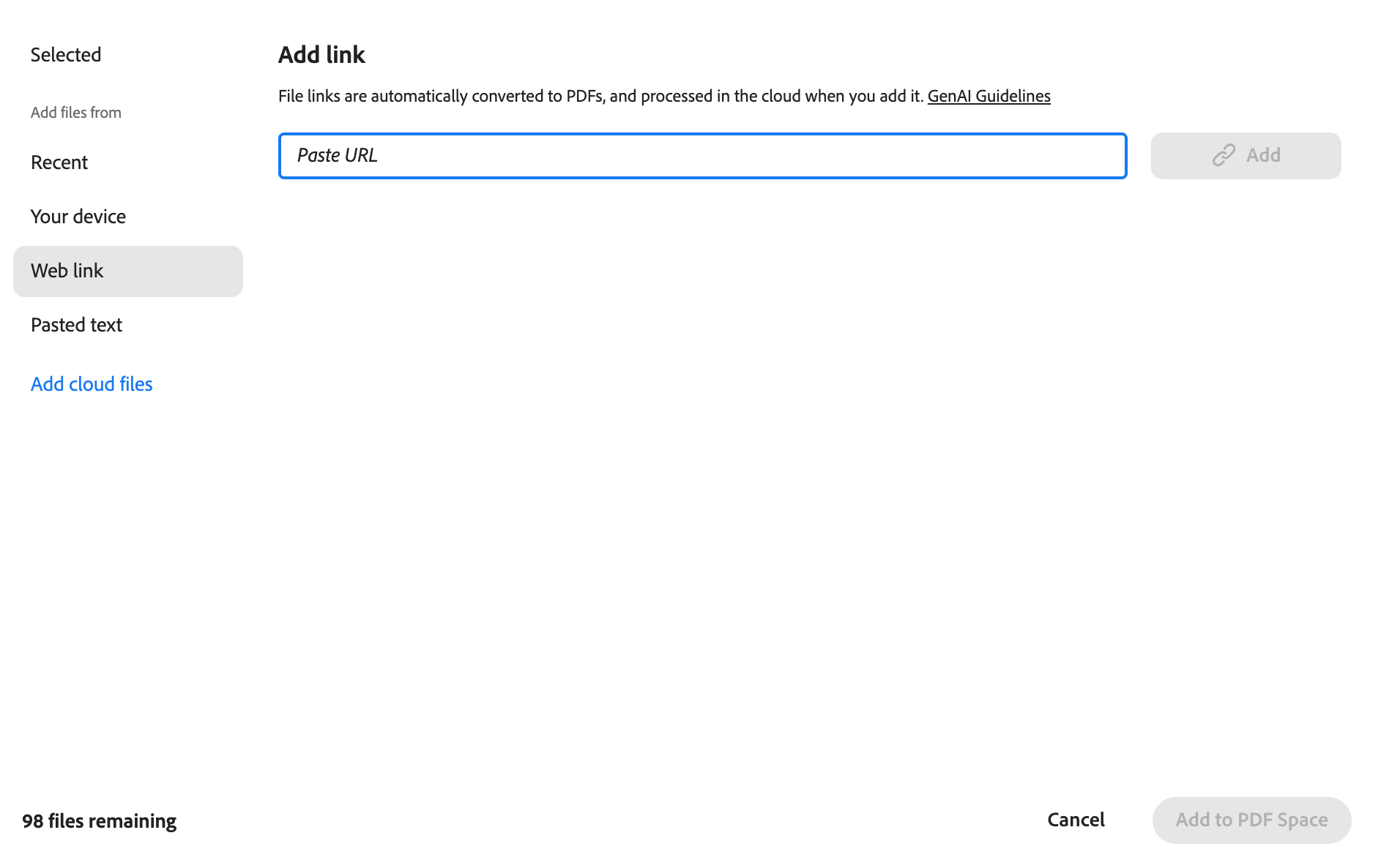
You can dump a URL, a chaotic transcript from a Zoom call, and a technical PDF into a single PDF Space, and the AI will synthesize all of it into one cohesive audio episode. The document becomes a conversation: two hosts walk through the material, surface what matters, and explain it in an informative conversation.
You can pick:
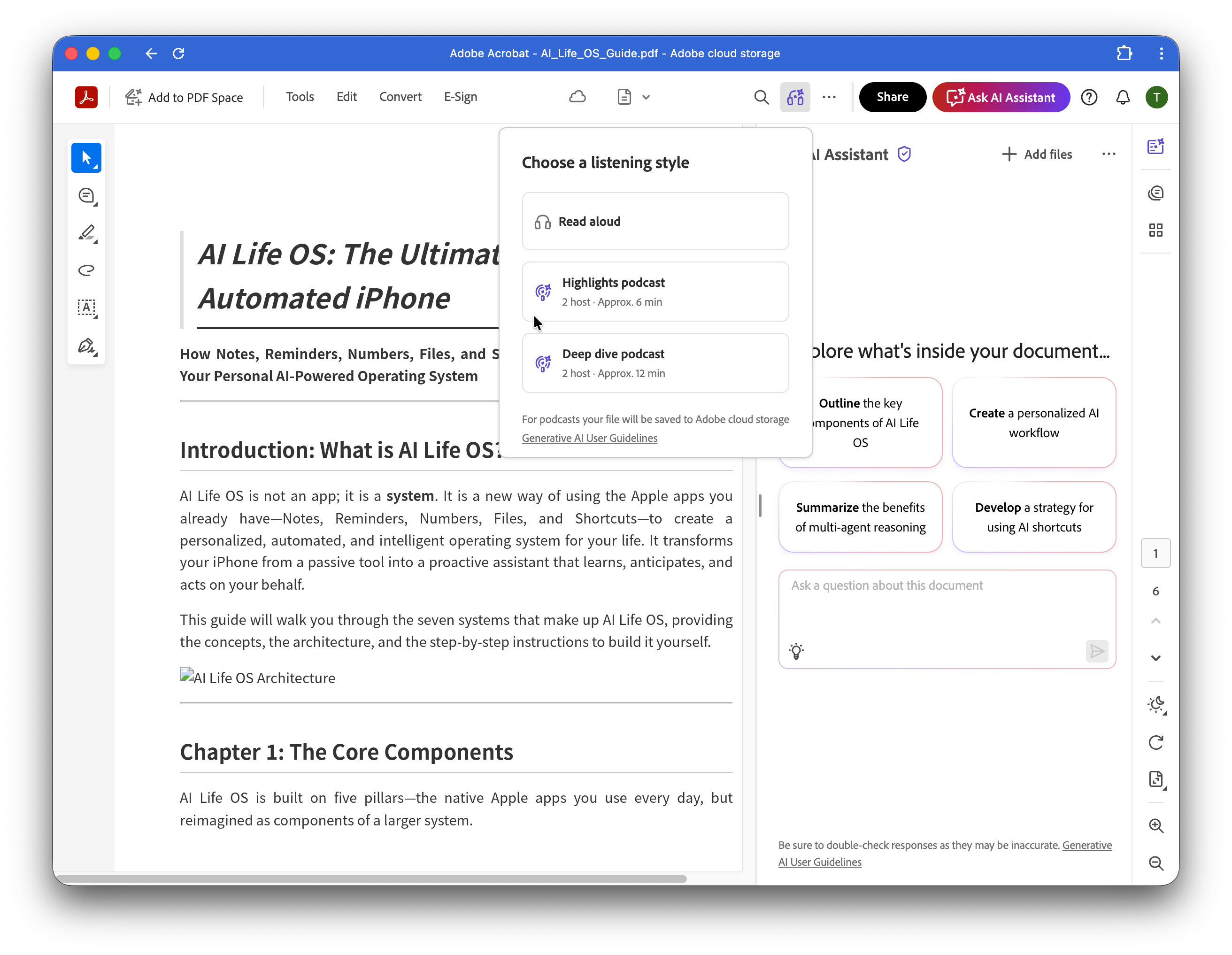
Highlights for the short version
Deep Dive for the full breakdown
To generate, open the PDF in Acrobat, click to choose a listening style, select your mode (Highlights, Deep dive, or Read aloud), and hit play.
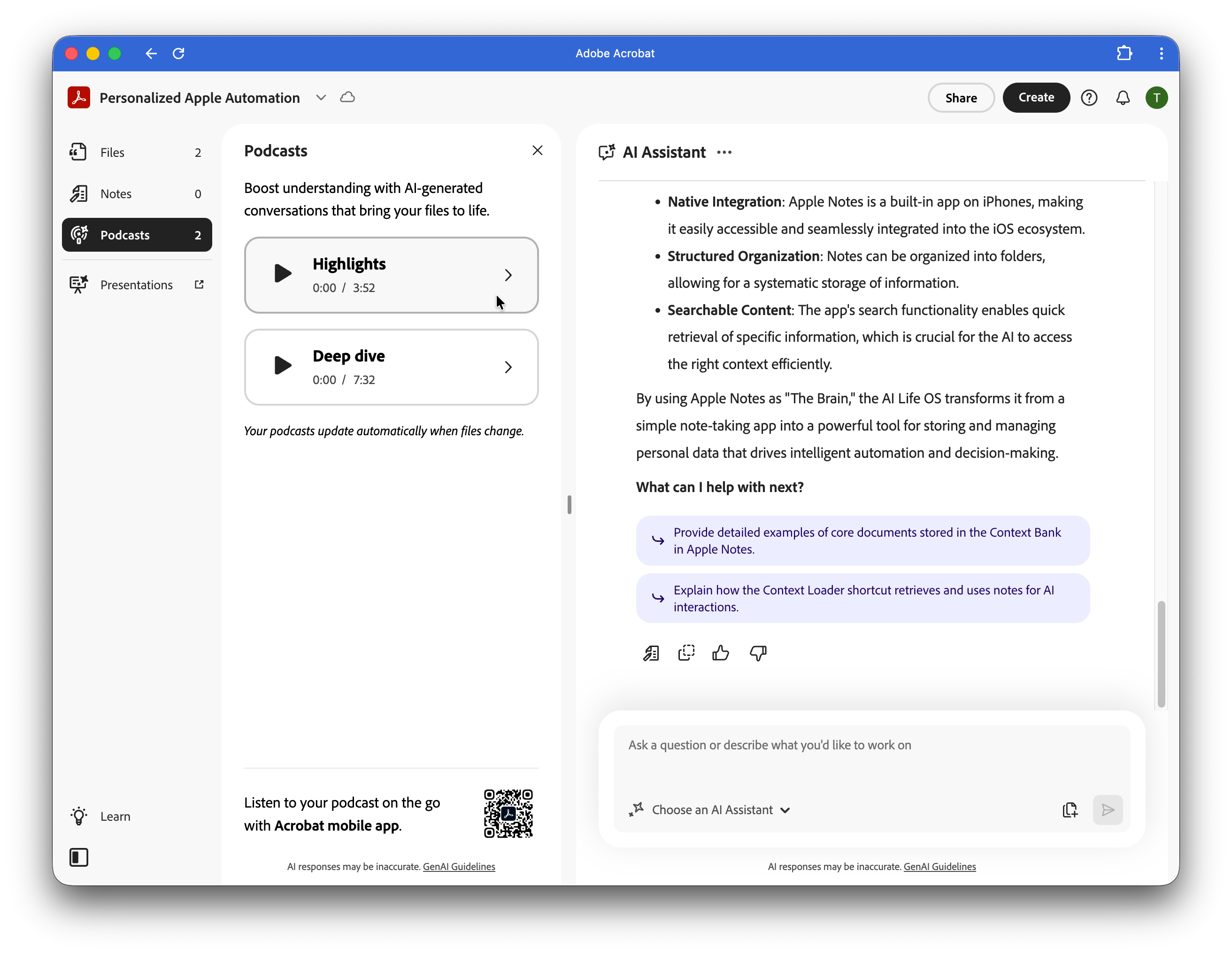
When you add new files to a PDF Space, your podcast updates automatically to include that content. Your document collection becomes an audio library that grows with your work.
You’re not manually regenerating podcasts every time you add a file, the system adjusts and grows with your work.
Podcasts are available in the sidebar menu on PDF Spaces:
This works great for research papers, industry reports, dense technical guides, case studies, or any content where you need to understand the material but don’t need to reference specific citations while reading. If you need to verify exact sources, you want the next workflow instead.
Work Moves. Context Doesn’t.
All of this lives inside Acrobat Studio across desktop, web, and mobile, so the same Space, podcast, or deck follows you between devices.
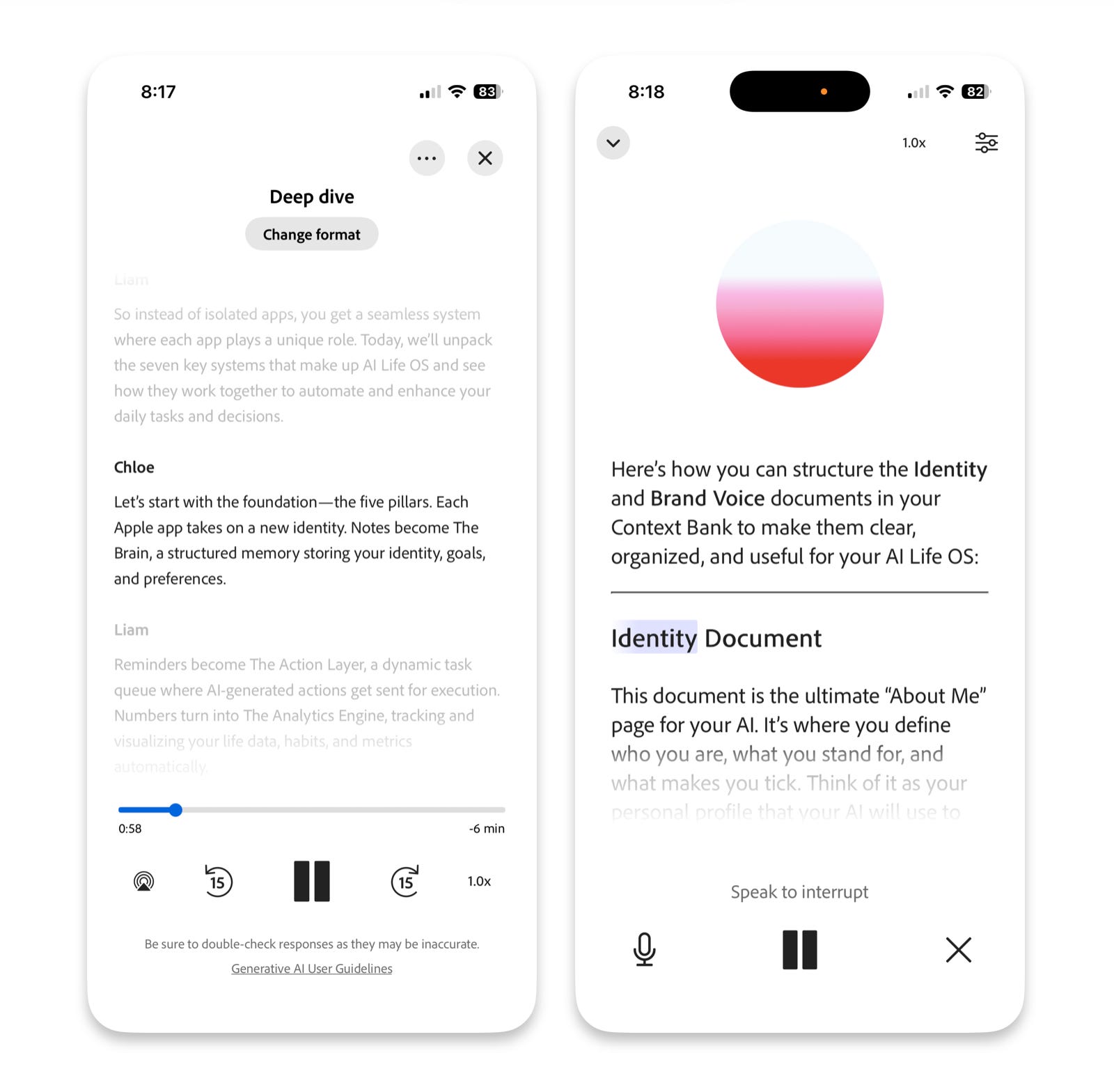
This is where cross-device actually matters. You can generate a podcast from a PDF Space on desktop, then pick it up on your iPhone like any other audio, commuting, walking, or doing admin work without reopening the document. The same files stay live in the background, so you’re not exporting or re-generating anything. You’re just switching interfaces, not workflows.
Talk to Your Documents
Finding one clause in a 50-page contract means scrolling forever, scanning walls of text, hoping you don’t miss it. You know the information is in there somewhere. You just have to find it.
AI Assistant reads your PDF and answers questions about it. Every answer comes with clickable citations linking to the exact location in the document where it found that information.
This isn’t a chatbot giving you a summary based on its training data. This is Acrobat analyzing your document and showing you exactly where in that document it got each piece of information. Click the citation and it jumps to that exact sentence.
Open your PDF and ask a question in the AI Assistant chat. Review the response and click the citation to verify the source. Acrobat is giving you analysis with receipts
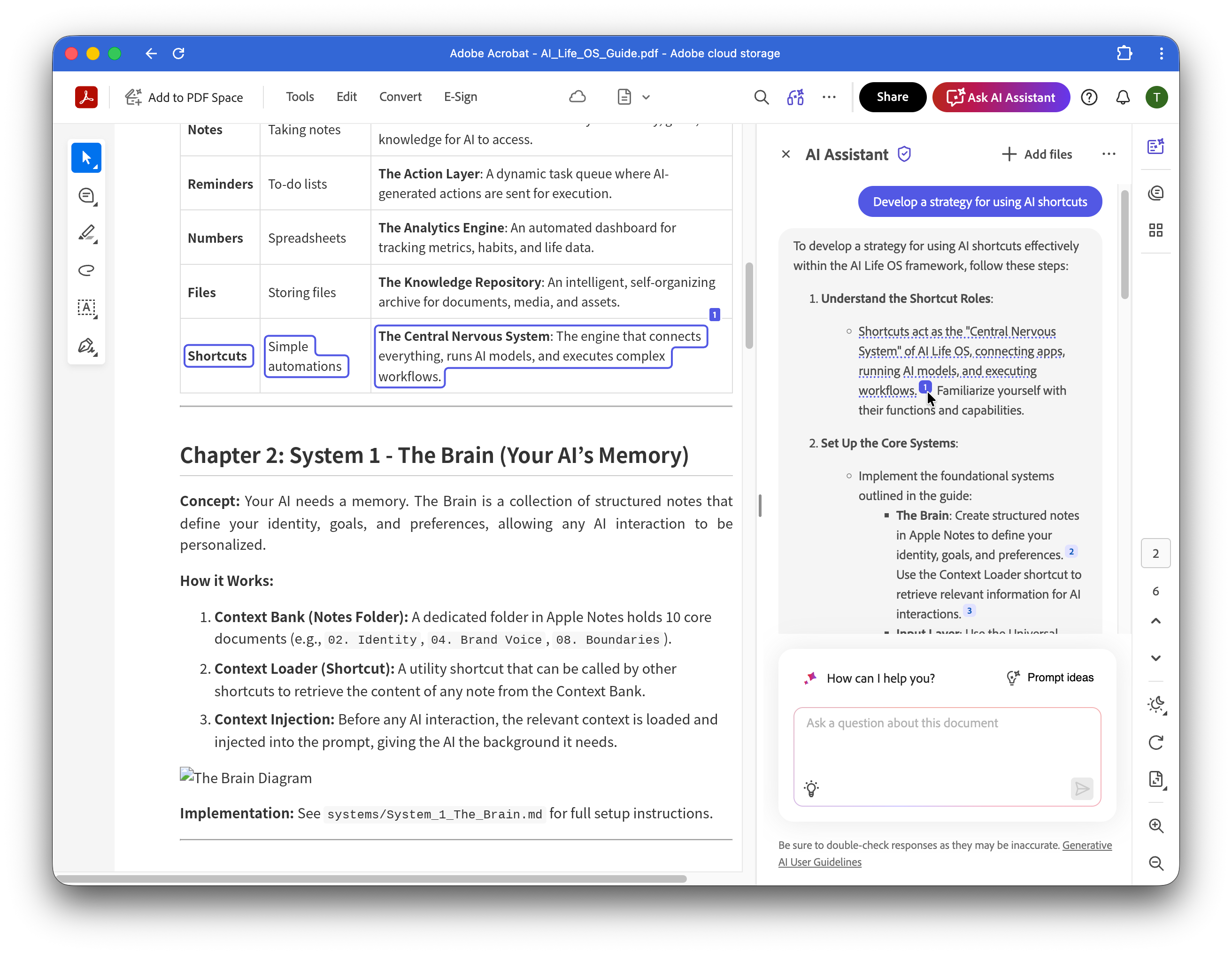
Ask anything you want to know about the file you’re working with, and AI searches, pulls the relevant information, and shows you exactly where it came from.
Build Presentations in Under a Minute
The gap between having the data and presenting the data is where time disappears. You read a report. You understand it. Then you stare at a blank PowerPoint slide trying to figure out how to structure what you just read into something presentable.
Generate Presentation takes your source PDF and builds a slide deck based on the content. Structured outline, professional layouts, relevant imagery from Adobe Stock. You get a draft deck in under a minute.
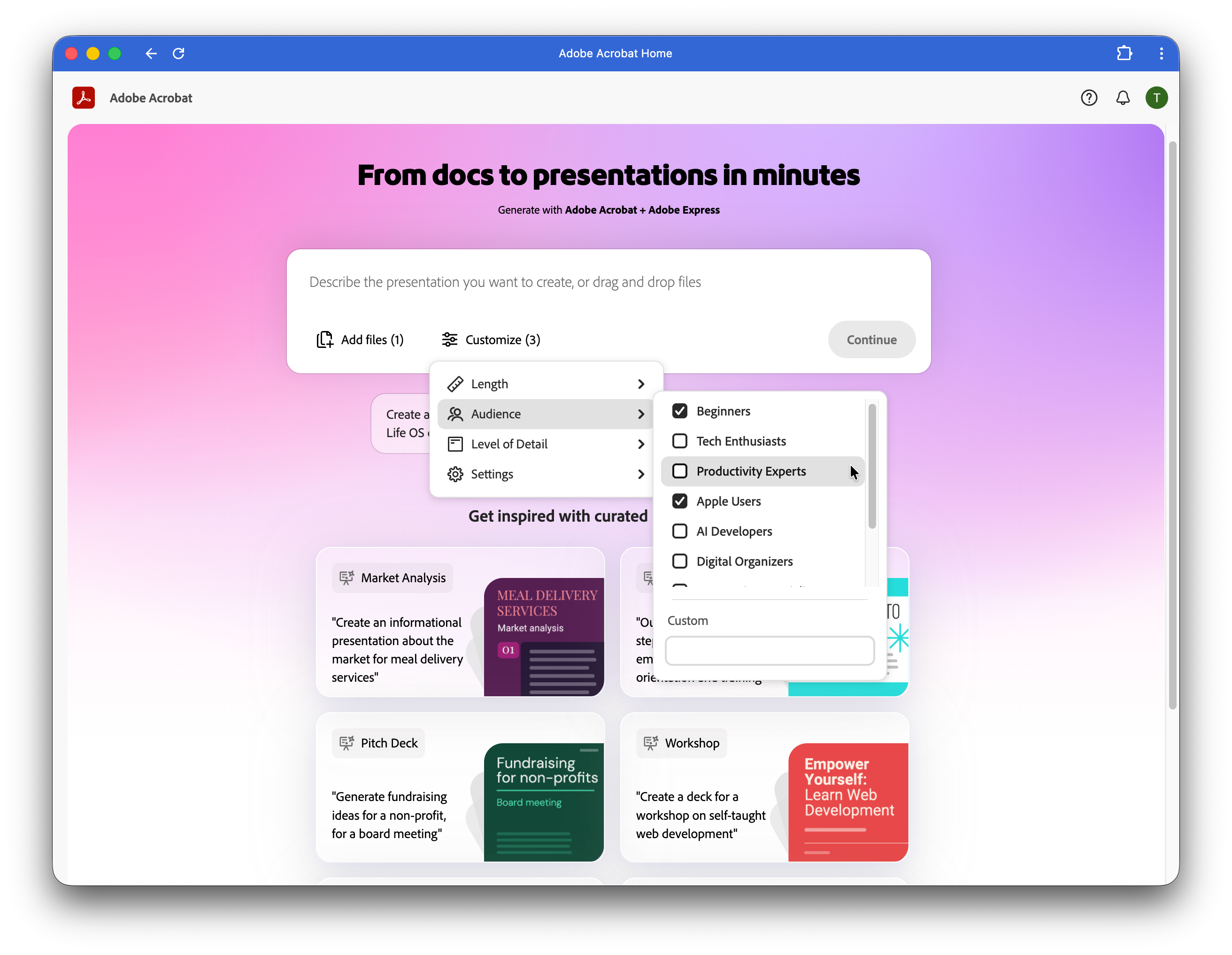
Upload your PDF. Select how many slides you want. Specify your audience and level of detail. The AI analyzes the document structure and generates an outline. You can customize that outline before it builds the slides. Choose from template options. The deck generates and opens in Adobe Express where everything is fully editable, text boxes, graphics, layouts, all of it.
This replaces the manual work of translating a report into slide format. You read the content once, the AI structures it into presentation format, you refine it. Instead of reading, then outlining, then building slides from scratch, then finding images, then formatting everything to look consistent.
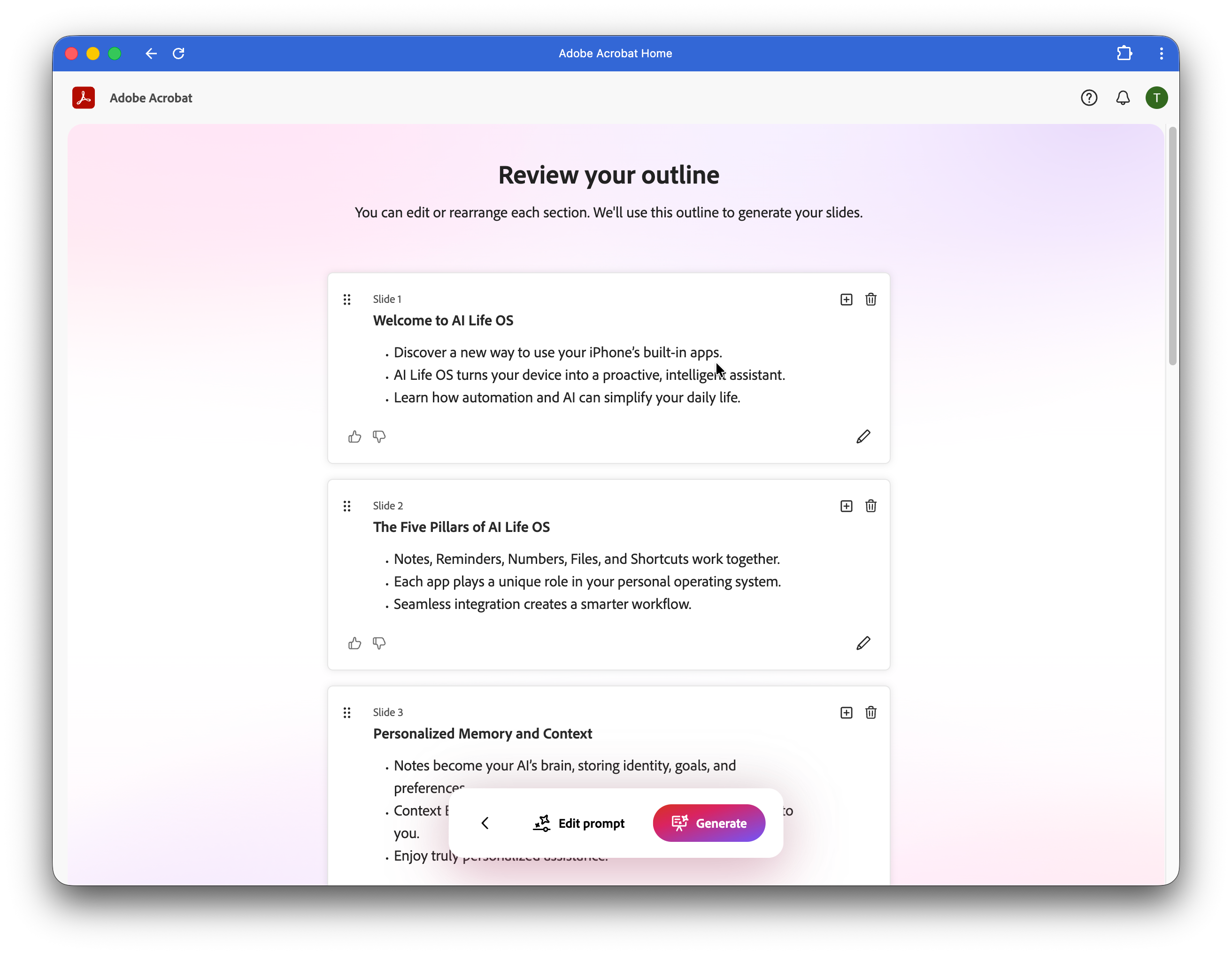
Use this for teaching materials, client deliverables, presentation decks, or any template-based content built from existing documents. The AI handles the structural translation from document to slides. You handle the refinement and customization.
Edit With Voice Commands: Chat to Edit
Administrative friction kills momentum. Digging through three layers of menus to find “Organize Pages” or “Split Document” is a waste of energy.
The new Chat to Edit feature allows you to bypass the interface entirely. You just type what you want to happen:
“Delete the last two pages.”
“Split this into three separate files.”
It executes the command immediately. This sounds minor until you have to process a batch of ten documents. Being able to direct the software with natural language rather than navigating menus is a significant efficiency upgrade.
You’re not navigating menus. You’re saying what you need and Acrobat handles the execution. This works for routine maintenance tasks where you know exactly what you want to do and you just want it done without clicking through multiple screens to get there.
The Trojan Horse PDF
You might be thinking: “Why can’t I just drag this PDF into a free AI tool online?”
You can. But you need to know about a hack called prompt injection.
It sounds technical, but it’s actually terrifyingly simple. Think of it like invisible ink for AI.
Hackers can hide invisible text inside a PDF, like white text on a white background, that you can’t see, but the AI can read.
Security researcher David Kyazze calls this "Indirect Prompt Injection," noting in a recent report that OWASP has ranked it the #1 AI security threat of 2025.

So when you upload that “Free E-Book” or “Resume Template” to an AI chatbot, the hidden text tricks the AI.
This is called a prompt injection attack and it’s the number one AI security threat right now.
When you use the AI built inside Acrobat, you’re working in a contained environment. You aren’t exposing your session to the open web in the same way. You’re keeping the conversation locked inside the document. It’s the difference between reading a book in your living room versus reading it in the middle of a crowded mall where anyone can whisper in your ear.
Look, we all want to be more productive. Taking a dense contract or quarterly report and uploading it to an AI tool for a quick summary is incredibly tempting. This is what the industry calls “Shadow AI.” It sounds ominous, but it usually stems from good intentions: trying to get work done fast.
When you paste confidential information into a free, public AI tool to quickly summarize key terms, that data leaves your control. There’s no record of where it went, who might access it, or how the AI model might use that information later. Some platforms explicitly train on your inputs, others say they don’t, and tracking the policies requires its own workflow. You’re handing over proprietary information to an external system you don’t govern.
Adobe’s AI Assistant is built inside Acrobat’s existing security infrastructure, so the analysis happens where your documents already live. For documents that require security controls, everything stays in one governed location. Enterprise-grade tools like Adobe generally guarantee they won’t use your specific data to train their public models. (A promise that many free, open-web AI tools can’t make).
You get summaries, generate slide decks, or interrogate documents without leaving Acrobat. Because the AI comes to the document, you don’t download, re-upload, or copy-paste text into a browser window. AI Assistant answers questions based specifically on the PDF you have open. It provides clickable citations linking to exact sentences, so you can verify immediately.
The best way to protect your data isn’t just about following rules. It’s about choosing the workflow that creates the least friction. When you use AI embedded directly in your document tool, you protect your data simply because you didn’t have to move it anywhere else.
Start Directing Your Documents
When PDFs become inputs instead of endpoints, your time stops getting eaten by work that doesn’t need you.
Monthly expense reports don’t require two hours of data entry. AI handles the extraction. You spend fifteen minutes checking for accuracy, then get back to work that actually matters.
AI doesn’t erase your workload. It just clears the parts that never required your brain in the first place.
Pick Your Starting Point
Pick one feature tied to real friction. Use a real document. If it saves time on work you already do, it’s worth keeping.
PDFs now have built-in AI that answers questions, converts formats, and executes commands. Test one feature against your actual work. Pick a real document, not a demo file. See if it saves you time on something you’d do anyway.
The Integrated Workflow
The goal of these updates is to centralize your workflow. We are moving away from app-switching toward a unified environment where you can audit, edit, and repurpose your data where it lives.
This isn’t hypothetical. Adobe reports that AI usage in Acrobat has increased 4× over the past year. Teams using AI Assistant are seeing up to 45% efficiency gains when summarizing and analyzing documents - mostly by cutting down rereading, cross-referencing, and manual extraction work.
What to Test First
Don’t try to change everything at once. Pick the workflow that solves your immediate friction:
If you are drowning in reading: Use the Podcast feature on your next heavy report.
If you manage complex projects: Create a PDF Space for your team and test the cross-document analysis.
If you are worried about security: Switch to the internal AI Assistant for your next contract review.
Your PDFs aren’t just static files anymore. Start treating them like active partners.
Adobe Acrobat’s new AI turns PDFs into living documents you can listen to, ask questions about, and instantly turn into presentations, making it easy to work with your files instead of just reading them
What a great review of Acrobat AI -- from the looks of it, it's a strategic alternative to NotebookLM. So for anyone who wants to get out of the Google ecosystem - AcrobatAI could be an option for you.