

Your iPhone Plans the Trip, You Just Go
Make your phone prep your itinerary, build a packing list, and stay secure when traveling

Your iPhone already saw your flight, hotel, calendar, boarding pass, and the weather where you’re going. It’s been sitting on all of that. You’re the one still opening five apps trying to piece the trip together.
I stopped doing that.
Now when I book a trip, my phone gathers the confirmations, checks the forecast, writes a daily itinerary, and builds a packing list based on where I’m going and what I’m doing. My itinerary is written before I pack. My packing list is already in Reminders.
And if my phone goes missing while I’m traveling, what happens next is already decided. The settings are either configured or they’re not. You either still have control or someone else does.
Before you leave, your phone needs a job description for both.
Give Your Phone a Plan: iPhone Travel Security Checklist
If your phone goes missing on a trip, these settings decide what you still have access to.
You gave your phone your passwords. Now give it a plan.
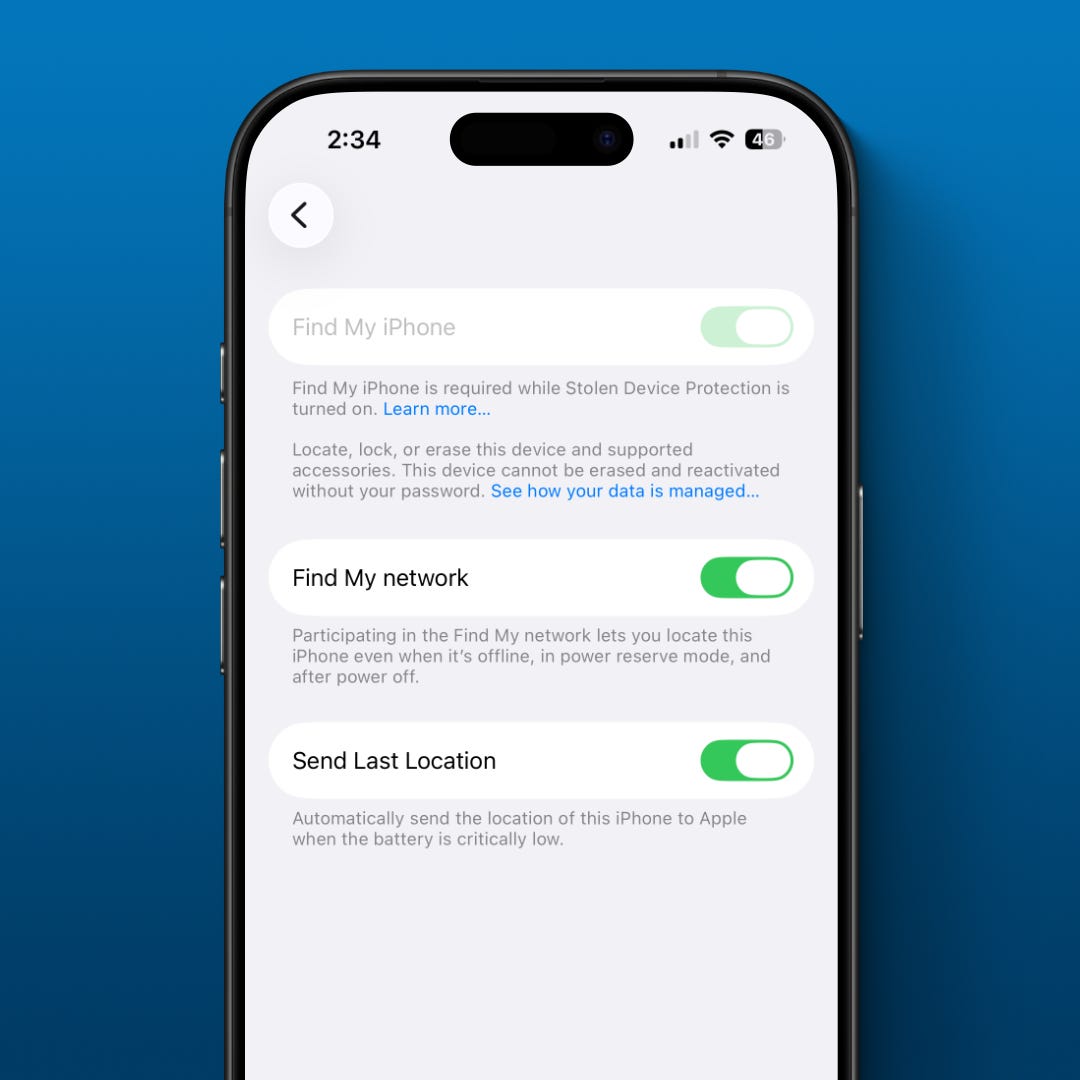
Turn on Find My iPhone
This is how you locate your phone and mark it as lost. Everything else on this list depends on Find My being active.
Open Settings
Tap your name at the top
Tap Find My
Tap Find My iPhone
Turn on:
Find My iPhone
Find My network
Send Last Location
Share your location with someone you trust
If something feels off, someone else can see where you are without you having to explain it in real time.
Open Find My
Tap Me
Turn on Share My Location
Tap People
Tap the add button
Tap Share My Location
Choose the trusted person
Turn on Notify When Left Behind
Your phone sends an alert if you walk away from it.
Open Find My
Tap Devices
Select your iPhone
Turn on Notify When Left Behind if it is available
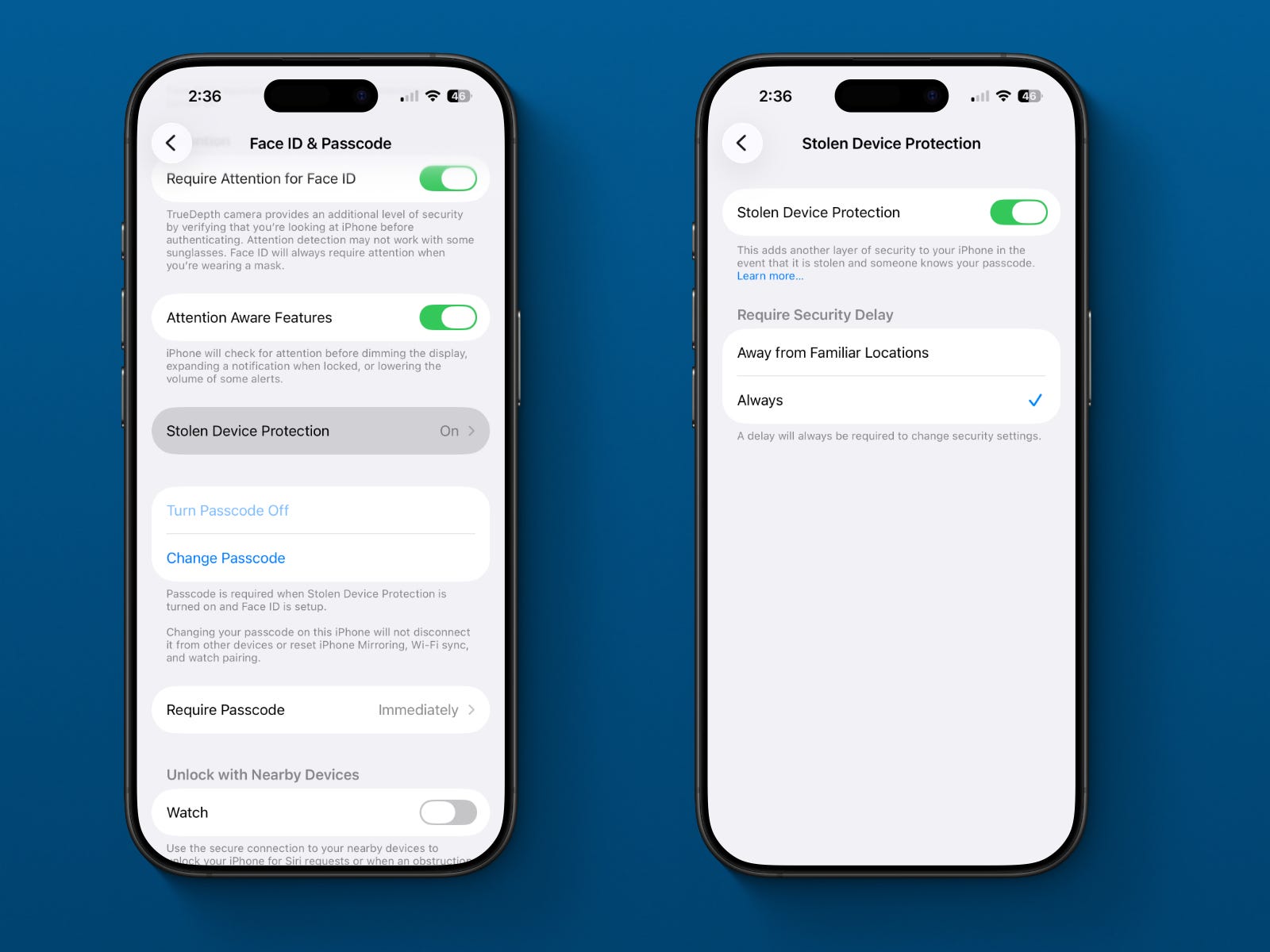
Turn on Stolen Device Protection
Knowing your passcode alone won’t be enough to take over your Apple ID. This adds a security delay and requires Face ID for sensitive changes.
Open Settings
Tap Face ID & Passcode
Enter your passcode
Tap Stolen Device Protection
Turn it on
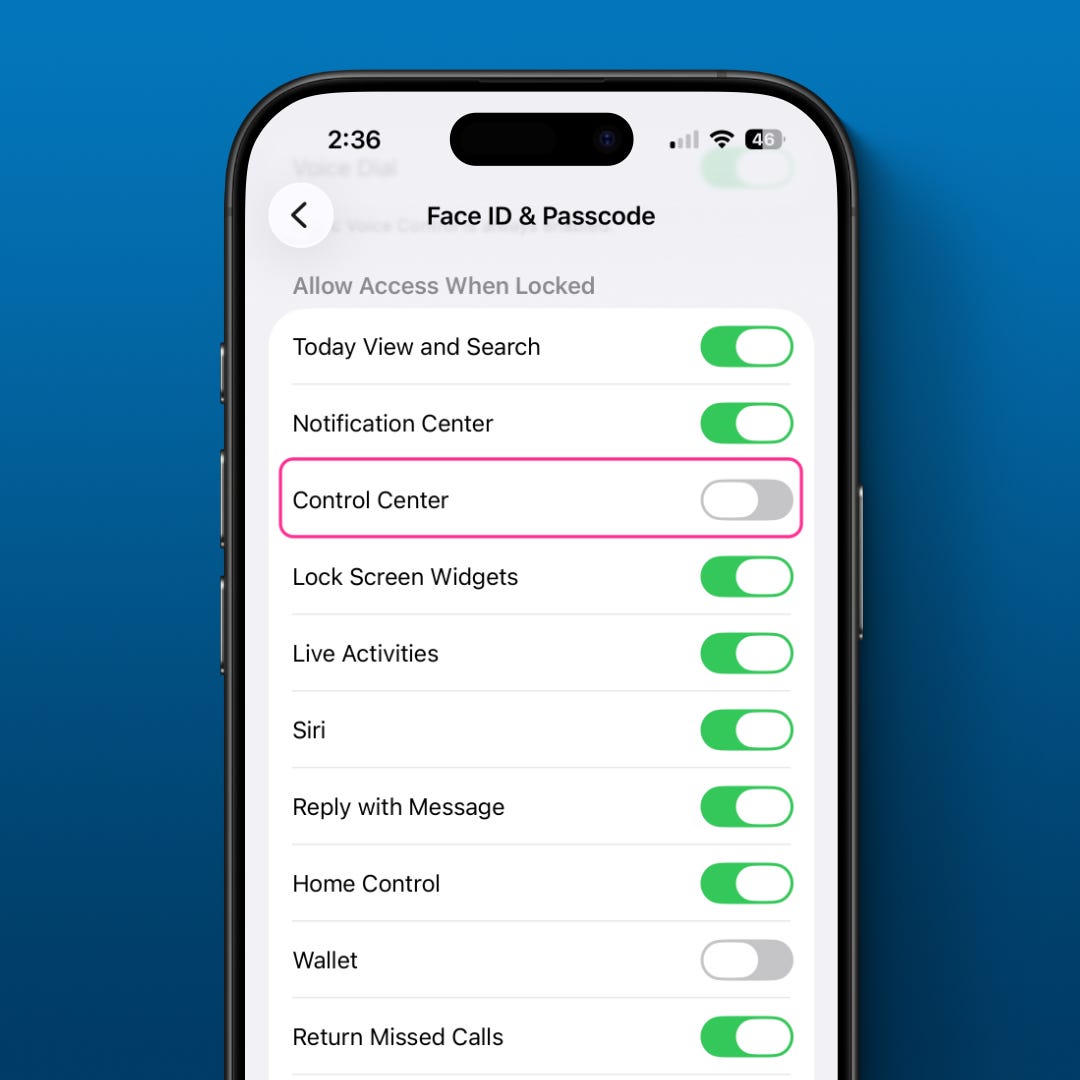
Turn off Control Center on the Lock Screen
If someone grabs your phone, they shouldn’t be able to swipe into Airplane Mode before you track it. Find My needs an active connection to do anything.
Open Settings
Tap Face ID & Passcode
Enter your passcode
Scroll to Allow Access When Locked
Turn off Control Center
Make sure passwords use Face ID
Your passcode gets you into the phone. Face ID gets you into your Apple ID and saved passwords. Those are two different access points.
Open Settings
Tap Face ID & Passcode
Confirm Face ID is set up and working
Keep Face ID required for sensitive account and password changes
If your Phone Goes Missing
Use another Apple device or go to iCloud.com/find.
Locate the iPhone in Find My.
Mark it as lost.
If you think it was stolen and cannot recover it, erase it remotely.
Do not remove the phone from your Apple Account until any theft or loss claim is finished.
Your phone can report back, lock down, and protect your access if it goes missing. Now your network is the next thing to set up before you leave.
Stop Using Public WiFi
Public WiFi puts your devices on a shared network with everyone else nearby. That is where fake hotspot names, exposed AirDrop visibility, and automatic reconnect behavior start becoming a problem.
Your devices are already making network decisions for you. Review those settings before you travel.
Use Your iPhone’s Hotspot
Go to Settings > Personal Hotspot on your iPhone and connect your laptop to that.
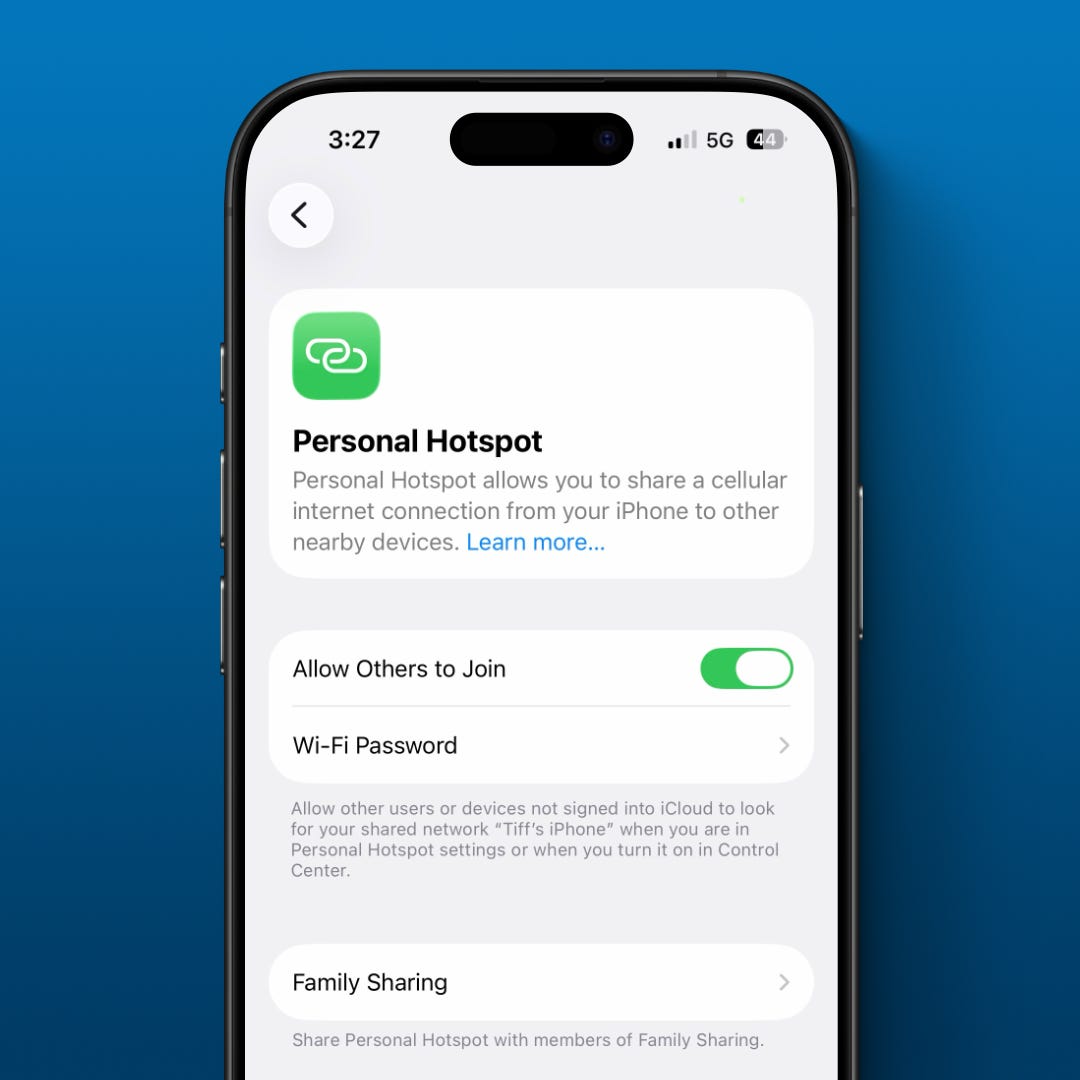
This runs your traffic through your carrier’s encrypted cellular connection instead of a shared room network. It’s faster than most hotel WiFi and removes the shared network problem entirely.
Set AirDrop to Contacts Only
Go to Settings > General > AirDrop and switch it to Contacts Only.
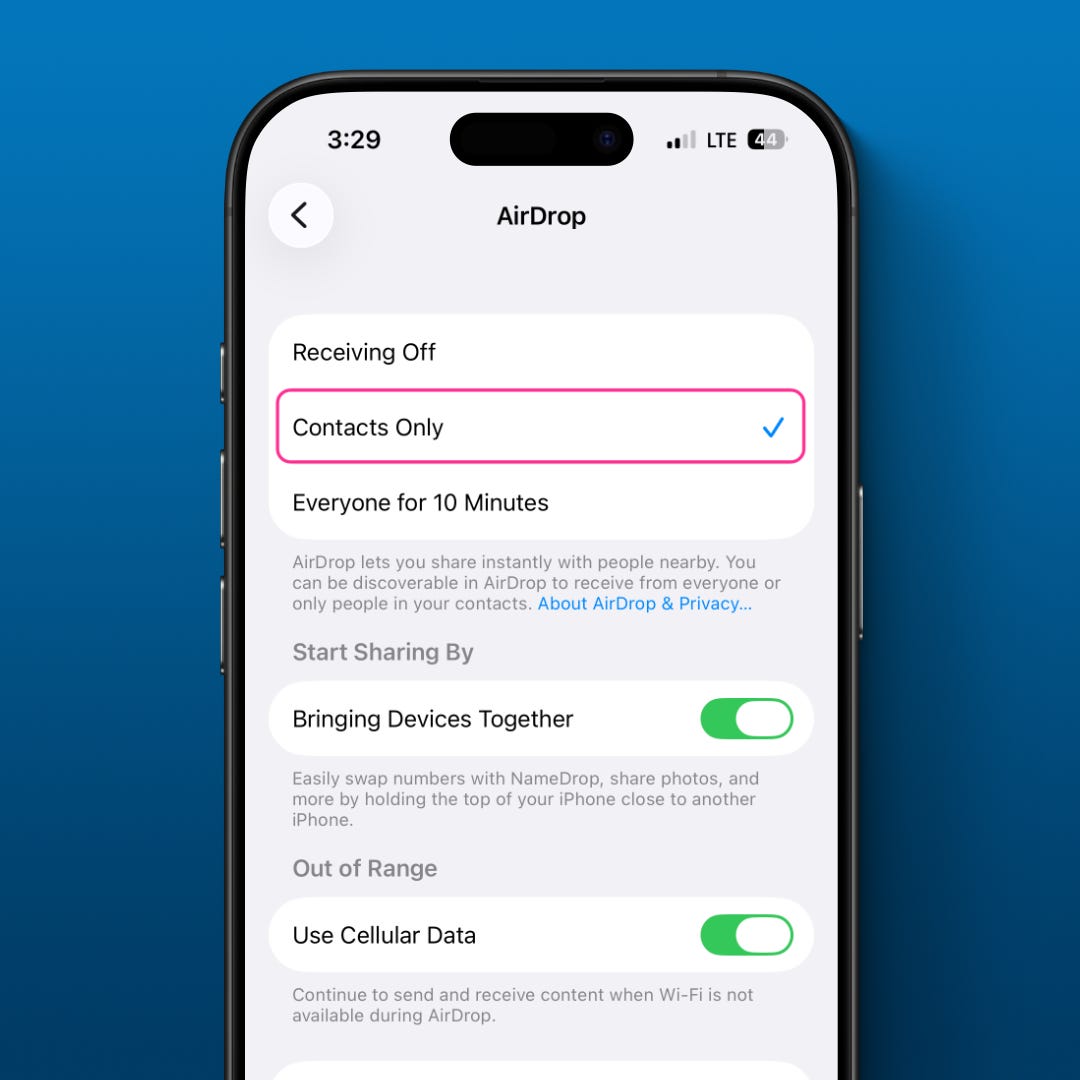
In a crowded space, your device shouldn’t be visible to everyone nearby.
Turn Off Auto-Join for Public Networks
On your Mac, go to System Settings > Wi-Fi > Details and turn off Auto-Join for any public network you’ve connected to before.
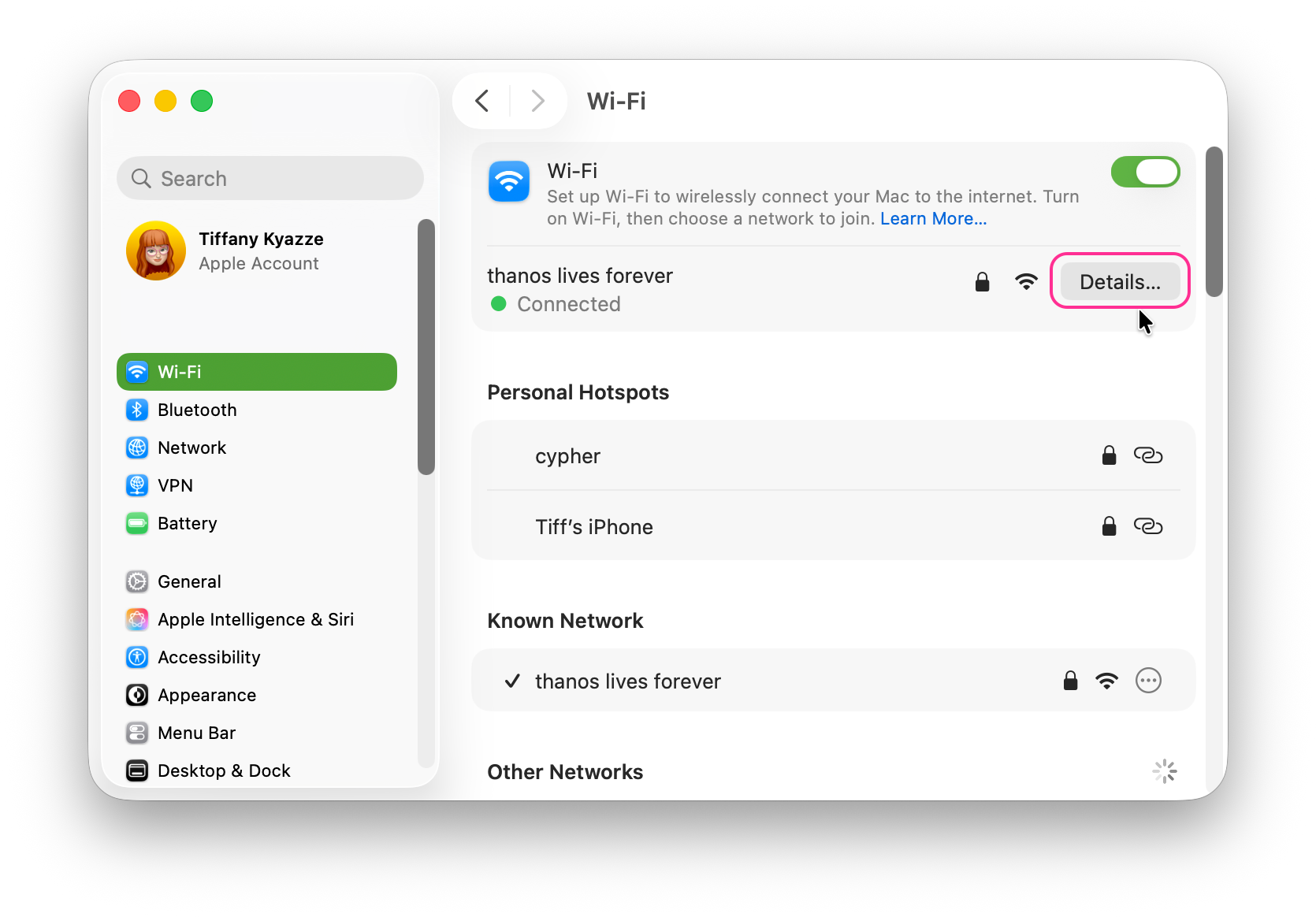
Your laptop shouldn’t reconnect just because it recognizes the name. You decide when it connects.
Your phone can protect the trip and run the trip. Set up both before you leave.
Your iPhone Plans the Trip
Your phone already has your confirmation emails, calendar, and boarding pass. This shortcut puts them together, hands everything to Apple Intelligence, and writes your daily itinerary into Notes.
Keep reading with a 7-day free trial
Subscribe to The AI Creator Drop to keep reading this post and get 7 days of free access to the full post archives.