

Teach Your iPhone to Check In
How to Get an Automatic Update From Your iPhone Every Time It's Plugged In

Your iPhone already knows where it is, what’s happening around it, and how to contact you. So if it goes missing, it should check in. That’s just basic communication.
That’s why I gave my iPhone a protocol for checking in. Whenever someone plugs my phone into a charger, it sends me its location and a picture of what’s around it.
I only enable it while I'm traveling, but it gives me one more way to know where my phone is if it ever ends up somewhere it shouldn't.
Here's how to build it.
Automate the Check In
Open Shortcuts and create a new Automation.
Set the trigger to Charger > Is Connected
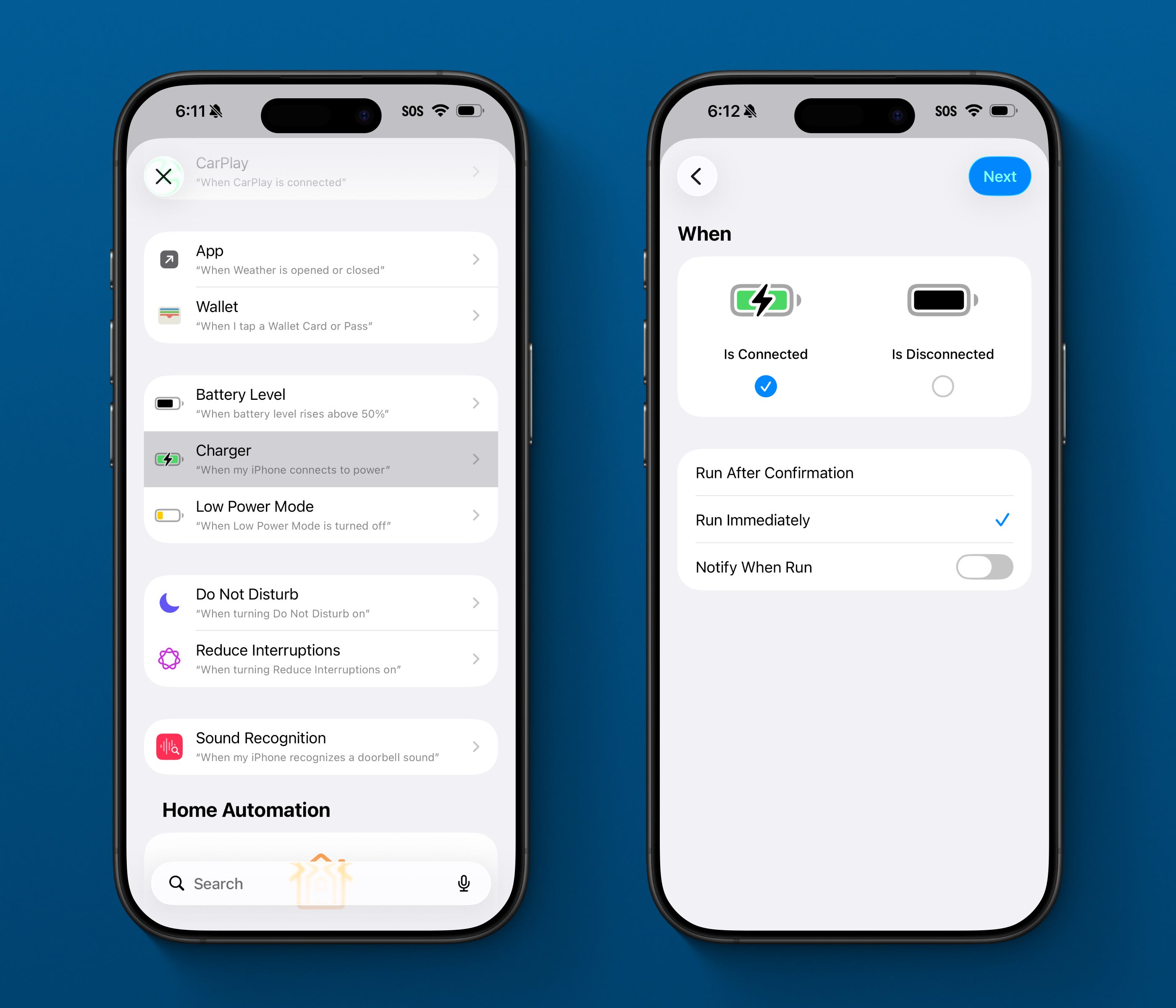
You want this running in the background without interrupting anything, so set it to Run Immediately with Notify When Run turned off.
Your Phone Gets Itself Back Online
The first two actions in the automation are Turn Airplane Mode Off and Turn Cellular Data On. These run every time, even if nobody touched your settings.
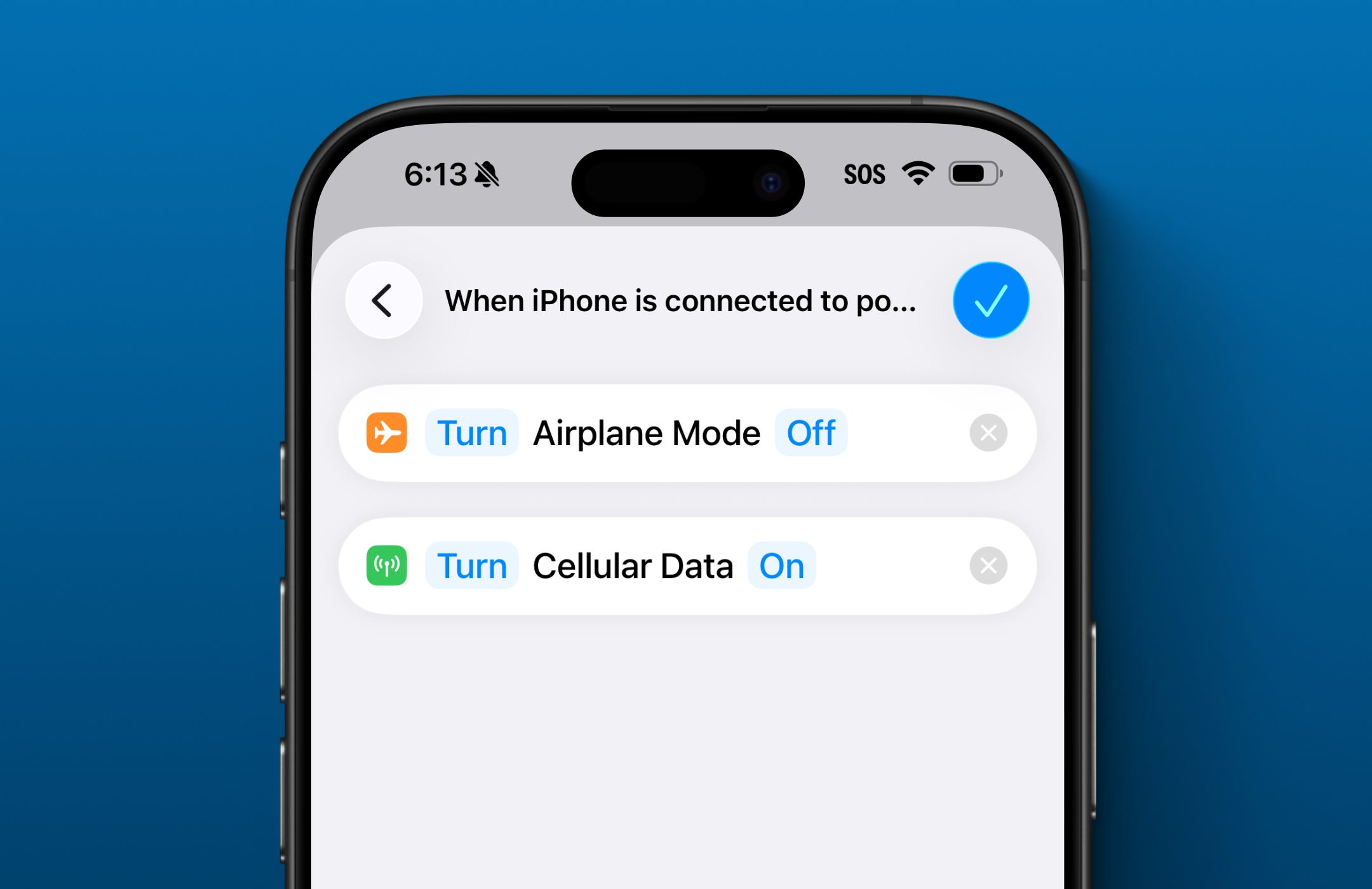
If someone tried to take your phone offline before plugging it in, these two steps undo that before anything else runs. If nobody touched anything, they fire silently and cost you nothing.
Grab the Location and Take the Photo
Your iPhone saves the location to every photo it takes.
Go to Settings > Privacy & Security > Location Services > Camera and make sure it’s set to While Using the App.
If it is, skip the Get Current Location action and use Get Details of Images instead to pull the location straight from the photo.
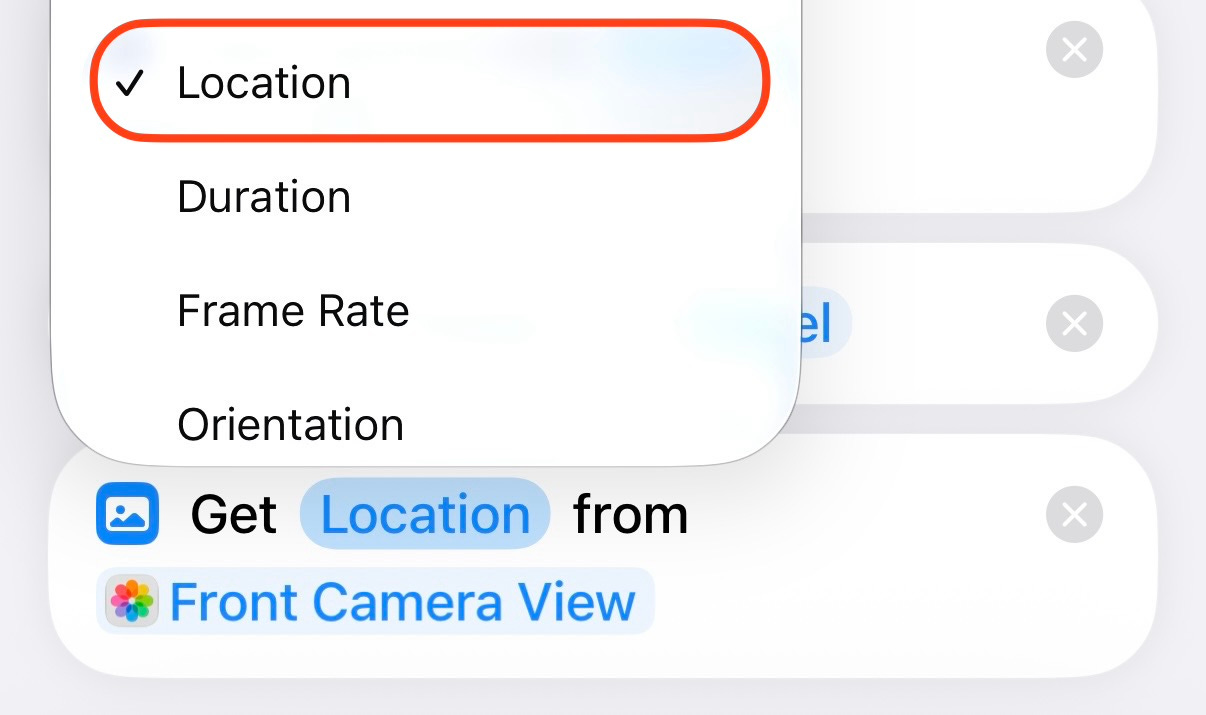
If it’s off, add Get Current Location with Precision set to Best.
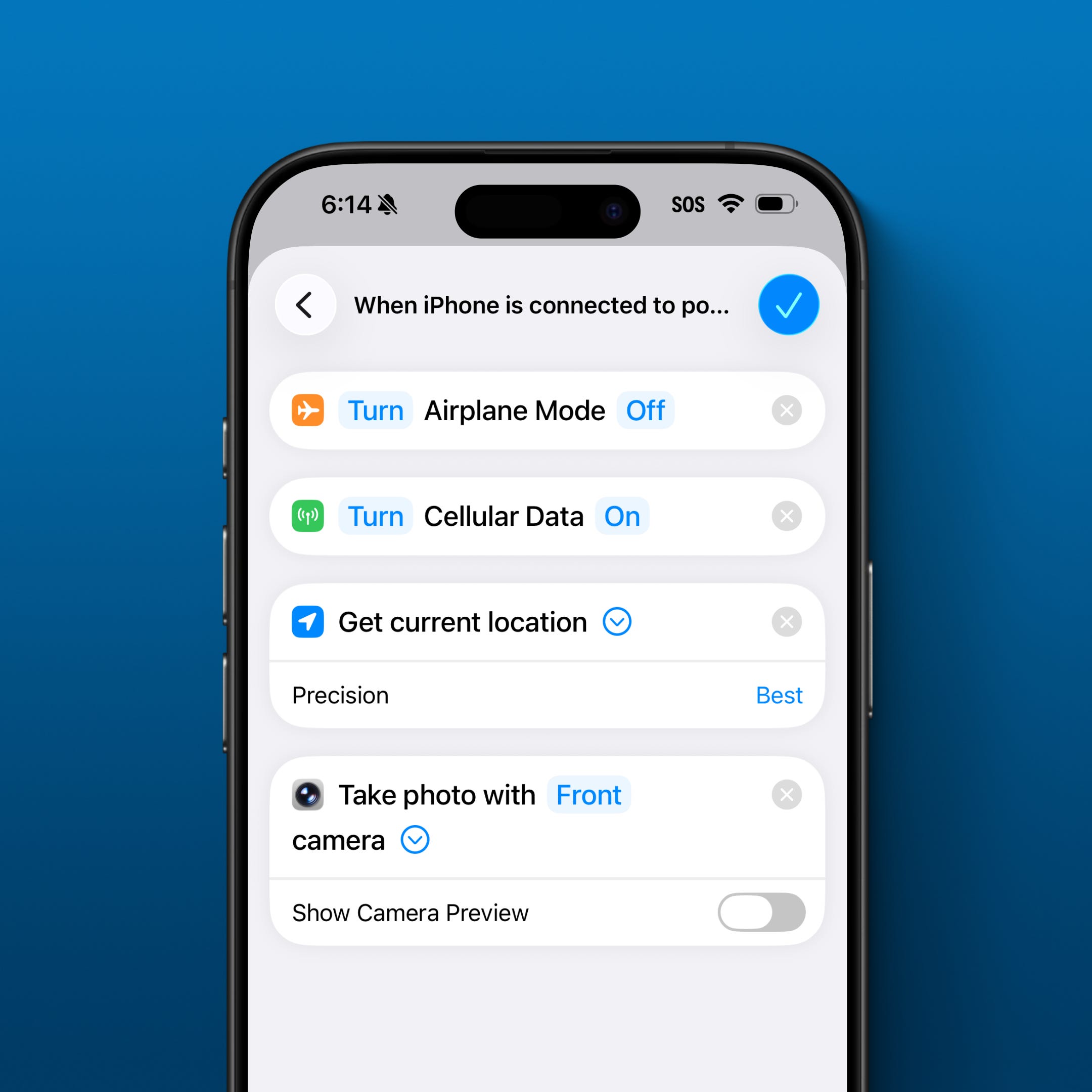
Then add Take Photo with Front Camera and turn Show Camera Preview off so the shortcut takes a picture automatically.
And now Shortcuts show a notification whenever an automation accesses the camera.
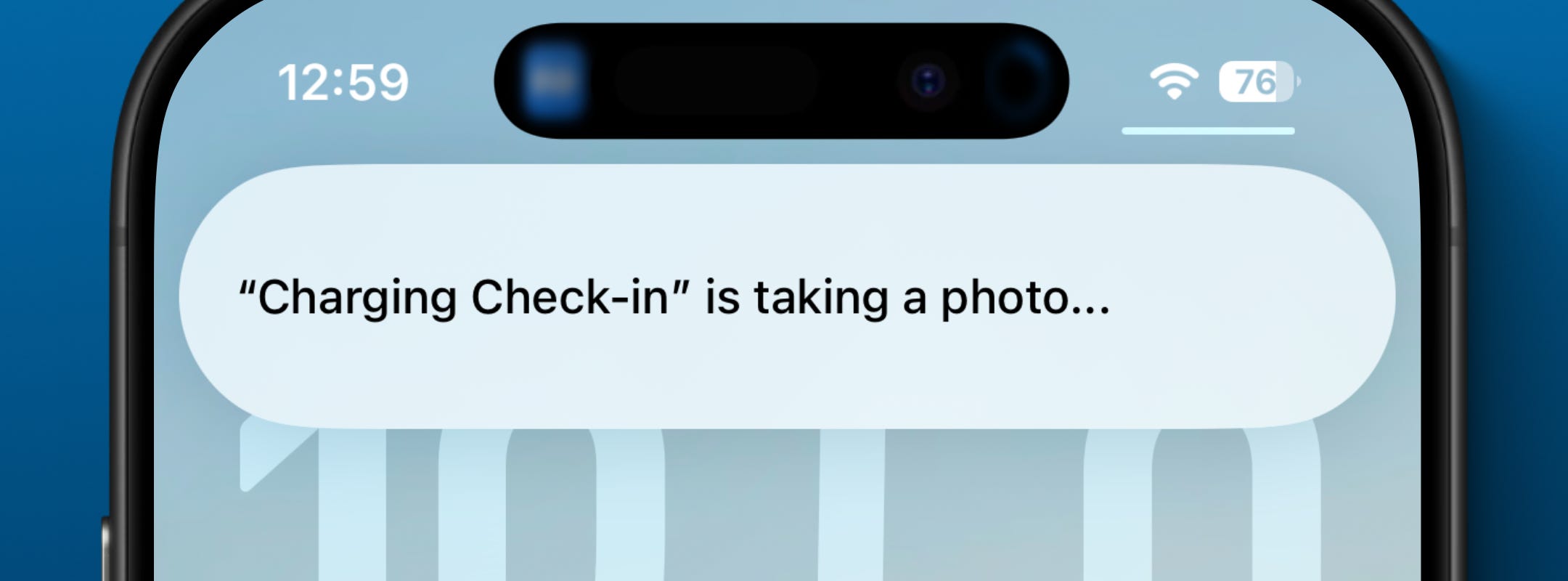
So if your phone takes a photo in the background, it tells you about it.
Send It Wherever Makes Sense
Once you’ve gotten the location and photo, send them to yourself or an emergency contact.
I send myself an email with my phone’s location and photo attached.
Shortcuts can send that info to a lot of places for you:
send a text
add it to a note
save it to a shared album
upload the file to iCloud
Turn It On When You Travel
This automation lives in Shortcuts turned off by default. This isn’t something I’d leave running every day. I only turn it on when I’m traveling.
Before a trip, flip it on. When you get home, flip it off. That’s the whole operating model.
Your iPhone already knew where it was, what it could see, and how to reach you.
This automation tells it when to report back.
This is just one shortcut.
The Shortcuts Vault includes more than 50 iPhone and Mac shortcuts from my videos, all organized in one searchable library with free updates as I build new ones.