

Your iPhone Got the Promotion
What changed in iOS 27 and how to put Siri to work

Your phone knows more about your life than any piece of technology you’ve ever owned. Now Siri works across that information.
At WWDC 2026, Apple gave Siri actual responsibilities.
So instead of answering questions, your phone understands context, connects information across apps, and takes action.
After a week with the developer beta of iOS 27, I’ve started handing my phone real work. Here’s what that looks like.
Your Phone Started Connecting the Dots
Your phone understands what’s on the screen, sees the app you’re using, and knows what you’ve already saved. So messages, notes, photos, and mail are searchable context for Siri.
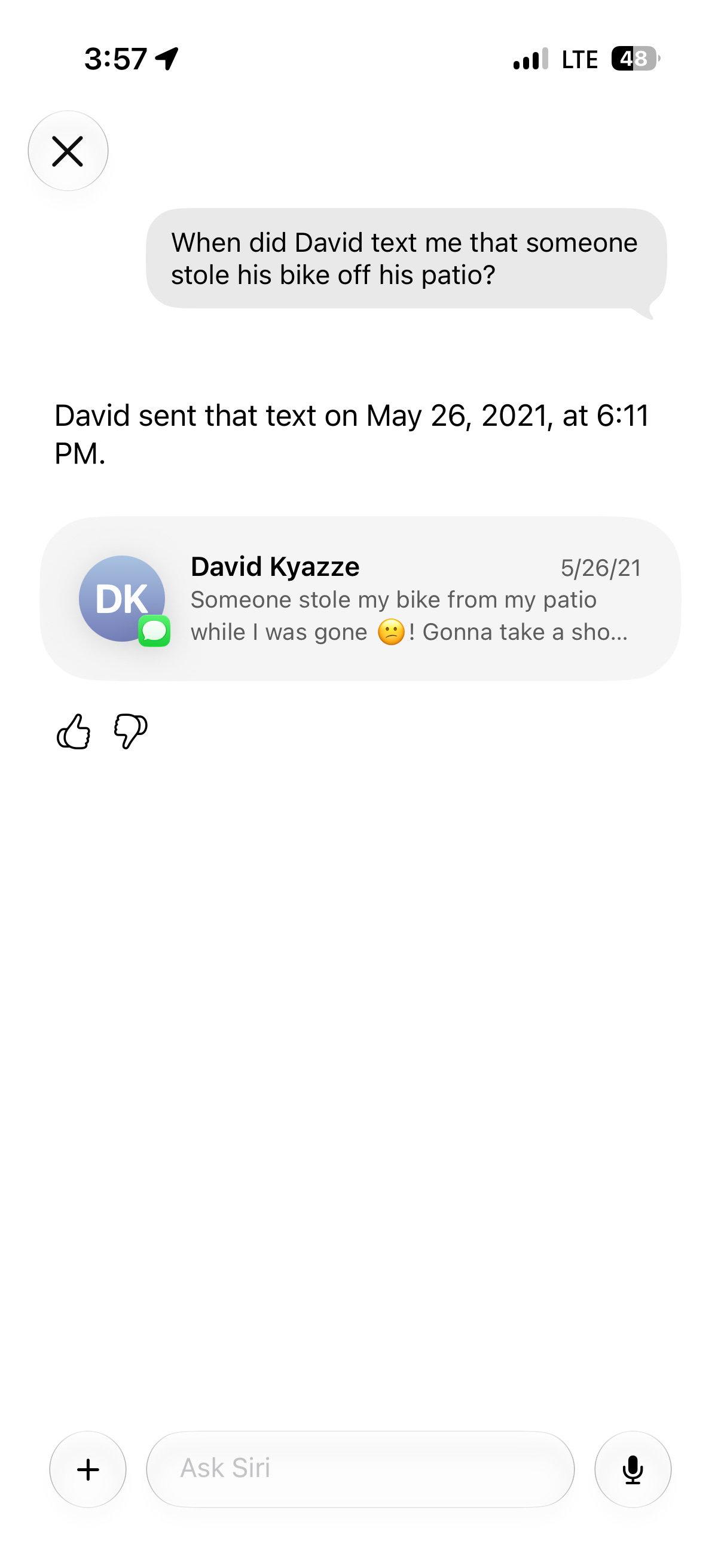
Siri can find a message from years ago, a recommendation buried in your notes, or build on information you’ve already collected.
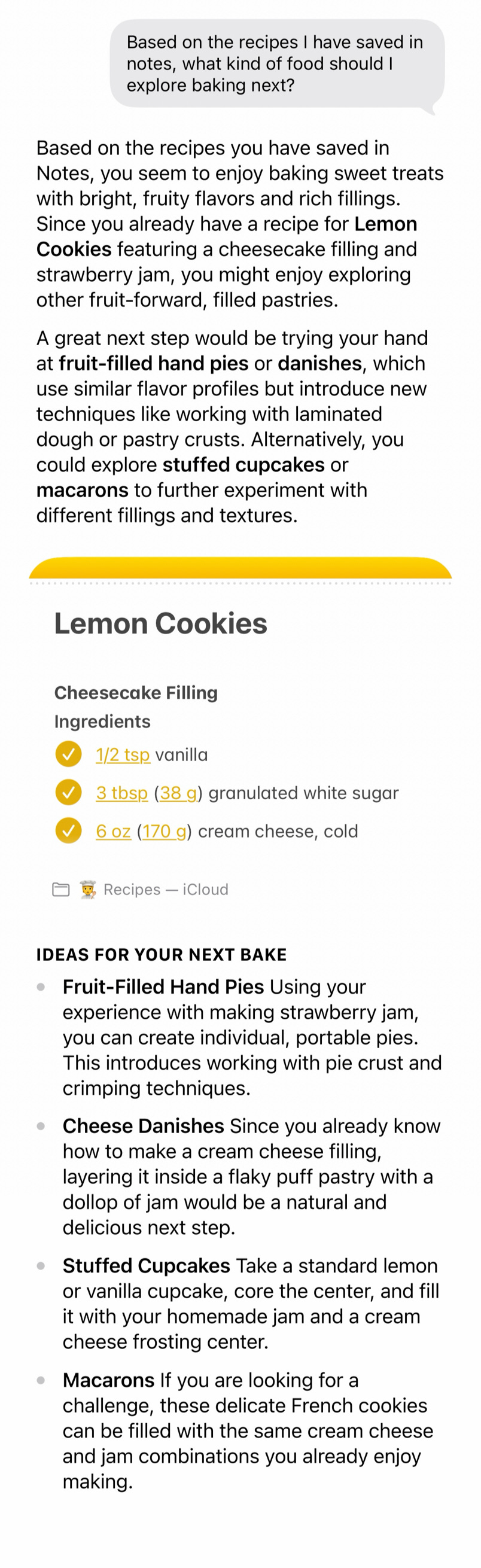
Your Phone Learned Where Things Go
The information you need is usually spread across multiple apps.
A flight confirmation is in Mail, meeting on the Calendar, an address in Messages, and your notes are somewhere else entirely. Siri works across those apps as a single system.
So a flight confirmation in Mail becomes a calendar event without you copying dates, times, airports, and confirmation numbers by hand.
The camera is part of the conversation now. Open Siri in Camera mode and it works directly from what it sees.
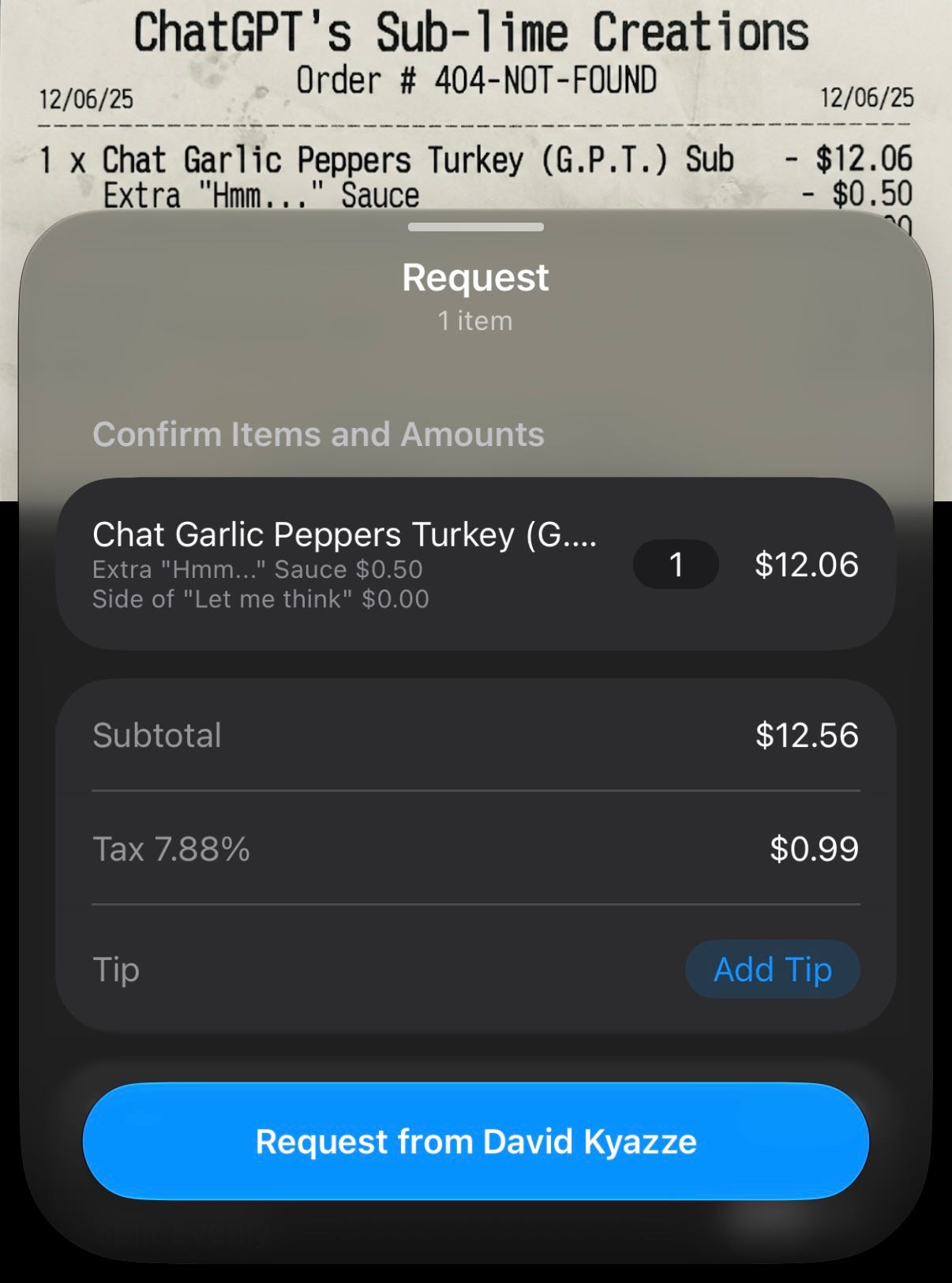
Take a picture of a receipt and tap to have it split the bill.
Your phone reads the receipt, calculates the amount, creates the payment request, and records the transaction in Wallet. So you’re not sitting there doing math at lunch.
Your Phone Started Following Through
Your phone acts on what it finds now. Apps across the system take action on your behalf.
Passwords
Tell Passwords to update a login that’s been compromised and it runs the whole errand.
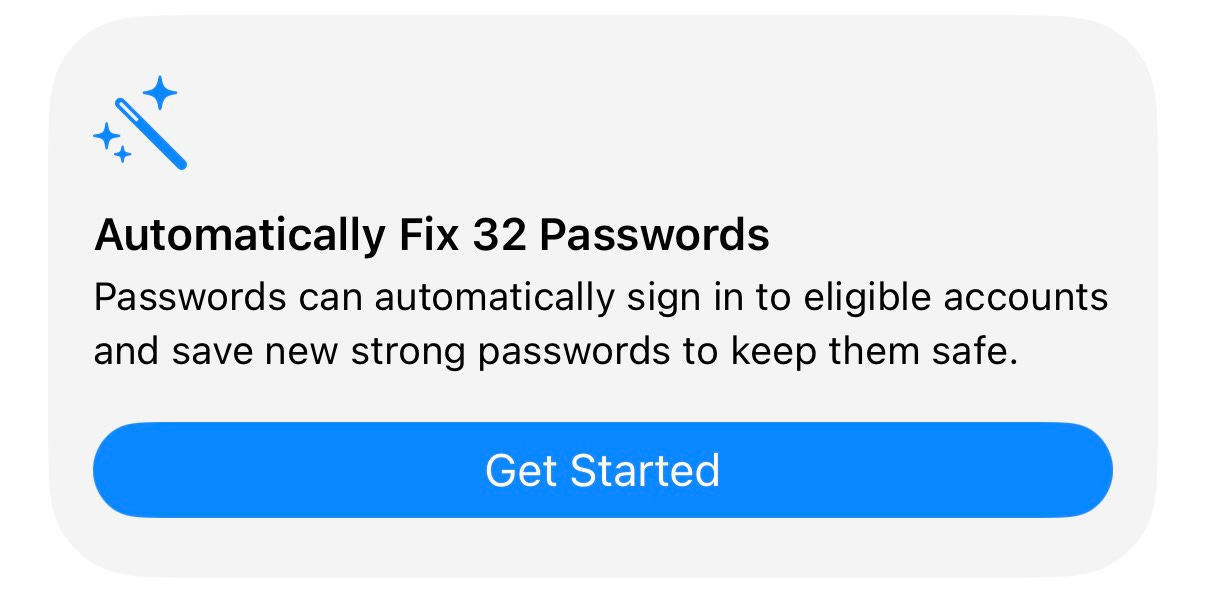
It opens the site, signs in, changes the password to a fresh one, and saves the new credentials, so the part you’d dread never reaches you.
Safari
The same idea shows up in Safari too where it started watching pages for you. Tell it what to watch and how often to check, and it pings you when something moves.
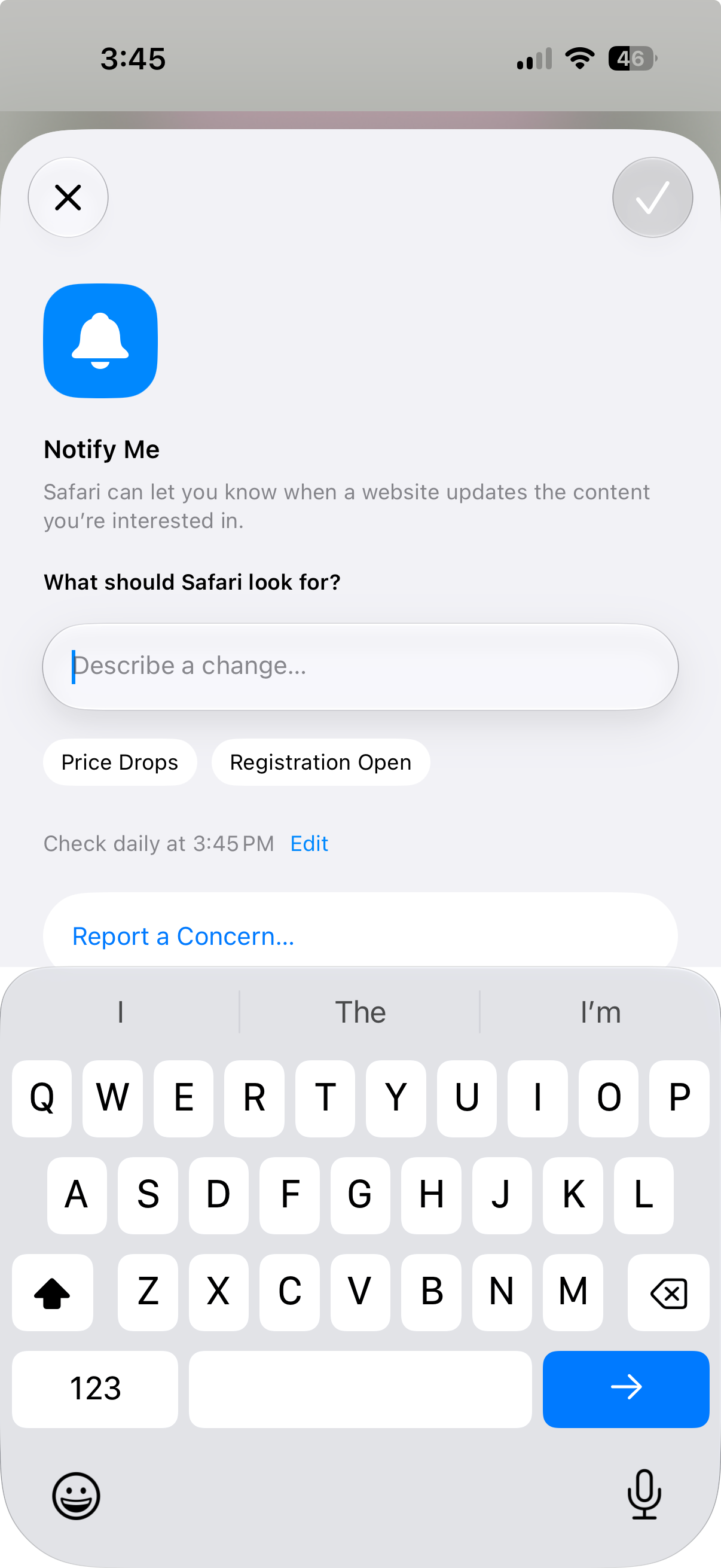
It groups related tabs on its own, and it builds browser extensions from a description of what you want it to do.
Shortcuts
Shortcuts went from something you build by hand to something you describe.

Tell it what you need and it assembles a working automation for you. The thing you’d have spent an afternoon wiring together in the app is one sentence now.
Reminders
Reminders writes itself from a description too. Tell it what you want to remember and it sets the reminder, with the timing and the trigger already in place.
Photos
Photos took on the kind of editing that used to need a second app.

Expand and recompose images from your camera roll with Extend and Spatial Reframing, running on Apple’s image models.
Siri Got an Office
The new Siri app keeps the conversation, remembers what you’re working on, and follows the task across your devices.
Under the hood, Siri has a lot more going on now than a chatbot answering questions. Apple combined its AI models, your personal context, on-screen awareness, and app actions into a single system.
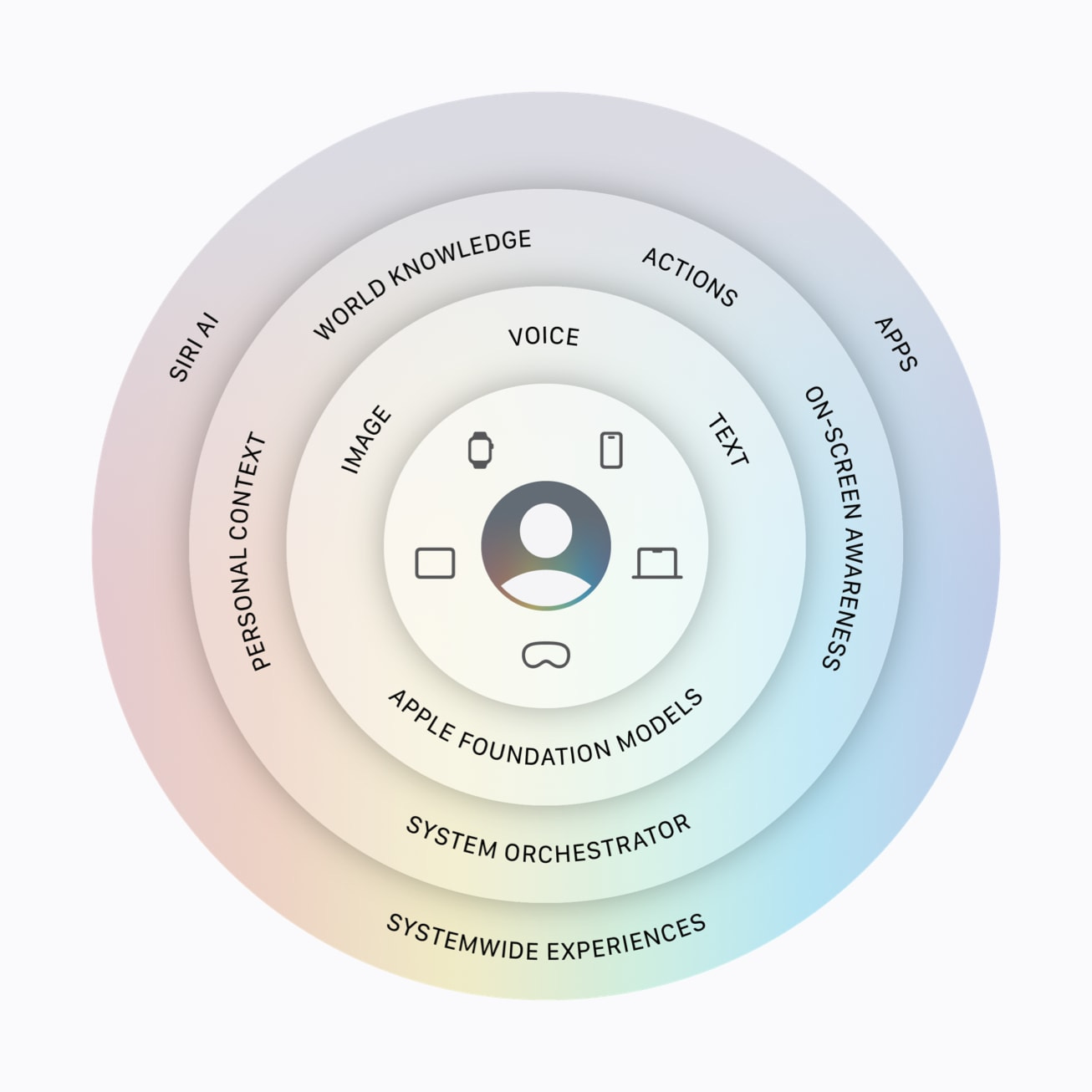
Together, those systems help Siri understand what you’re asking, find the right information, and finish the task.
So Siri takes a task, figures out the steps, and gets moving.
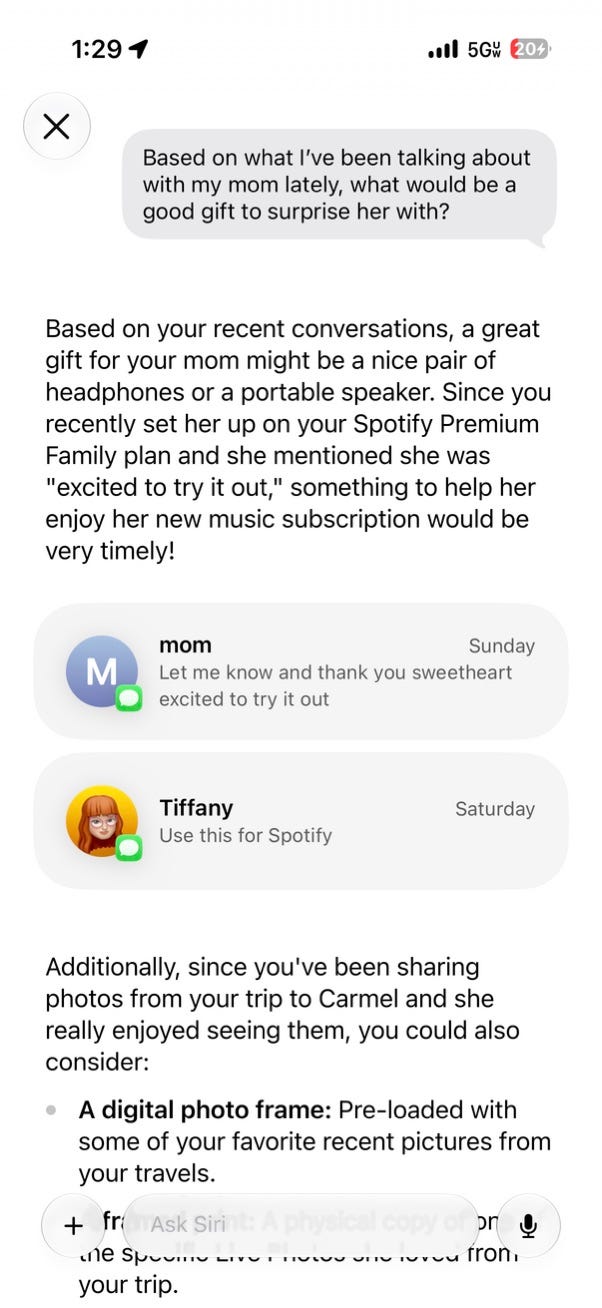
Siri already knows what’s on your screen, the app you’re using, what’s been saved on your device, and what you’ve already been talking about. So you stay in the flow of the task and keep moving.
Start with what’s on your screen
Siri works from where the information already lives. If something is on your screen, it is already part of the conversation.
So you open an app and give Siri the task while something’s in front of you:
“Send this to Sarah and ask if she’s free Friday”
“Add this to my reminders for tomorrow at 9 AM”
“Summarize this page and text me the short version”
“Take this recipe and add the ingredients to my shopping list”
Ask for the result
To get better results from Siri, give it the result you want.
“Put dinner with Sarah on my calendar Thursday at 6 and invite her”
“Remind me to call the vet when I leave work”
“Bring up that photo from the beach and send it to Mom”
You don't need to explain which app to open, where the information lives, or what happens next. Start with what you want to happen and let Siri figure out the steps, timing, and app switching required to get there.
Let Siri find the missing piece
When you know what you're looking for but not where it lives, ask for the thing itself.
The app searches across what’s on your device and what’s out on the open web in one request, then shows you what it found.
“Show me the photo of my dog at the beach”
“Find the email with the invoice attached”
“What was that sushi place I looked up Tuesday”
Ask for the thing without knowing where it lives, and the app covers your phone and the web at once.
Give Siri the Job
Once Siri has context, memory, and access to your apps, the conversation changes.
Get a daily update
“What’s my update?”
Siri brings together your calendar, reminders, weather, and other relevant information into a personalized briefing for the day.
Decide what to post next
“Based on what I saved in Notes today, what should I post about next?”Curate your camera roll
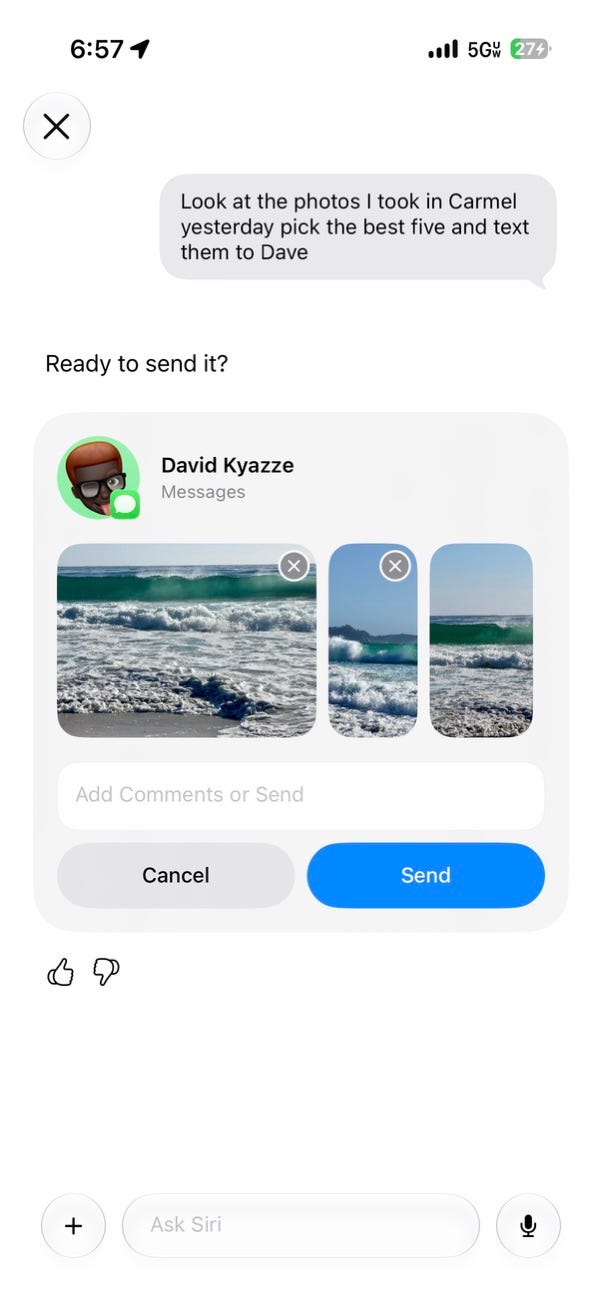
“Look through today’s photos, pick the five best, and draft a message to send them.”Prep for a meeting
“Find the emails about this project and tell me what I need before my meeting.”Set today’s priorities
“Based on my notes, reminders, calendar, and what I’m working on, tell me what to focus on today.”Turn information into action
“Look through my notes from today and turn any action items into reminders.”Organize what you collected
“Save every recipe I bookmarked this week into my Recipes folder and remove duplicates.”
Handle a follow-up
“Look at tomorrow’s calendar and send everyone I’m meeting a note confirming the time.”
Your iPhone already has the context. Now you can actually give it the job.
Your devices are starting to do more than answer questions. Assign the task and let your phone get to work.
Giving work to your devices is a skill. Inside AI Flow Club, we build the shortcuts, automations, and systems that make that skill practical every day.
Come build with us at flow-club.techtiff.ai.
Do you think iOS27 will have a capability like Pixel’s: Automatic Background Tracking?
If you own a Google Pixel, you don't even need to use voice commands or trigger an assistant to identify and save music.
Ambient Recognition: The Pixel has a built-in feature called Now Playing. It runs entirely on-device (no internet required) and constantly listens to the ambient audio around you.
Example: When you are streaming with the KEXP app, the phone will automatically identify the track and display the song title/artist right on your lock screen. Every single song the Pixel identifies is saved to a native Now Playing History list. Better yet, you can heart songs directly from your lock screen, and Android gives you an option to automatically sync your "Liked Now Playing" tracks directly into a companion playlist in YouTube Music or Spotify.
Essentially, a Pixel accomplishes third party integration entirely in the background without ever having to say "Hey Google" or leave the KEXP app.