

Claude Gave Your Phone a Job
How Claude manages your context, tasks, and files from one system you can access across your devices

Claude’s been running your desktop, managing your files, writing your reports, and coordinating your work for months. Meanwhile, your phone just sat there. Claude noticed.
Dispatch is the missing link that connects Claude in the mobile app to the context and tools on your desktop. Your phone isn't just for scrolling anymore, now it’s a high-level orchestrator.
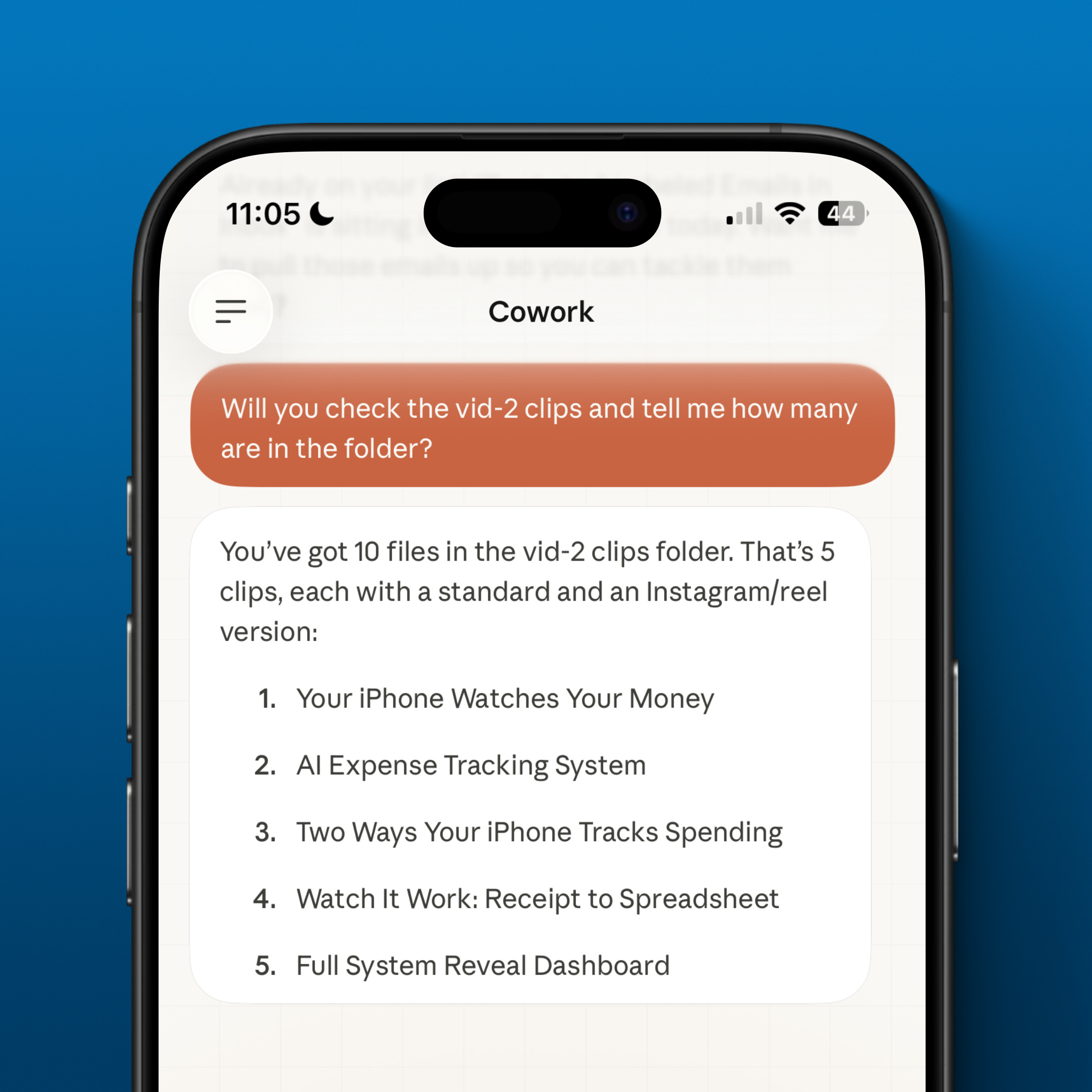
Prompt Claude in Dispatch, and Claude executes the task on your computer, pulling from your files, using your apps, and delivering the output exactly where you need it.
If you use Claude Code: Remote Control is the same concept for the terminal. Type
/rcin a Claude Code session and continue the conversation from your browser or phone.
Your Phone Reports for Duty
Dispatch creates one persistent conversation between the Claude mobile app and the Cowork session on your desktop.
What you send from your phone runs on your computer, with access to your local files, connected apps, and installed plugins.
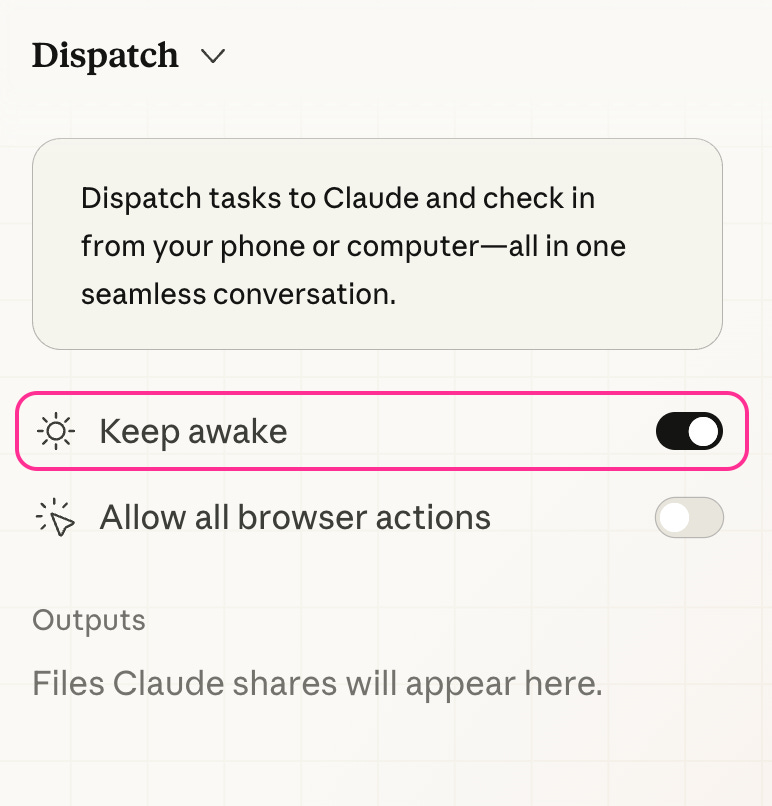
Find it in the Dispatch section of the Cowork menu on your desktop app.
From there, toggle Keep Awake on. Keep Awake is also available inside Scheduled Tasks: Turn it on in either place and your computer stays on, your scheduled tasks run on time, and Claude stays reachable while you’re away from your desk.
Dispatching from your phone means your existing Plugins are no longer desk-bound. You can now remotely command Claude to execute complex local tasks: compiling summary reports from spreadsheets, drafting briefings from your connected Slack and email accounts, or generating formatted presentations directly from your Drive. It turns your mobile device into a high-level orchestrator that processes and organizes your local file system from anywhere in the world.
Dispatch is available on Pro and Max plans and requires both the Claude Desktop and mobile apps.
Cowork: The AI That Clocks In
Claude doesn’t just suggest edits. He actually plans the work, breaks it into subtasks, coordinates parallel workstreams, and writes finished output directly into your file system. Files stay local. Code runs in a sandbox. The output lands ready to use: spreadsheets, presentations, organized folders, formatted reports.
And the Chrome extension lets Claude work on tasks in your browser, like scrolling, filling forms, or extracting data across websites.
With Connectors for tools like Gmail, Calendar, and Notion, Claude becomes the central intelligence that gathers insights from your most-used apps and syncs everything back on your hard drive.
Keep this engine running without constant supervision with Plugins. Set them on a loop using the /schedule command and now you have a persistent, "always-on" assistant that handles recurring tasks on autopilot.
Because your files stay local and your computer stays awake, the heavy lifting happens in the background, so when you check in with Claude, the work isn't just started, it’s done.
How Plugins Package Context
A plugin is basically a pre-trained specialist: skills, connectors, sub-agents, and slash commands all stacked in a single package. Plugins are packaged together for a specific role, installed in one step.
Context, Tasks, Dashboard
Claude’s Productivity plugin builds a three-part operating system for your work: a task tracker, memory system, and visual dashboard, all right on your computer.
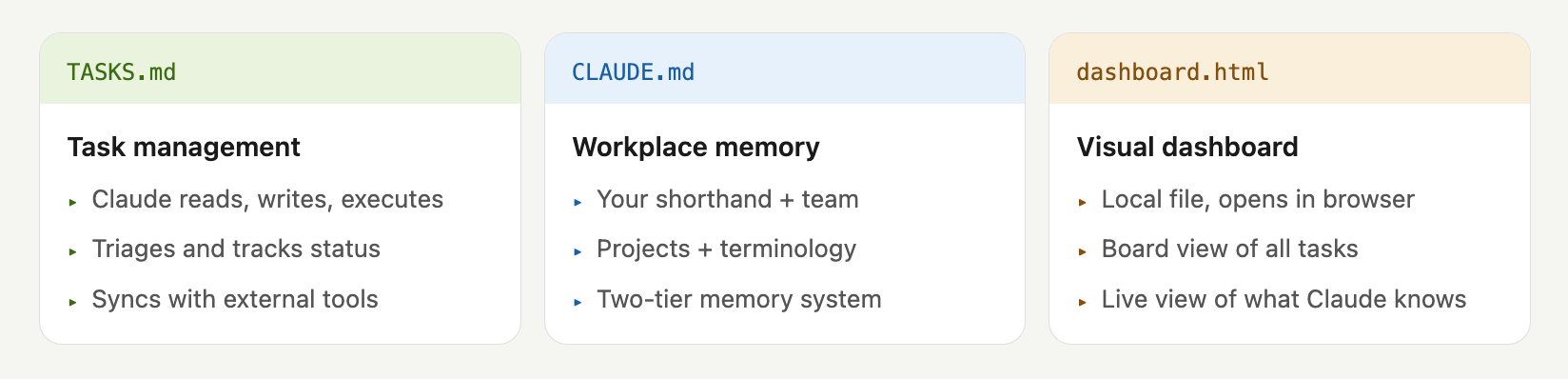
It starts with task management through a file called TASKS.md. This isn't just a to-do list that gets made and quickly forgotten: Claude reads, writes, and executes updates here, to make sure your priorities stay current. You can even break this out into separate files for different clients or projects to keep your workstreams organized.
The memory system is a file called CLAUDE.md where Claude keeps a running record of what it knows about your work: your clients, your team, your active projects, the specific names or abbreviations you use. Because this memory is local, Claude pulls from it every time you start a new task, meaning the more you work together, the less you have to repeat yourself. It creates a "two-tier" memory system where Claude understands not just what you are doing, but exactly how you prefer it to be done
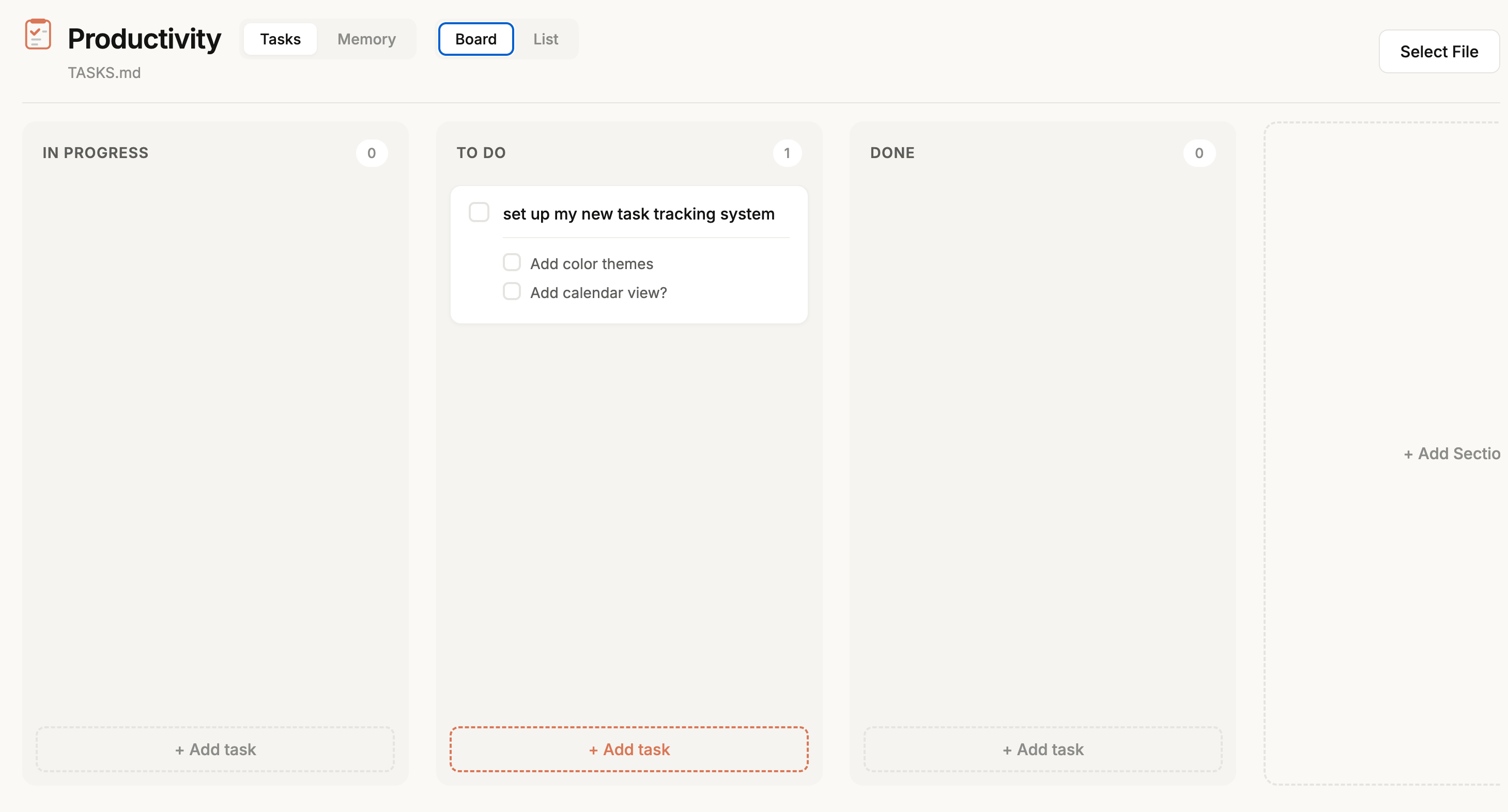
Finally, the Visual Dashboard (dashboard.html) brings it all together into an interface you can actually use. It transforms those raw markdown files into a live, browser-based Kanban board or list view. Since this is a local file that Claude has permission to edit, it provides a real-time window into everything the AI knows about your workload, giving you a professional-grade command center that lives on your machine rather than in a cloud-based subscription tool.
Making It Yours
Customizing the system is as easy as telling Claude what you want. Claude adjusts the dashboard to match your needs and updates everything for you. Because the Productivity plugin relies on a local HTML file, you aren't limited to a pre-built interface.
Prompt Claude in Cowork to edit the HTML directly: adjust the layout, add new data visualizations, or change the entire color palette to match your mood. Claude handles the code and updates your personal dashboard to reflect your specific needs.
Track What Actually Matters
Your dashboard is just your TASKS.md in a cute outfit. Claude mirrors exactly what you instruct. No priority, no due date? Then your dashboard will just be vibes and bullets.
Give Claude all the details: status, priority, or even add your own fields like project or client name by telling Claude how to format new tasks:
Whenever you add a task to TASKS.md, always include:
- Priority: High / Medium / Low
- Due: YYYY-MM-DD (if mentioned or implied)
Build Custom Skills
Instead of typing out long instructions every time you chat, you can set specific triggers for Claude to handle repetitive tasks instantly. The plugin comes with core skills like /update for a quick status check, but the real power is in creating your own.
Skills work best when you combine them with your tools and context. Like your Calendar or email, and docs. That’s how your AI stops asking questions and starts handling tasks.
For example, you could build a Project Triage skill that scans your latest files and automatically categorizes them into the right priority buckets in your TASKS.md.
Or, you might create a Meeting Prep shortcut that cross-references your task list with your calendar to brief you on a client’s history before a call.
Try this first: Ask Claude, "Based on my current workflow, what are three custom skills that would save me the most time?" Then, have Claude write the skills for you. You’ll move from manual typing to one-word execution in under sixty seconds.
Make it Automatic
The real magic of a persistent connection is that work happens even when you aren’t looking at a screen. Scheduled tasks let you assign work to Claude (like pulling the latest from your email and calendar, comparing it against your task list, and drafting a status report) to run automatically.
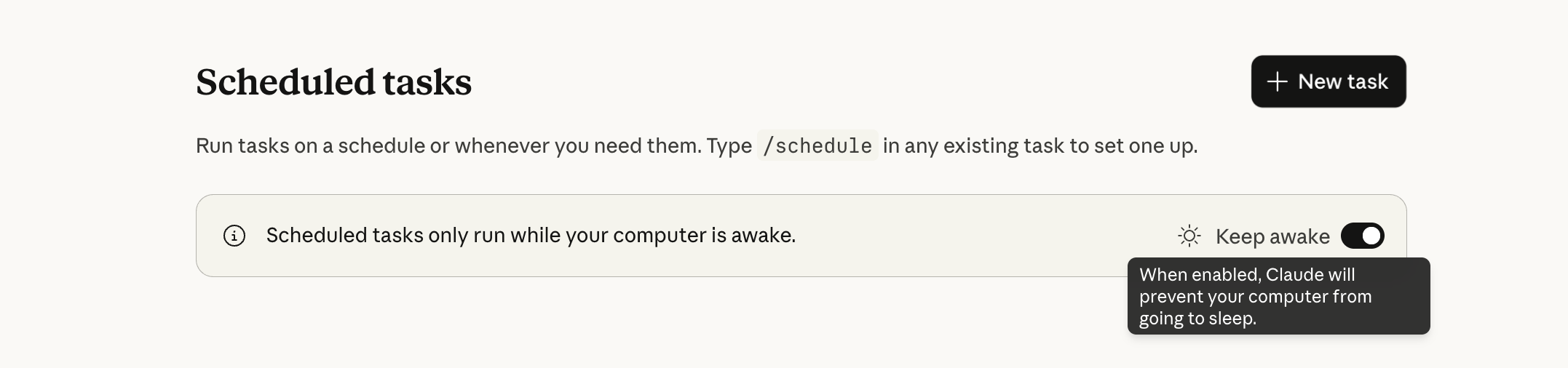
Because Claude runs this on your desktop’s schedule, the finished summary is always waiting in your chat when you check in from your phone.
Change The Layout
Don’t settle for a generic setup, add the views you’ll actually use.
Use a calendar to track deadlines, a donut chart for task distribution, or ask Claude to create the layout, theme, or changes you need.
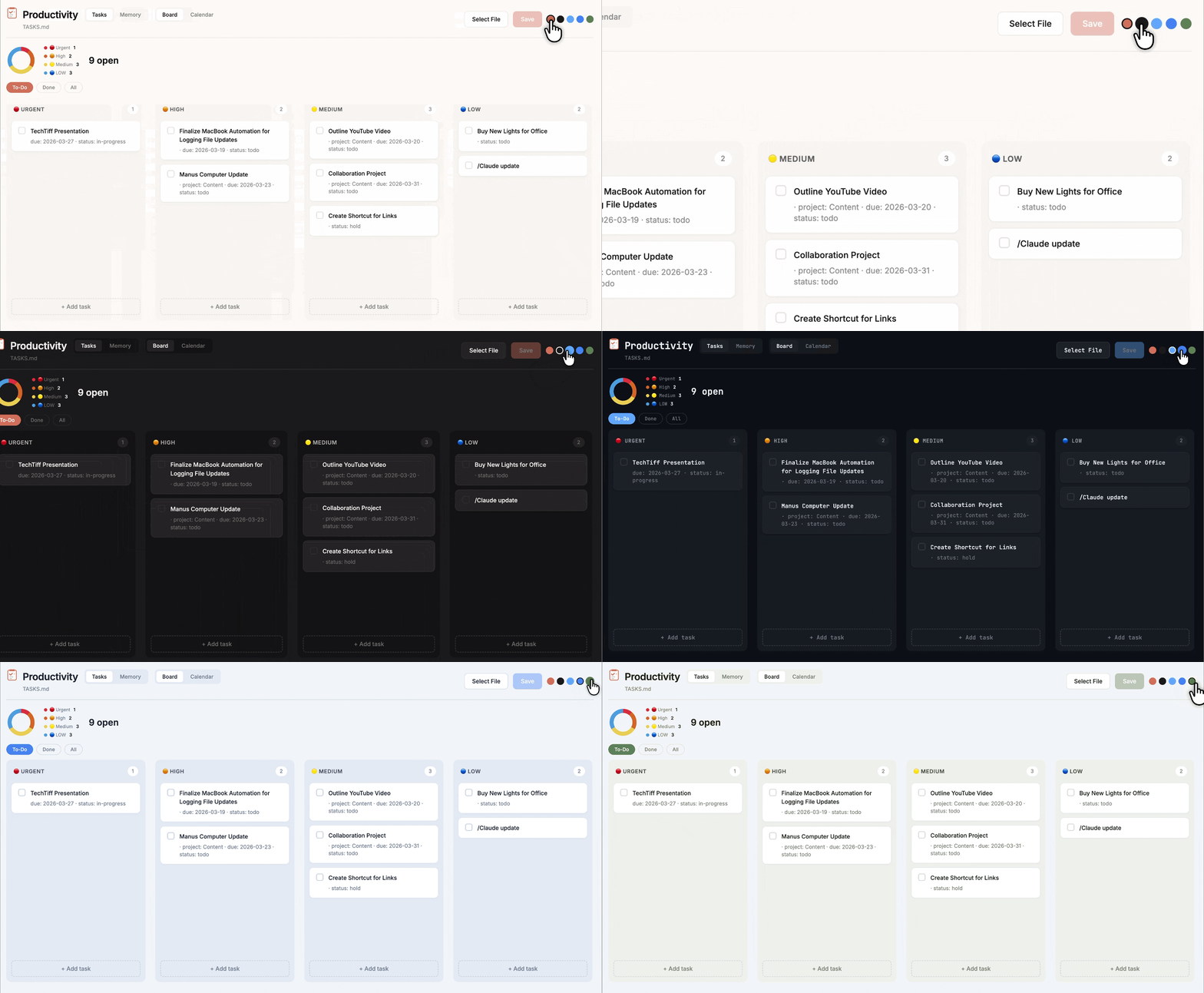
Then give Claude persistent rules about what counts as stale. The system should reflect how you actually think about your work.
Customize Your Dashboard
The Productivity plugin creates a local HTML file (dashboard.html) that gives you a standard board view of your tasks and a live view of what Claude knows about your workplace. Because it’s a local file Claude can read and write directly, you can prompt Claude in Cowork to edit the HTML.
The Prompts
These are direct instructions you can paste into Claude to customize your dashboard.
Chart Tasks by Priority
Tasks are organized into priority sections (like Urgent, High, Medium, Low).
Update my dashboard.html to add a donut chart using pure SVG that:
Counts incomplete (unchecked) tasks per section
Assigns each section a distinct color (urgent = red, high = orange, medium = yellow, low = green)
Uses transform: rotate() on each circle element to position segments — not stroke-dashoffset, that math goes negative on later segments and they disappear
Shows a legend with section name + count
Shows a total open task count next to the chart
Only appears after a file is loaded
Re-renders automatically whenever tasks are checked or added
Calendar View
Update my dashboard.html to add a calendar view tab alongside the existing board view. Pull task due dates from TASKS.md and render them on a monthly calendar grid. Tasks without due dates should appear in an "Unscheduled" section below the calendar.
Make the calendar tab the default view.
Variation (if you want both views at once):
Add a split-view option to dashboard.html: left side shows the kanban board, right side shows a weekly calendar with tasks mapped to their due dates.
Include a toggle to go full-width on either side.
Color Theme Selection
Add a theme switcher to my dashboard.html with 4 presets:
Default, Dark, Purple, and Ocean.
Each theme should update the background, card colors, accent colors, and text.
Store the selected theme in localStorage so it persists between sessions.
Put the toggle in the top-right corner of the dashboard.
Filter Buttons for Tasks
Add filter buttons to dashboard.html at the top of the task board. I want filters for: All, Today, This Week, High Priority, and by Status (To Do / In Progress / Done). Filters should work in combination. For example, "This Week" + "High Priority" should AND those conditions.
Active filters should be visually highlighted.
Variation (simpler, quick-start):
Add a filter bar to dashboard.html with buttons for: All Tasks, Due Today, Overdue, and In Progress. Clicking a button hides tasks that don't match. Make it a single-select toggle.Customize your dashboard, and make the system yours. Default setups are generic by design. Yours shouldn’t be.
Start Here
Install the Productivity Plugin and let Claude create your task and memory system.
Connect your tools and Claude pulls your tasks into your local files automatically.
Build a Skill. Ask: "Based on my files, what are 3 custom skills that would save me the most time?"
Your computer is your operations center. Claude is your employee. Dispatch is their phone number. The files are already there.