

I Taught My iPhone to Track My Expenses
How Shortcuts + Numbers Turn Your iPhone Into a Personal Finance Tracker

Most expense tracking fails for one reason: friction.
Not because people don’t care about their money. Not because they lack discipline. Because the workflow is broken. You spend throughout the day, then you’re expected to manually reconstruct it later.
Meanwhile, your iPhone already knows what you bought. It’s processing payments through Apple Wallet. It already has a camera that can read receipts. It already has Apple Intelligence built in for on-device text analysis. And it already comes with access to Numbers, a full spreadsheet app, by Apple.
All the pieces are there, but nothing’s connected.
That’s why I connected them with a system to teach my iPhone how to handle expense tracking for me.
Two Shortcuts and one Numbers spreadsheet turn your iPhone into an expense tracker that logs and categorizes every transaction automatically. One shortcut handles receipts. One automation handles Apple Wallet. Everything lands in the same place.
Here’s exactly how it works.
Watch the Full Guided Walkthrough
If you’d rather see the entire system built step-by-step, here’s the full video tutorial:
The Dashboard
This is the single source of truth for the entire system. Every transaction, whether it comes from a receipt photo or an Apple Wallet tap, lands here.
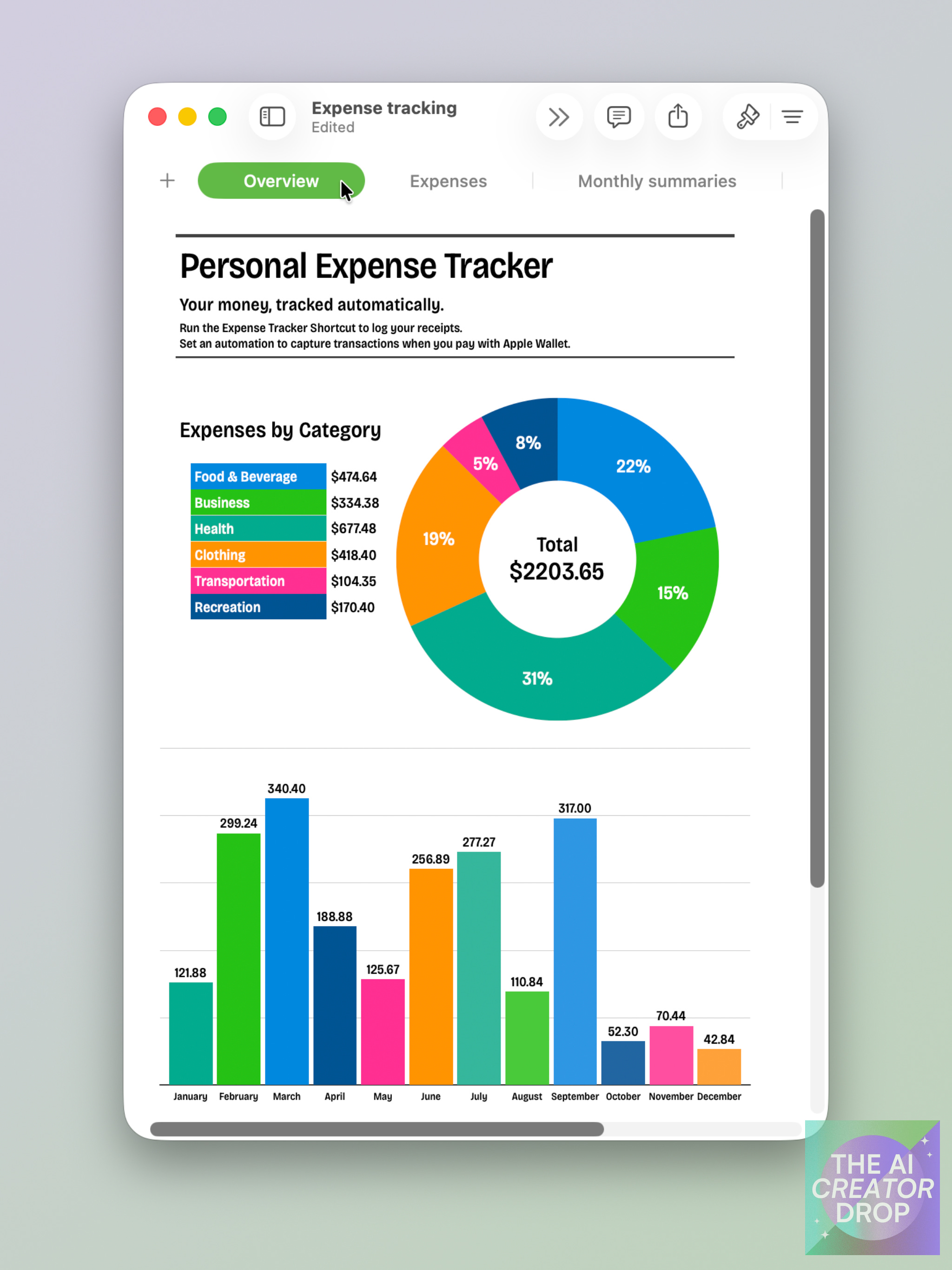
The template has three tabs: an Overview with your charts and totals, an Expenses tab where every transaction lands, and Monthly Summaries so you can see your spending patterns over time.
Every row you see was logged by my iPhone.
Two Inputs, One Spreadsheet
The whole system runs on two inputs feeding one tracker.
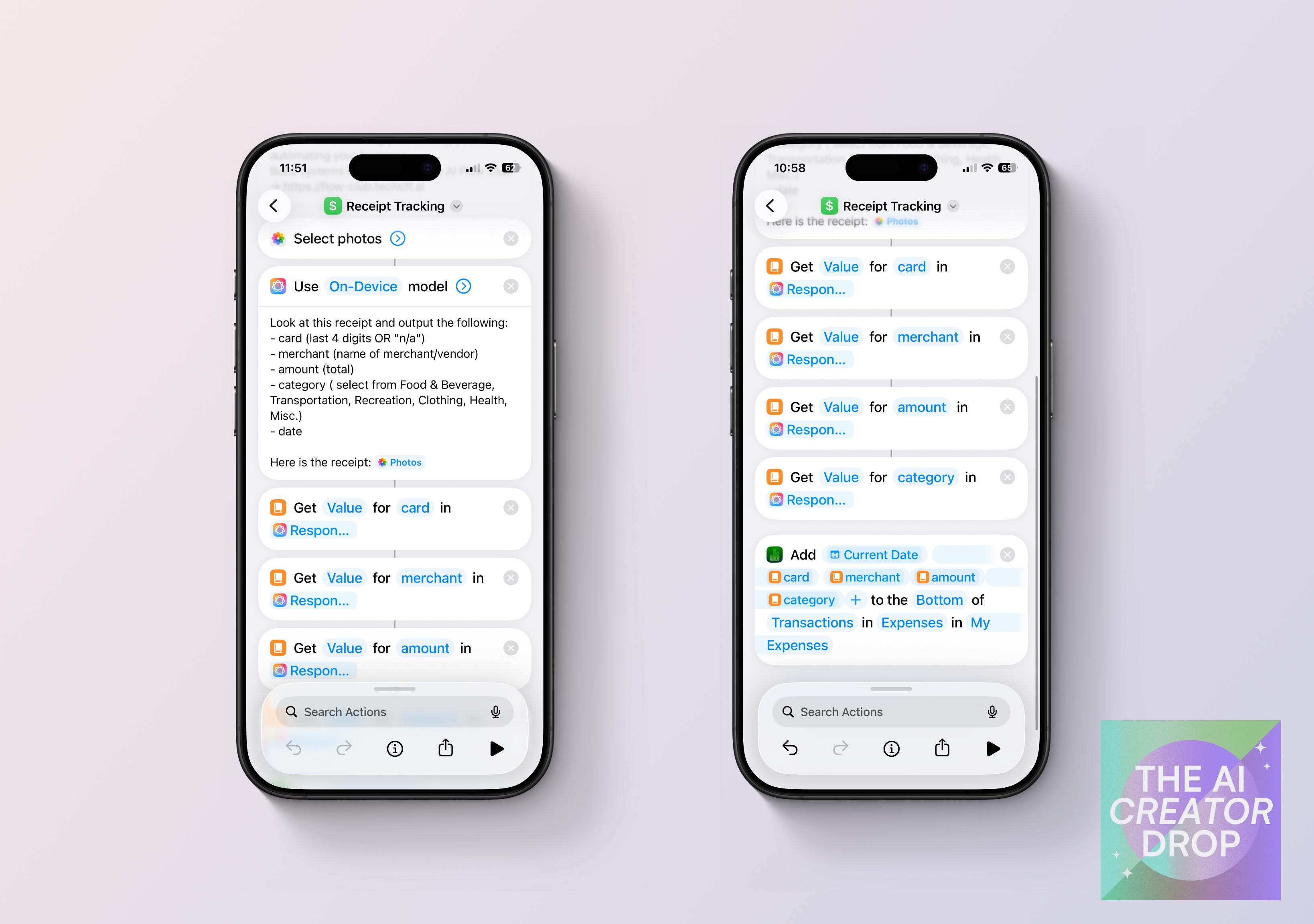
Input 1: Receipt photos
You grab a picture of a receipt from your camera roll, Shortcuts use Apple Intelligence to analyze, extract the merchant, card, amount, and then categorize it. Everything gets logged into your Numbers spreadsheet.
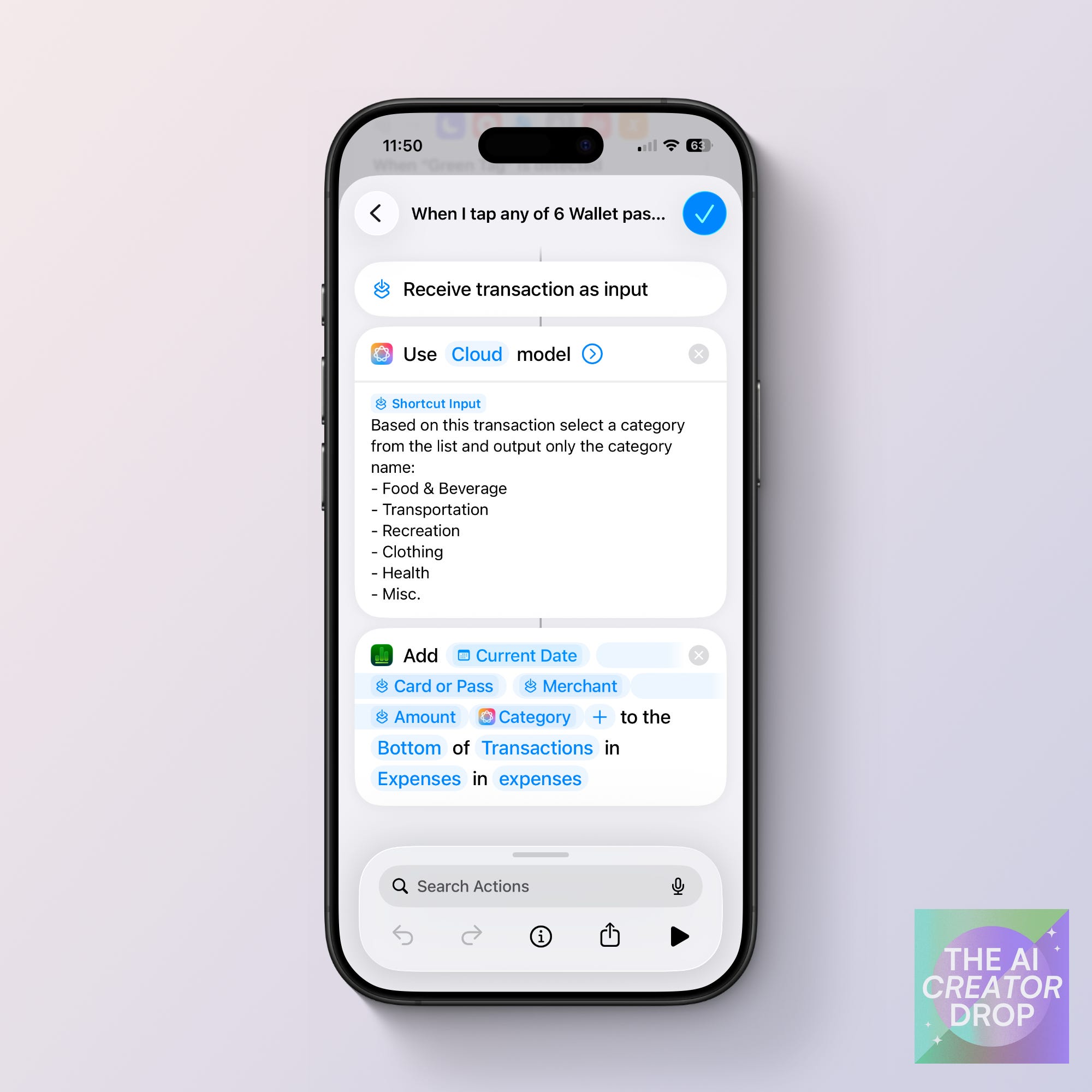
Input 2: Apple Wallet
Whenever you tap to pay with your Apple Wallet, an automation runs. Apple Intelligence categorizes the transaction, and adds it to the same spreadsheet.
Part 1: The Tracking Sheet
This is the spreadsheet that runs everything. It includes five columns (Date, Card, Merchant, Amount, and Category) and the dashboard charts for spending by category and monthly summary.
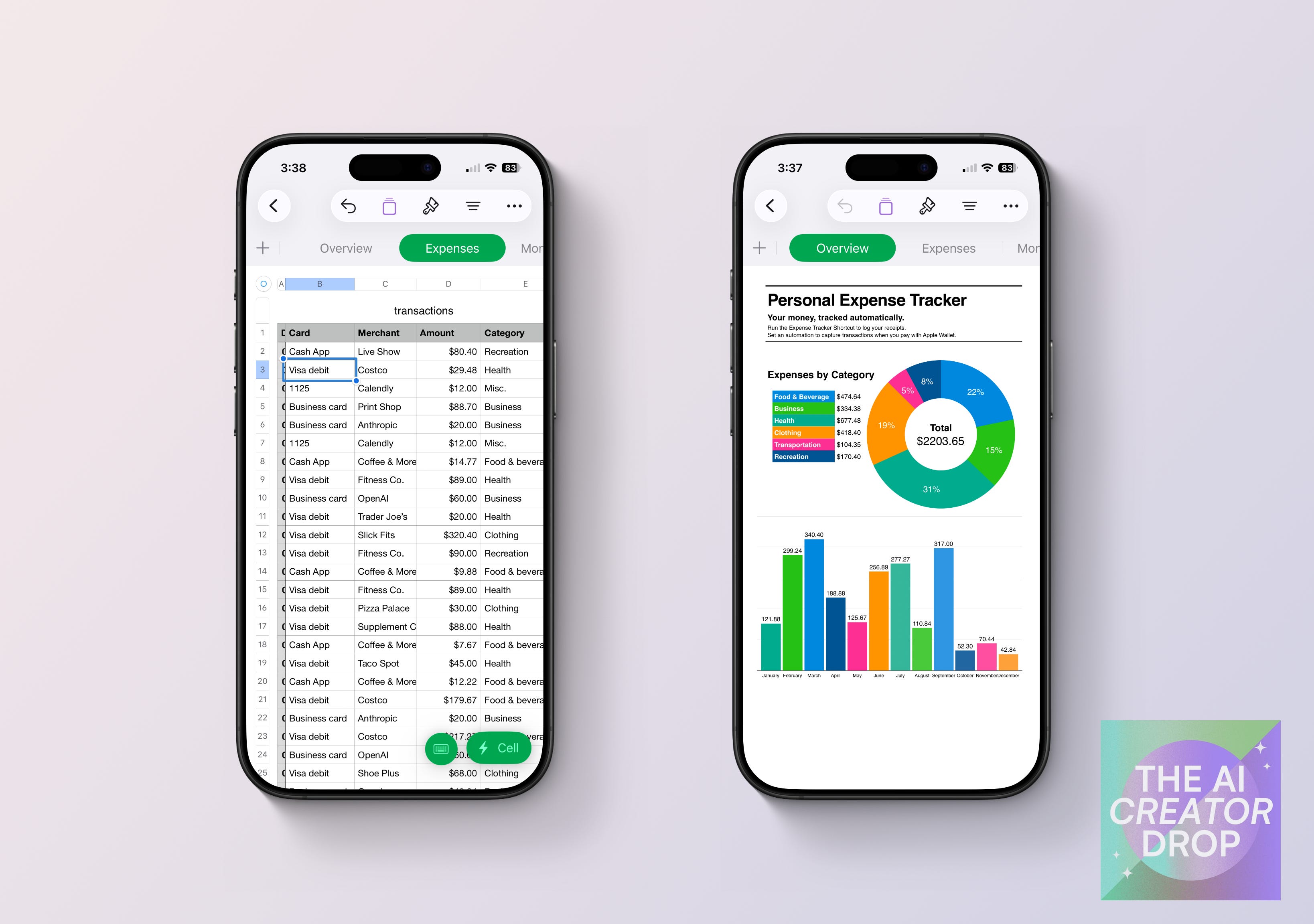
Customize the categories to match your spending. The only thing that matters is that your category list stays consistent across the shortcuts: whatever you list in the shortcuts becomes the result in Numbers. That’s what keeps your data clean.
Part 2: The Tracking Shortcut
This is the part where you hand your iPhone a to-do list every time you spend money.
This shortcut turns receipt photos into logged expenses. Run it, select a photo, and Apple Intelligence extracts the details (merchant, amount, and card info), categorizes the purchase, and drops everything into your Numbers spreadsheet.
Because it uses Apple Intelligence on-device, your financial data never leaves your phone. No third-party server, Just your phone reading a receipt and writing to a spreadsheet that lives on your device.
Automating Apple Wallet
Linking automated shortcuts that run whenever you tap your Apple Wallet to pay looks like this:
Every time you tap to pay with Apple Wallet, a trigger fires in the Shortcuts app.
Apple Intelligence reads the transaction, picks a category, and logs it to the same Numbers spreadsheet as the receipt shortcut.
You set it up once and never think about it again.
To add your own automation to your Apple Wallet, open the Shortcuts app and tap the Automation tab at the bottom. Hit the plus sign, scroll down to Wallet, and tap it. You can filter by specific cards or spending categories, or just grab everything.
Then hand the shortcut input to Apple Intelligence.
Your iPhone is now categorizing transactions and logging their work.
The most important detail: make sure the category list in your automation prompt matches the categories in your template and your receipt shortcut. One consistent list across the whole system is what keeps your data clean and your charts accurate.
Local, Private, Yours
Think about why you downloaded a finance tracker app in the first place. It probably wasn’t the budgeting logic. It was the charts, the views of your data, and the insights they gave you.
So you handed over your bank logins, your transaction history, and your spending patterns because the app had a nice visual layer on top.
But what made those dashboards impressive was never the charts themselves, it was your numbers. Your data is what filled in those visualizations and made them meaningful. The app just drew shapes around information that was already yours.
This system puts that back in your hands. Numbers gives you the same charts, the same breakdowns, the same visual clarity, without giving a third party access to every dollar you spend.
Everything runs on your iPhone. Your financial data doesn’t touch a server. There’s no account to create, no bank to connect, no terms of service to accept.
Just your iPhone doing the work it was already capable of doing.
And if you want to share, Numbers lets you collaborate with specific people, set your spreadsheet to view-only, or keep it completely locked down on your device. You decide who sees what.
Get the System
Download the template and install the shortcut. Give your iPhone a job.
Go Deeper in the AI Flow Club
Inside the AI Flow Club, I break down the exact systems I use to run my business. From expense tracking automations to AI agent workflows to the iPhone Shortcuts that save me hours every week.
Updated 02/17/2026
The Google Sheets Bridge
The “Numbers” version was just the start. I know a lot of you live in Google Sheets for the collaboration and accessibility, so I’ve built a permanent bridge between your iPhone and Google.
I’ve updated this post below with the Google Apps Script template and the modified Shortcut logic you need to send your data across the wall.
If you want privacy and local storage: Stick with the Numbers build.
If you want your data everywhere: Use the new Google Bridge section below.
function doPost(e) {
  try {
    // Parse the incoming JSON data
    var data = JSON.parse(e.postData.contents);
    var sheet = SpreadsheetApp.getActiveSheet();

    // Add a new row from Shortcut info
    var newRow = [
      new Date(),         // Column A: Date
      data.card,          // Column B: Card
      data.merchant,      // Column C: Merchant
      data.amount,        // Column D: Amount
      data.category,      // Column E: Category
    ];

    sheet.appendRow(newRow);

    // Return a response
    return ContentService.createTextOutput(JSON.stringify({"status": "success"}))
      .setMimeType(ContentService.MimeType.JSON);

  } catch (error) {
    return ContentService.createTextOutput(JSON.stringify({"status": "error", "message": error.message}))
      .setMimeType(ContentService.MimeType.JSON);
  }
}
Setup Instructions
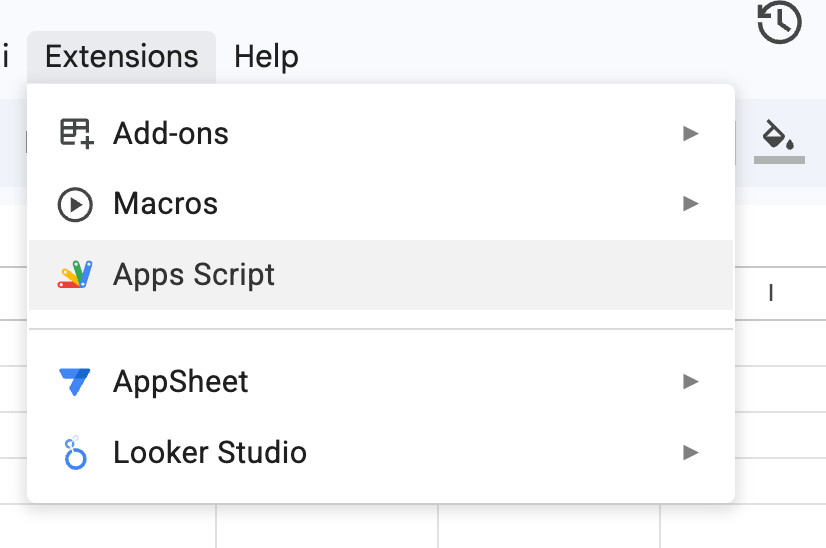
From Google Sheets, click Extensions > Apps Script
Paste the Apps Script from above

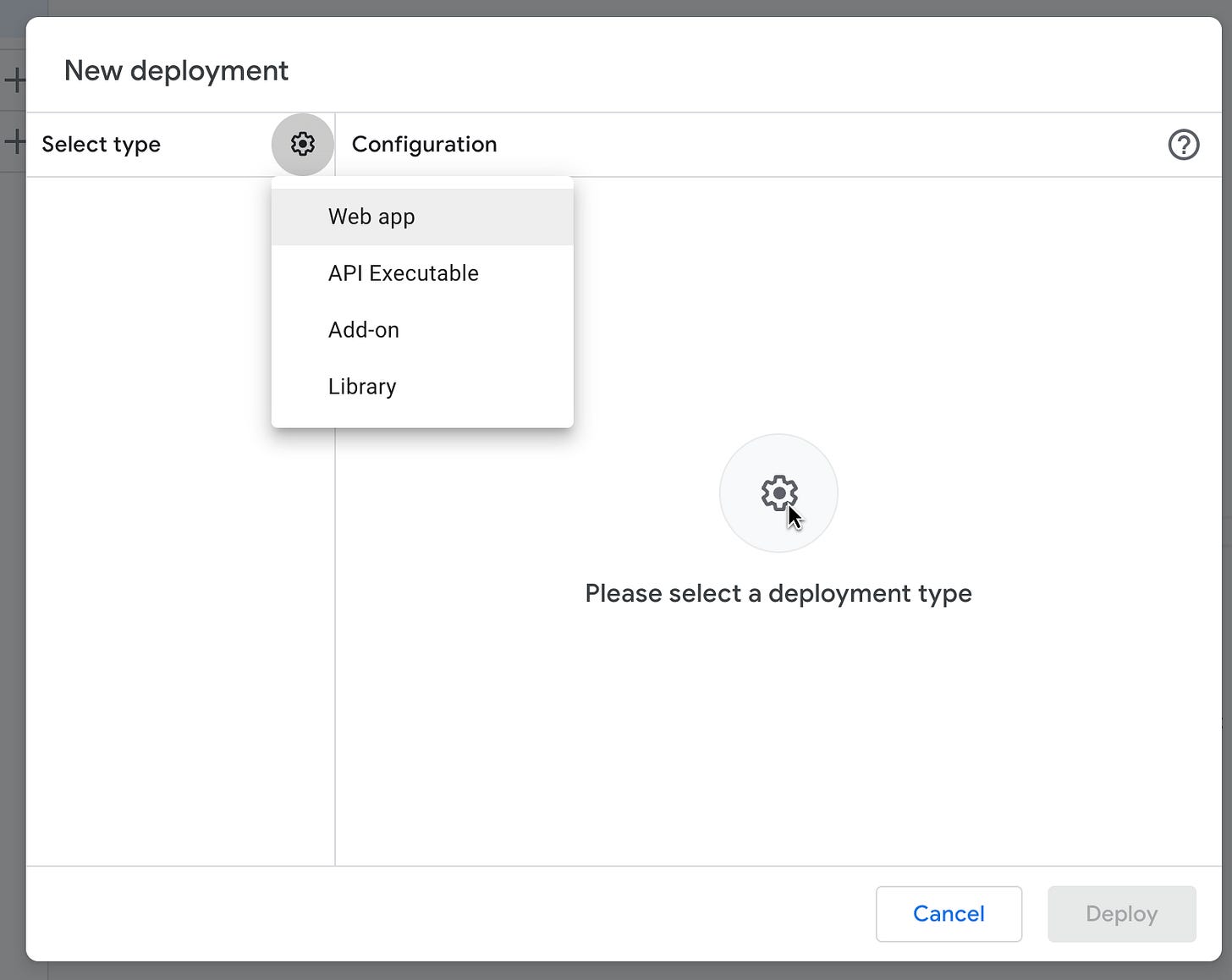
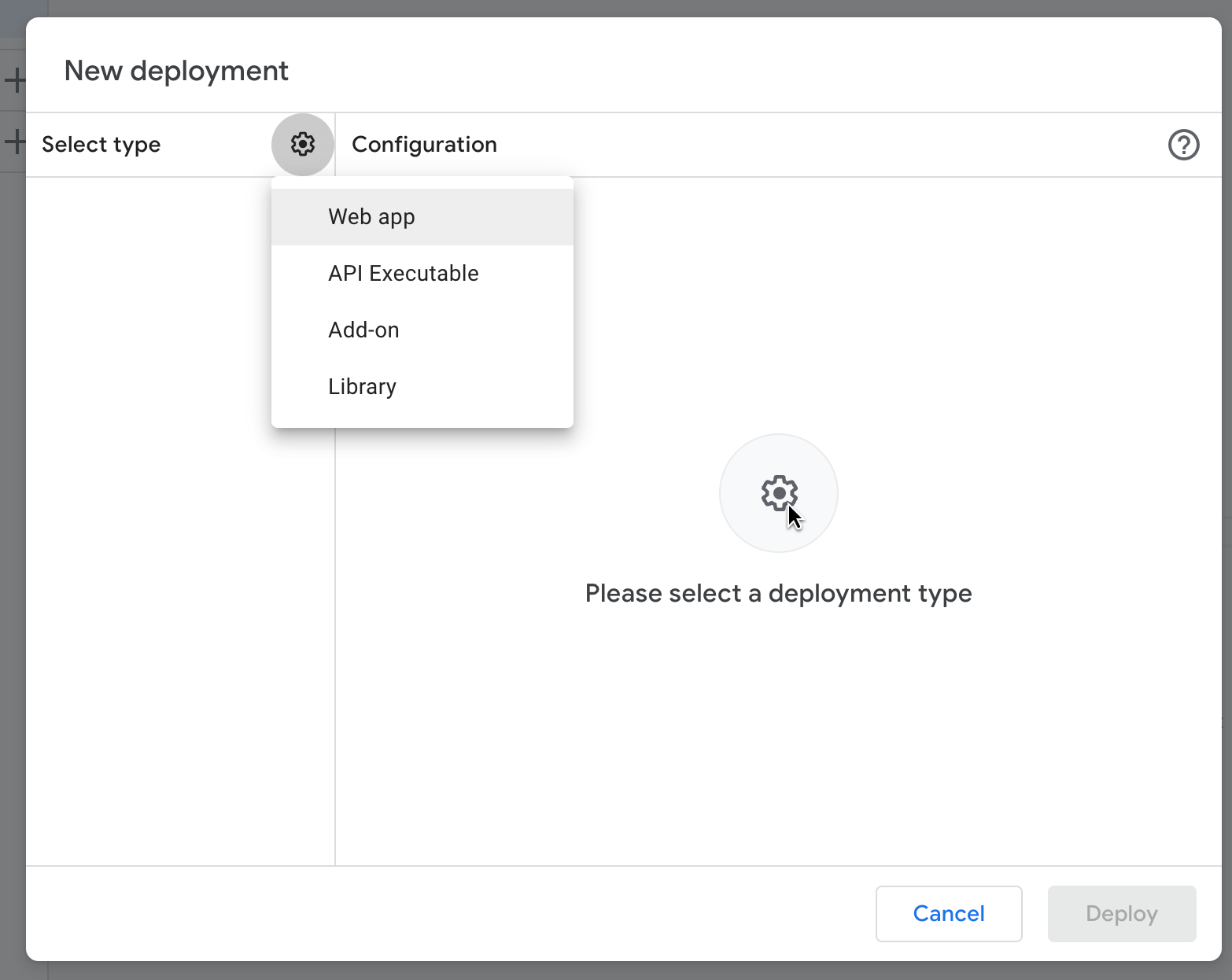
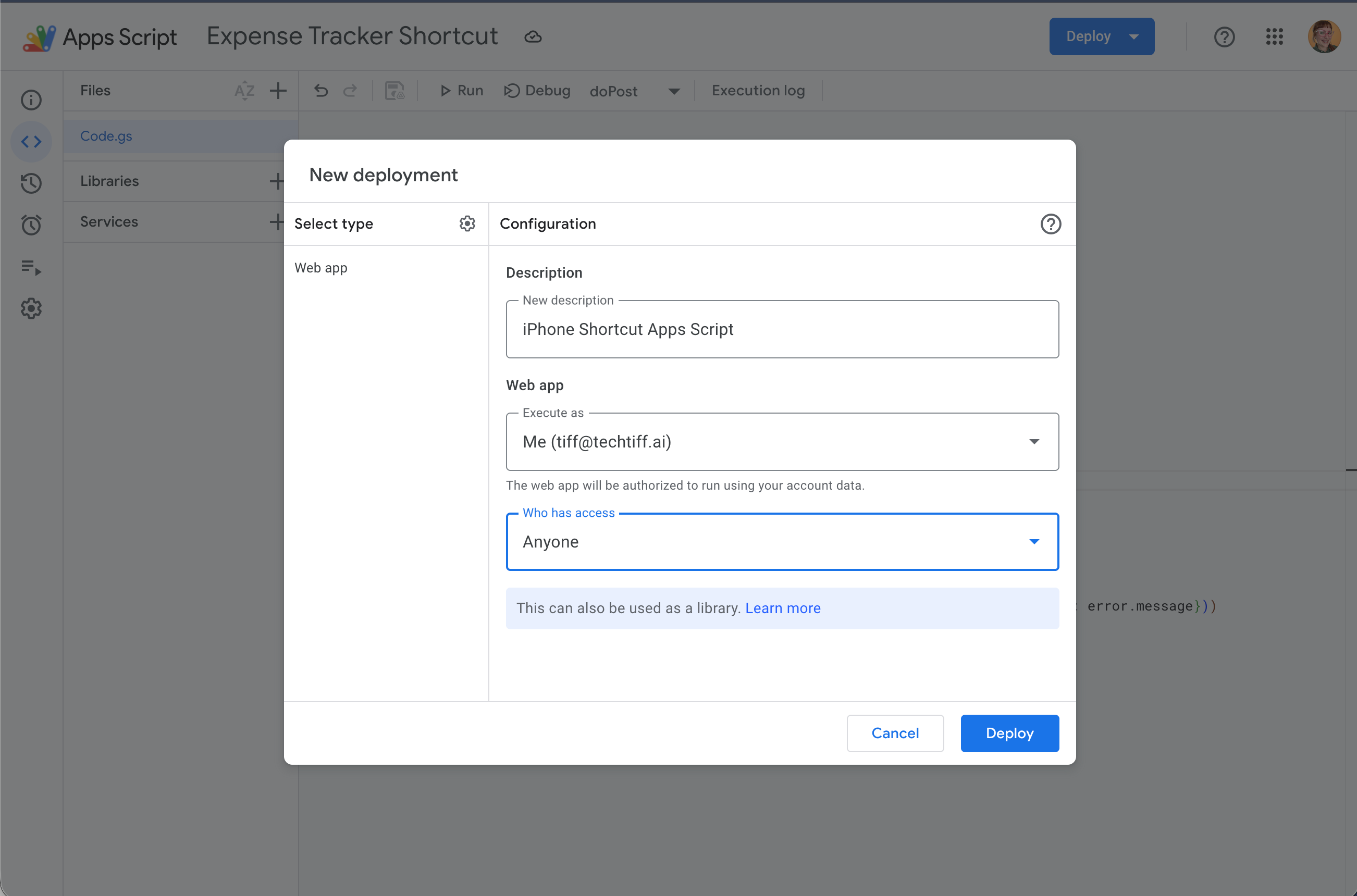
Hit Deploy, select Web app
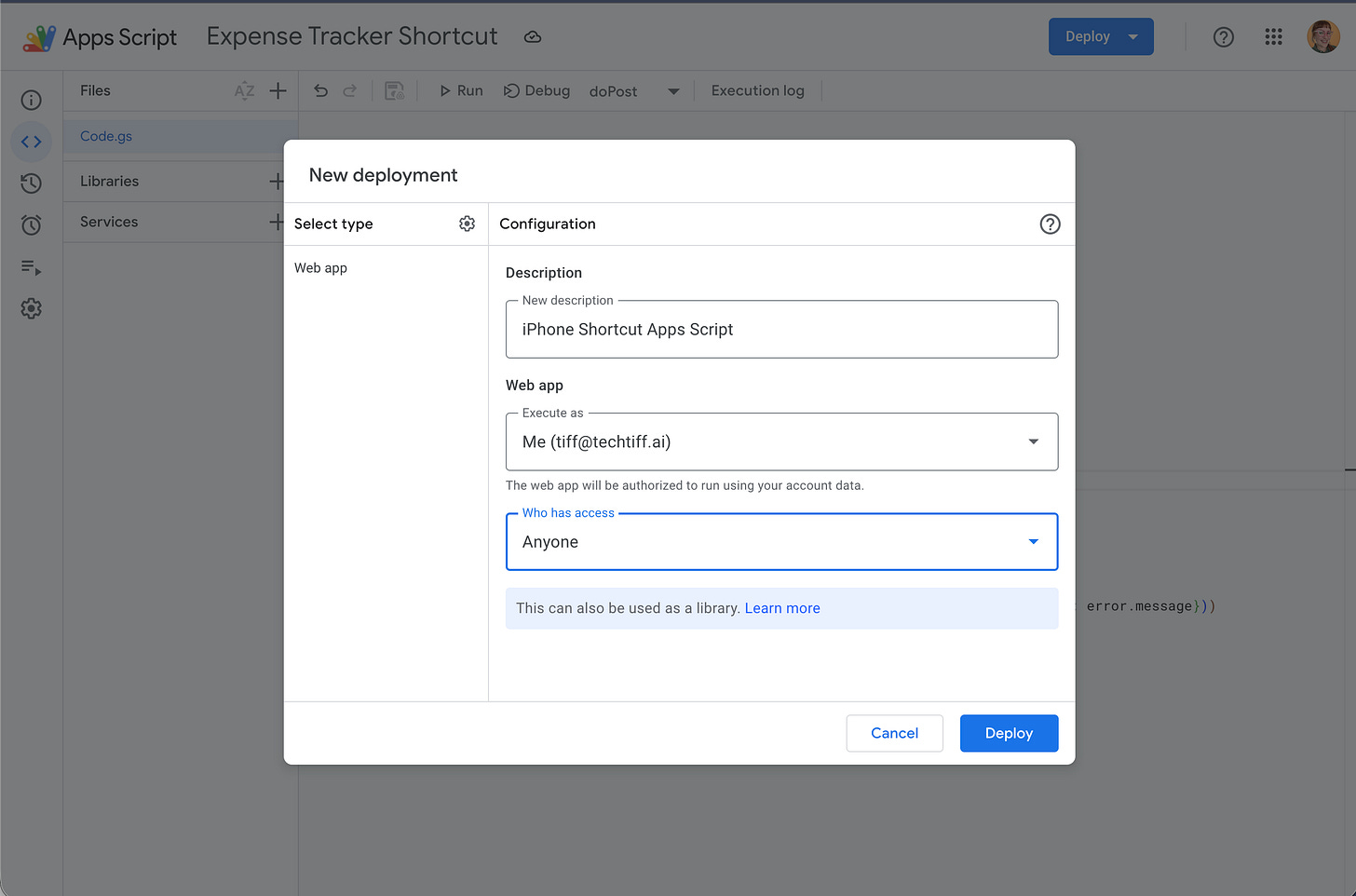
Under access set to “anyone” so you can use your shortcut to send info without having to login each time you add a row
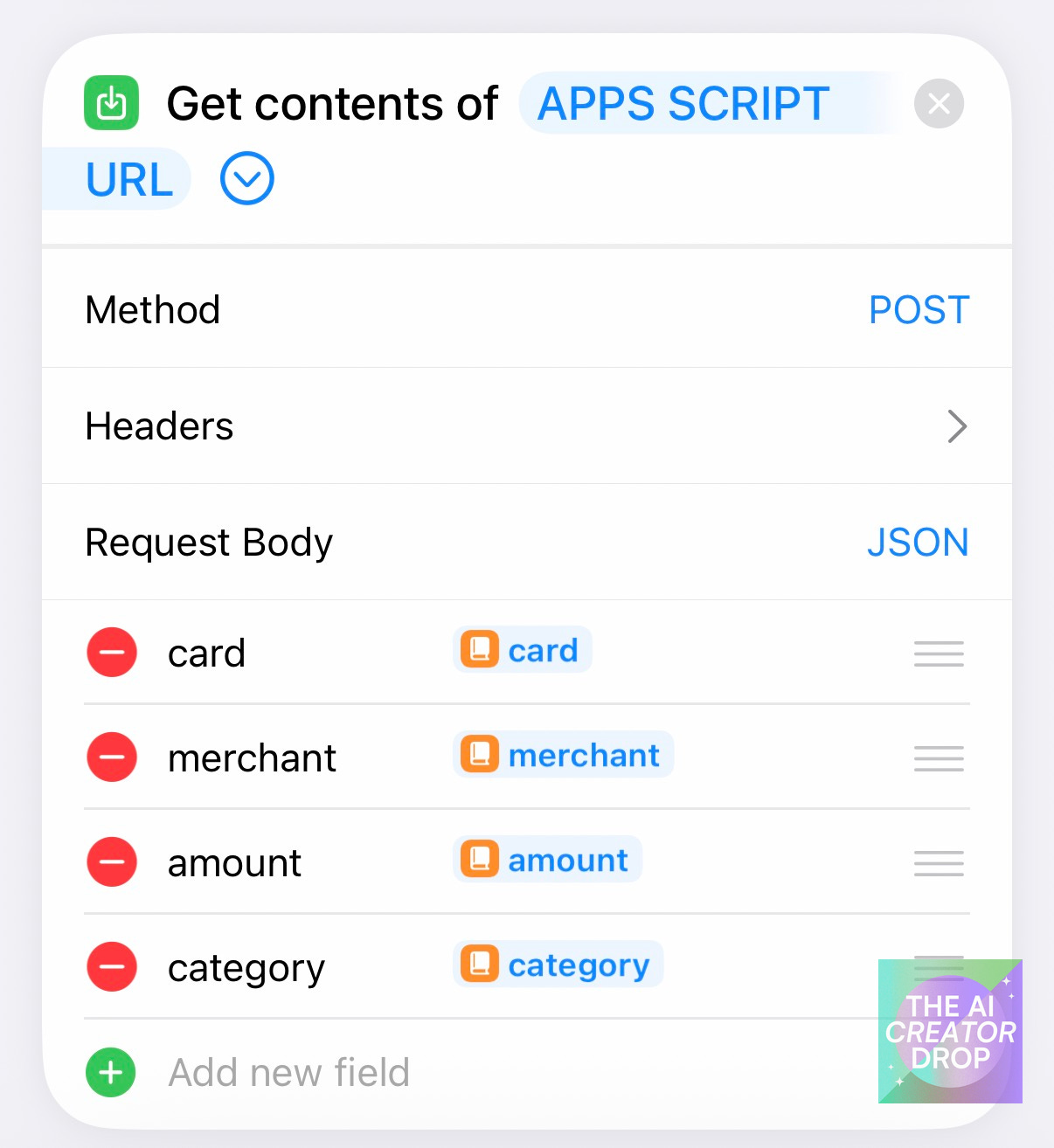
Copy the web app URL from google and add an action to your shortcut to Get Contents of URL
Toggle down
Set the method to POST
In the request body, add the keys + variables for card, merchant, amount, and category

Stop typing. Start building.
Love it so much Tiff! Your shortcuts system is growing bigger than ever!
Cool, some next level things 😎