


Your iPhone has Shortcuts, AI, automations, and a ridiculous amount of computing power.
It should probably have some responsibilities.
I recently shared three Shortcuts I use to make my iPhone handle some of the repetitive work that would otherwise end up back on my plate. One checks my day before I open a bunch of apps. Another keeps screenshots from disappearing into my camera roll. The third tracks purchases when I tap to pay.
If you want to set them up yourself, here are all three.
Morning Briefing
Every morning, this Shortcut checks the information I would normally open several apps to find.
It gets the weather at my current location, looks for recent unread email, checks my calendar events for the day, and finds unfinished Reminders that are due.
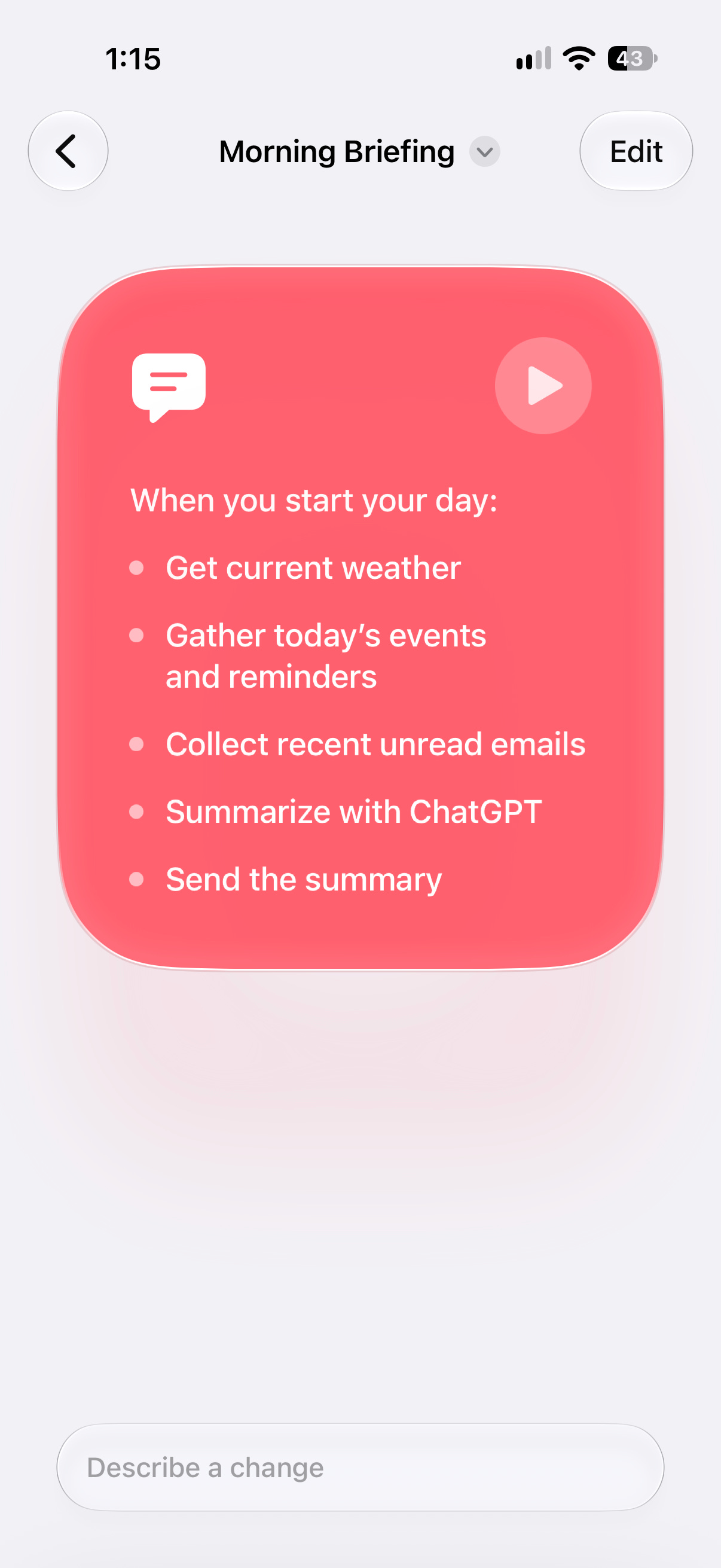
Then ChatGPT reviews everything and turns it into a short morning briefing that gets sent to me as a text message.
So instead of opening Mail, Calendar, Reminders, and Weather first thing in the morning, my phone already checked.
Download the Morning Briefing Shortcut
Read the full setup guide:

Before you run it, customize the time, calendar filters, email filters, and recipient so the Shortcut matches your own routine.
Screenshot Manager
Taking a screenshot and abandoning it in your camera roll is not a filing system.
This Shortcut gives every screenshot somewhere to go.
When you share a screenshot to it, you choose what should happen next.
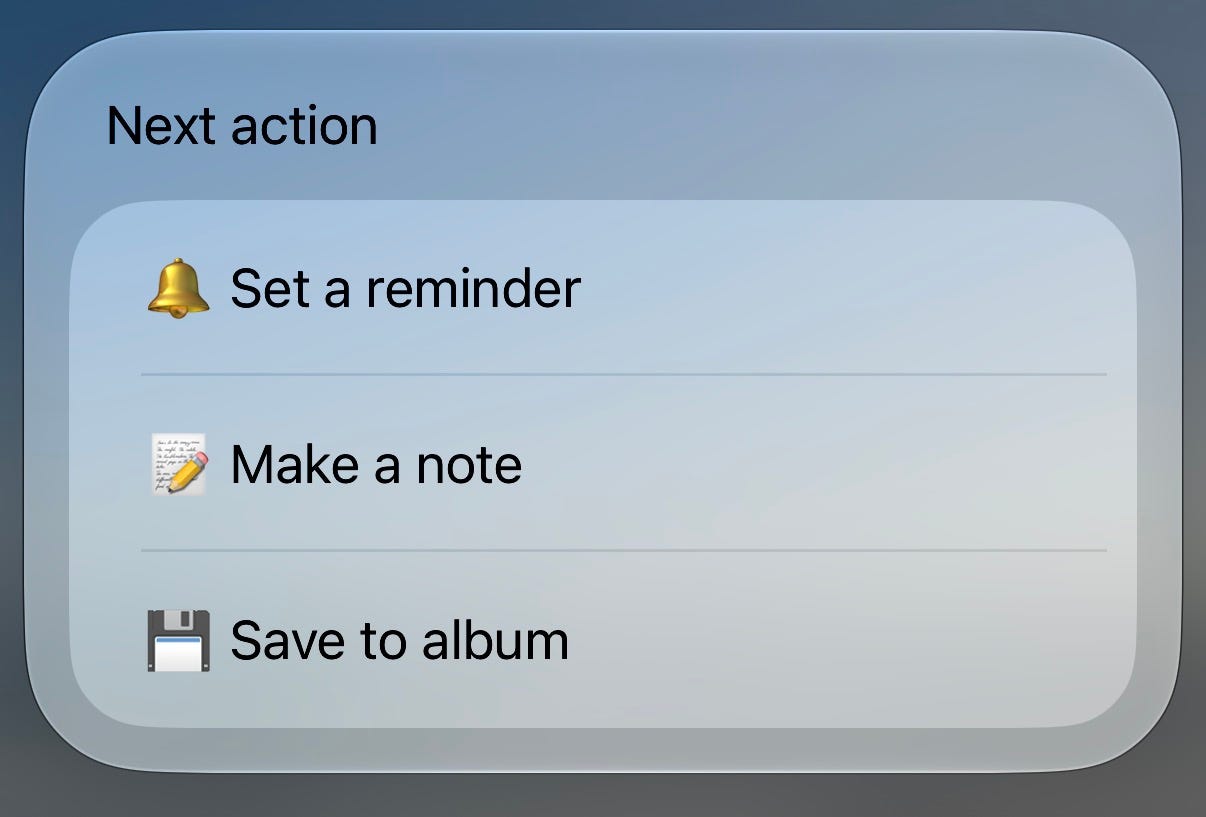
Turn it into a Reminder, save the information into Notes, or file the image into an album.
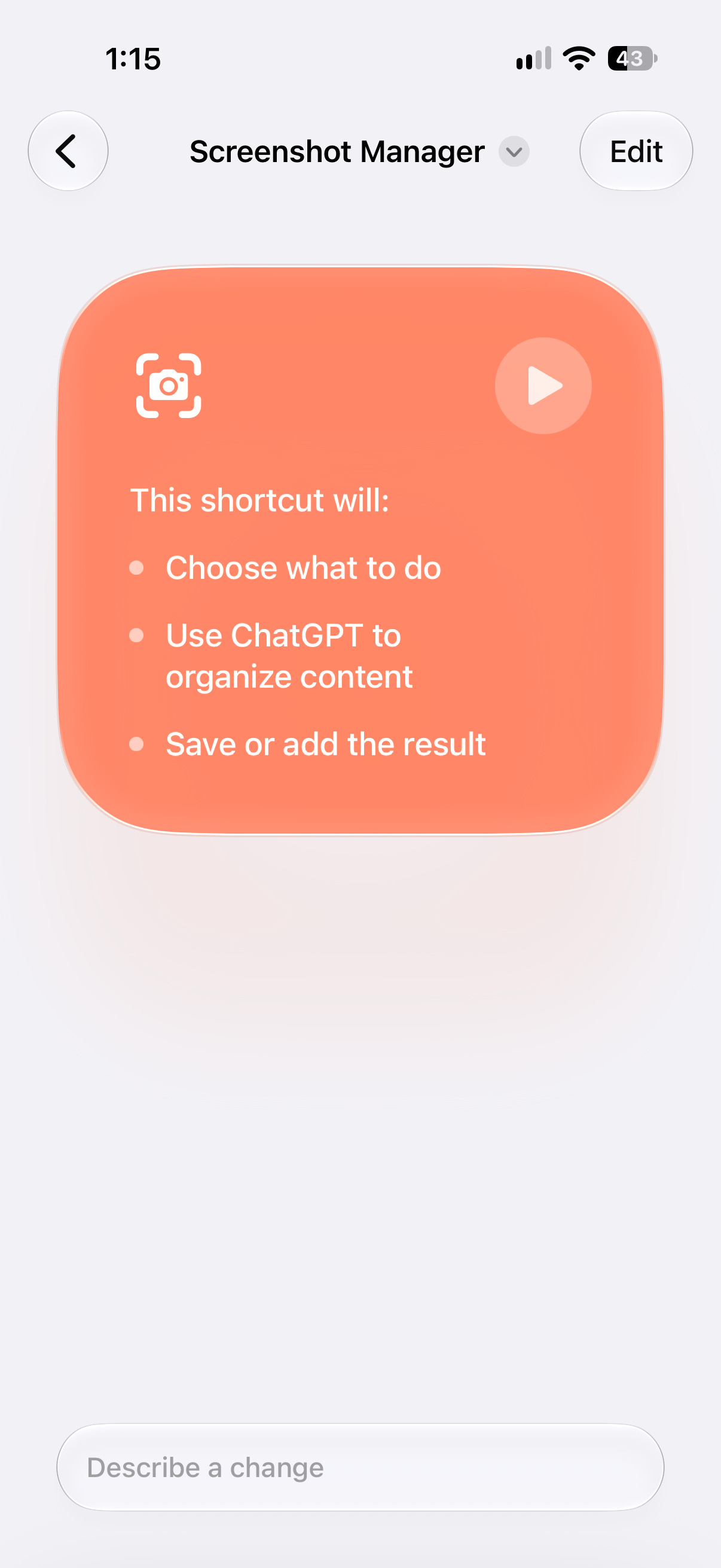
For Reminders and Notes, ChatGPT reads the screenshot along with the context you provide, then creates a short title and summary before saving it.
That means the screenshot stops being something you saved “for later” and actually turns into something you can find and use again.
Download the Screenshot Manager Shortcut
Read the full setup guide:

Make sure you change the Reminder list, Notes folder, and photo album to the destinations you want to use.
Expense Tracker
Your iPhone already sees the transaction when you tap to pay. It may as well write it down.
This Shortcut runs from an Apple Wallet transaction automation. It takes the purchase details, uses AI to choose a category such as Food & Beverage, Transportation, Clothing, or Recreation, then adds the transaction to a Numbers spreadsheet.
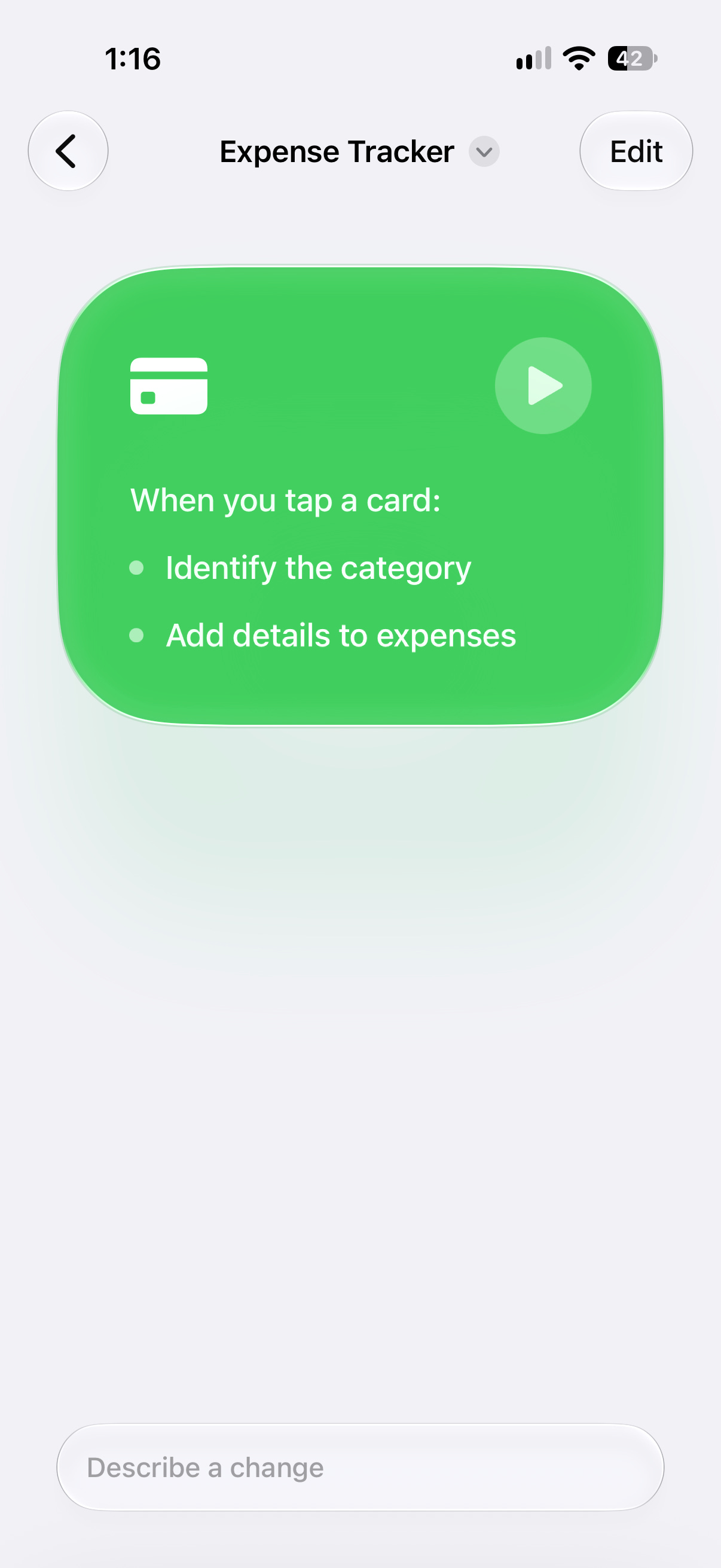
The result is a running expense log without manually entering every purchase afterward.
Download the Expense Tracker Shortcut
Read the full setup guide:
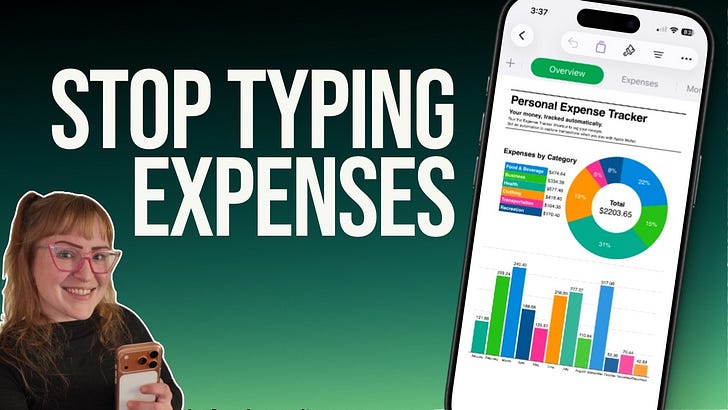
You’ll need to select the cards or passes you want to trigger the automation and connect the Shortcut to your own Numbers spreadsheet.
One More Thing About the AI
The AI step is customizable too.
Tap the model name inside the Shortcut and you get a menu.
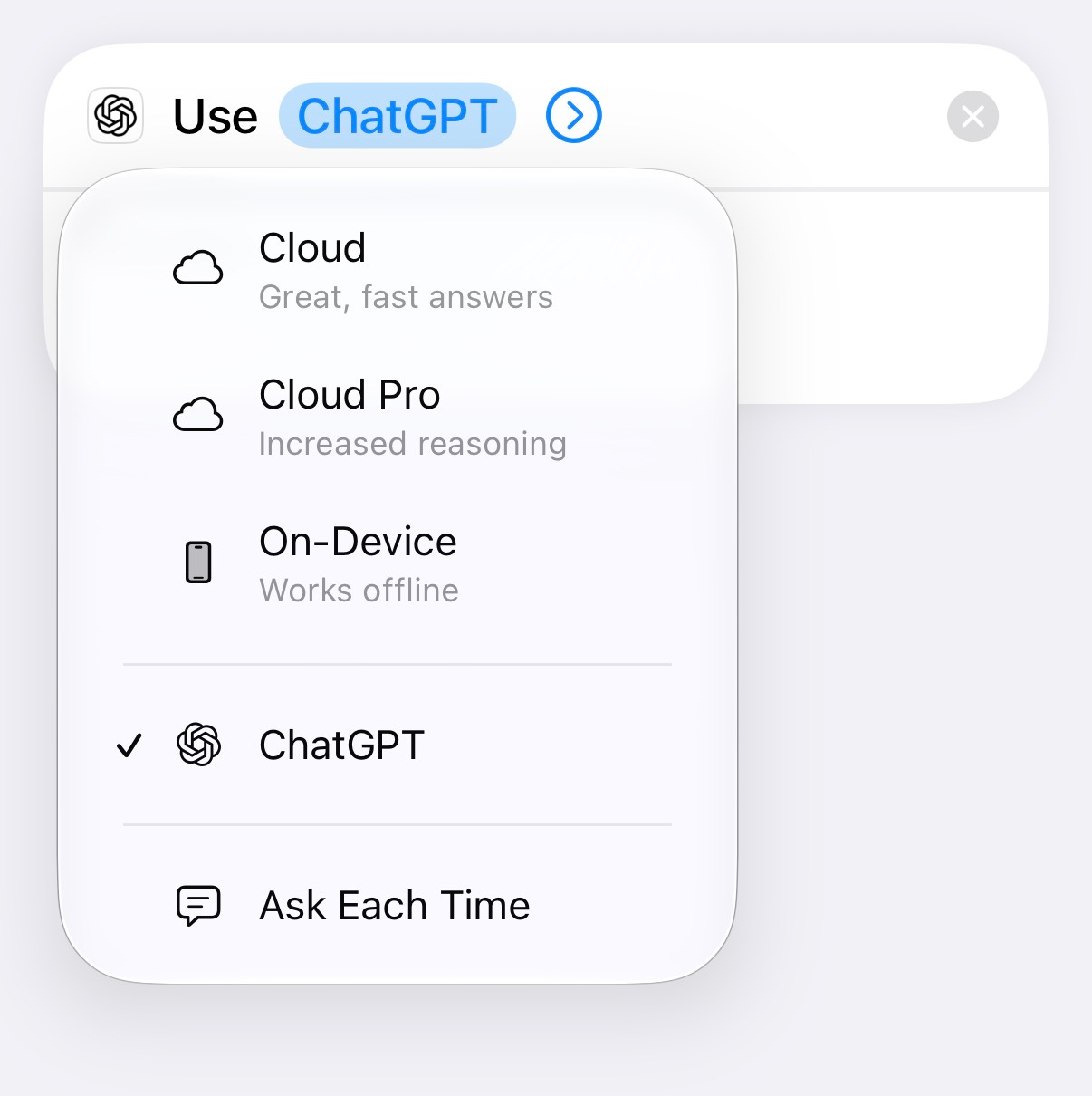
Cloud and Cloud Pro run Apple Intelligence on Apple’s servers, On-Device runs it on your phone with no connection needed, ChatGPT sends it to OpenAI, and Ask Each Time makes the Shortcut check with you before it runs.
My Morning Briefing and Screenshot Manager use ChatGPT, and the Expense Tracker uses Apple Intelligence to categorize transactions. Pick whichever one you want.
The model does one specific job inside each workflow. The Shortcut handles everything around it.
Your phone already has the tools.
It just needed an actual assignment.