

Adobe Just Gave ChatGPT a Creative Toolkit: Here's How to Use It
Your AI assistant now runs Photoshop, Express, and Acrobat - right inside the chat.

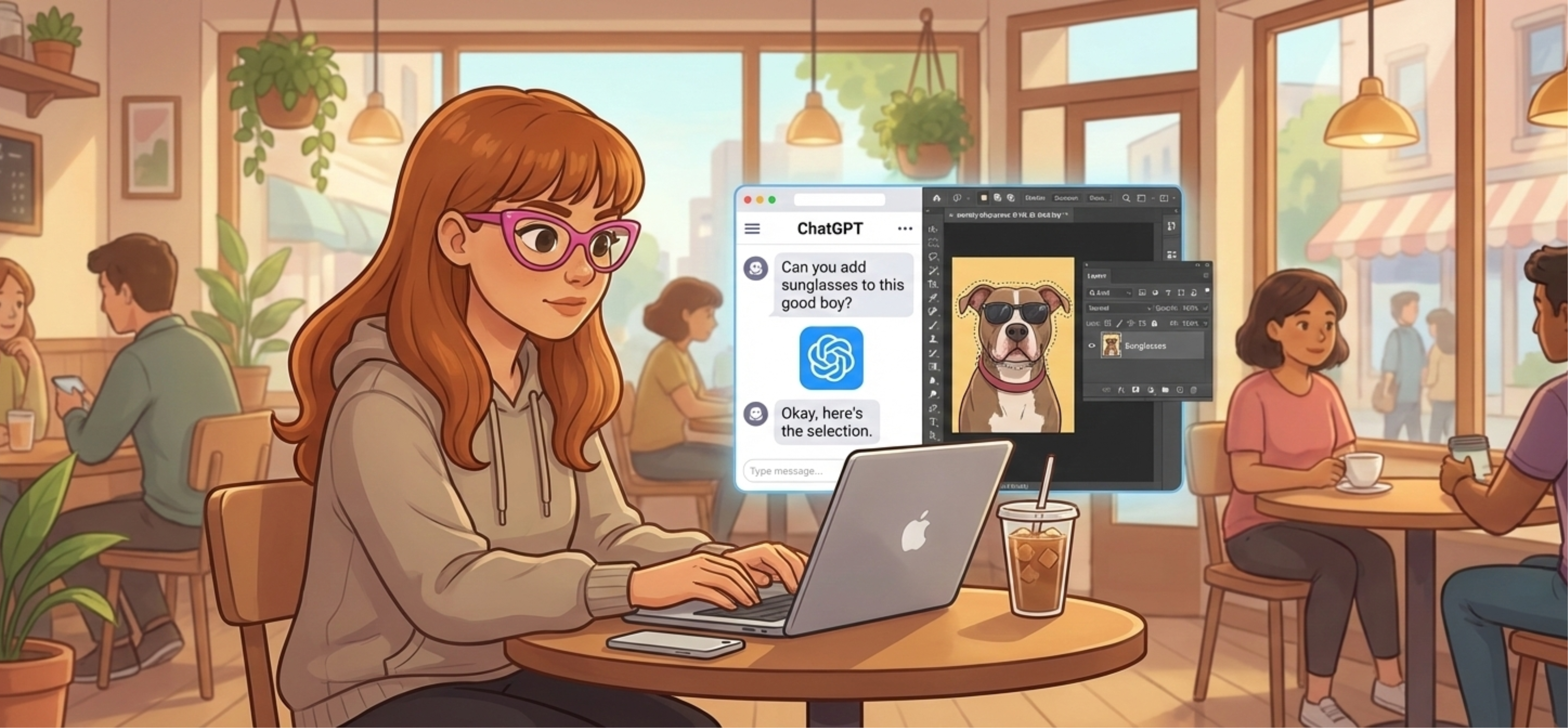
Adobe just dropped Photoshop, Express, and Acrobat inside ChatGPT. For free.
That means your AI assistant now has access to real Adobe tools. It can edit your photos, design your graphics, and handle your PDFs right inside the chat.
Most people are still jumping between five apps to do what ChatGPT can now handle in one conversation. Upload a file. Describe what you want. ChatGPT uses the Adobe tool to make it happen.
You’re not clicking menus. You’re not Googling “how to mask in Photoshop.” You just say what you want and your AI assistant handles it. Using actual, professional software.
This is what using professional creative tools looks like now. You describe what you want. The AI figures out which tool to use, surfaces the right controls, and guides you through it.
That’s the shift. You’re not learning tools anymore. You’re directing them.
The only skill that matters now is knowing how to give good direction.
Quick Setup
Price: Free for all ChatGPT users.
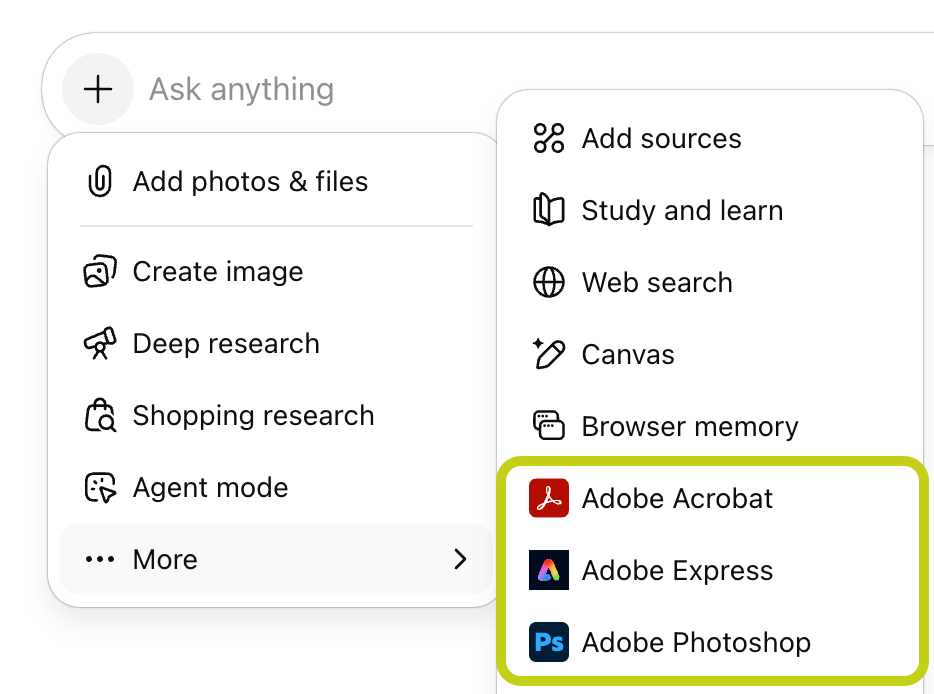
How to access: Enable Adobe apps in your ChatGPT settings under Apps & Connectors. Then type the app name + your request directly in ChatGPT. Or just open the app picker in the chat and select the app.
The Drop
Photoshop: Adjust exposure, contrast, brightness. Apply effects to specific areas. Get contextual editing guidance. Edits stay live. Open in Photoshop on web and your layers are intact.
Express: Browse professional templates, fill in your details, replace images, animate designs. All inside the chat.
Acrobat: Edit PDF text directly, merge files, extract tables, compress, convert, and redact sensitive info.
Free and live now: Available in ChatGPT on desktop, web, and iOS. Express also on Android; Photoshop and Acrobat Android support coming soon.
What this means: You don’t need to learn the software. You describe what you want and ChatGPT uses the right Adobe tool to make it happen.
Photoshop for ChatGPT: The Standout
I uploaded a photo of Nike (my dog). Asked ChatGPT to help me adjust the exposure. It opened Photoshop for ChatGPT, analyzed the image, and gave me specific guidance:
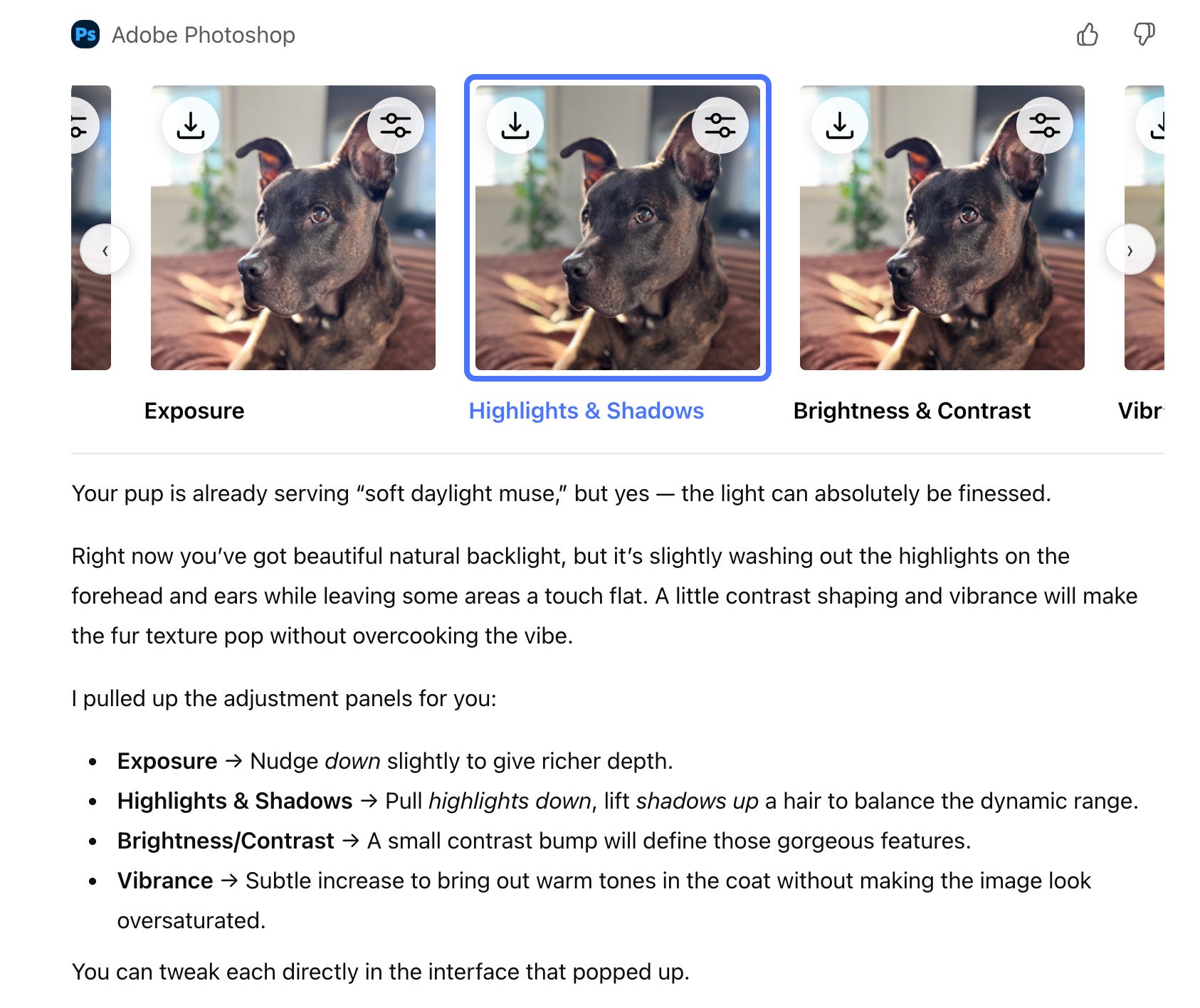
Exposure → Nudge down slightly to give richer depth.
Highlights & Shadows → Pull highlights down, lift shadows up a hair to balance the dynamic range.
Brightness/Contrast → A small contrast bump will define those gorgeous features.
Vibrance → Subtle increase to bring out warm tones in the coat without making the image look oversaturated.
And it surfaced sliders: Exposure, Whites, Blacks, Hue, Saturation, right inside the chat. I adjusted without leaving the conversation.
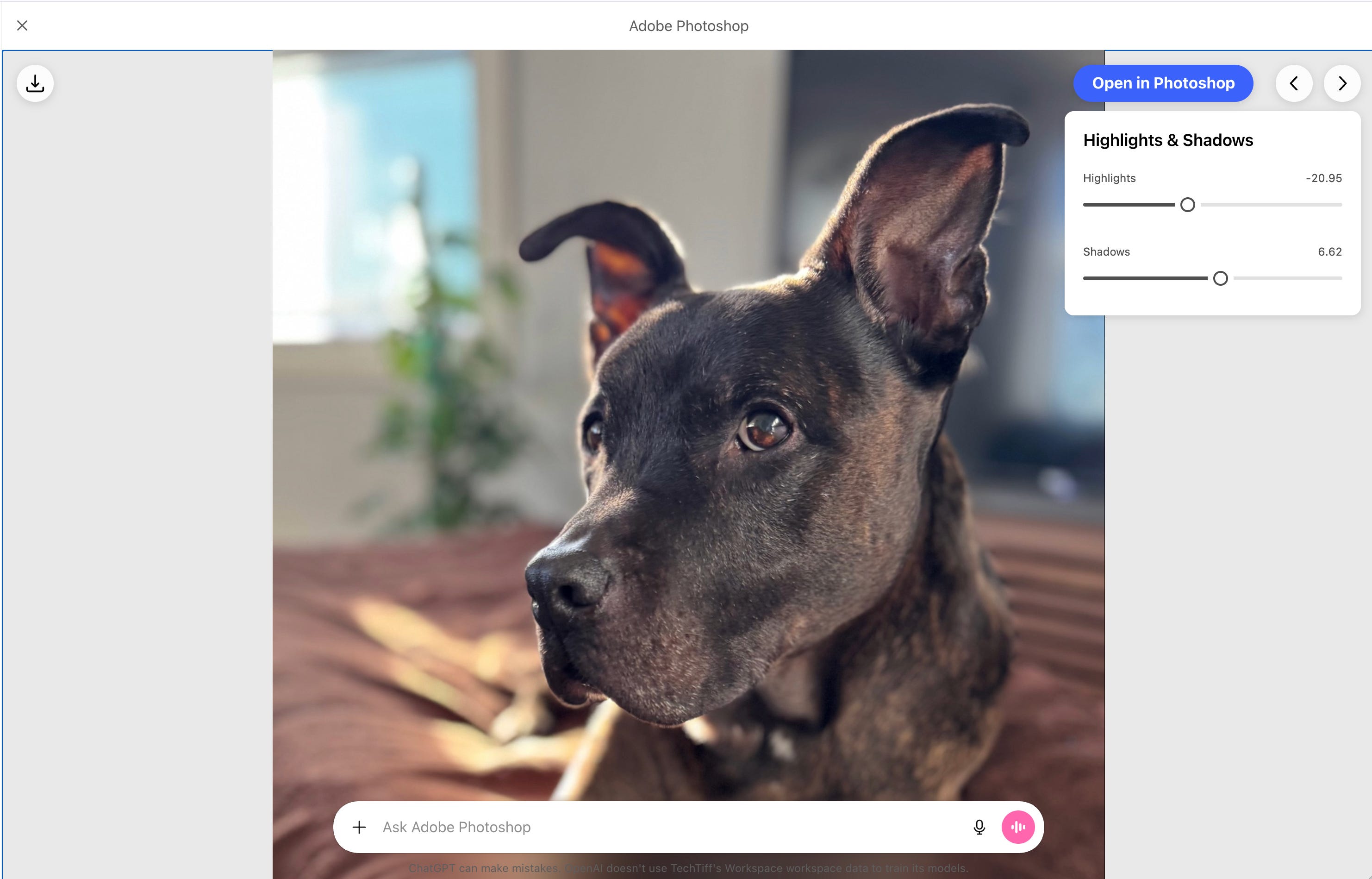
What makes this different from generic photo editing advice is that ChatGPT actually analyzes your specific image. When I uploaded Nike’s photo, it didn’t give me a list of “top 5 exposure tips.” It looked at her coat, her position in the frame, the lighting conditions, and told me exactly what to adjust and why.
That’s the difference between reading a tutorial and having someone look over your shoulder.
When you need hands-on control, sliders appear automatically. Exposure. Contrast. Highlights. Shadows. Whites. Blacks. Hue. Saturation. You’re not hunting through menus: the controls surface when they’re relevant to what you’re trying to do.
The selective editing is where it gets interesting. When I asked for an artsy background effect, ChatGPT masked Nike automatically. No manual selection. No edge cleanup. It understood “keep the subject untouched” and applied the effect only where I wanted it.
Quality holds up throughout. I tested multiple rounds of edits: adjusting exposure, then adding effects, then tweaking saturation, and the image stayed clean. No degradation. No compression artifacts stacking up.
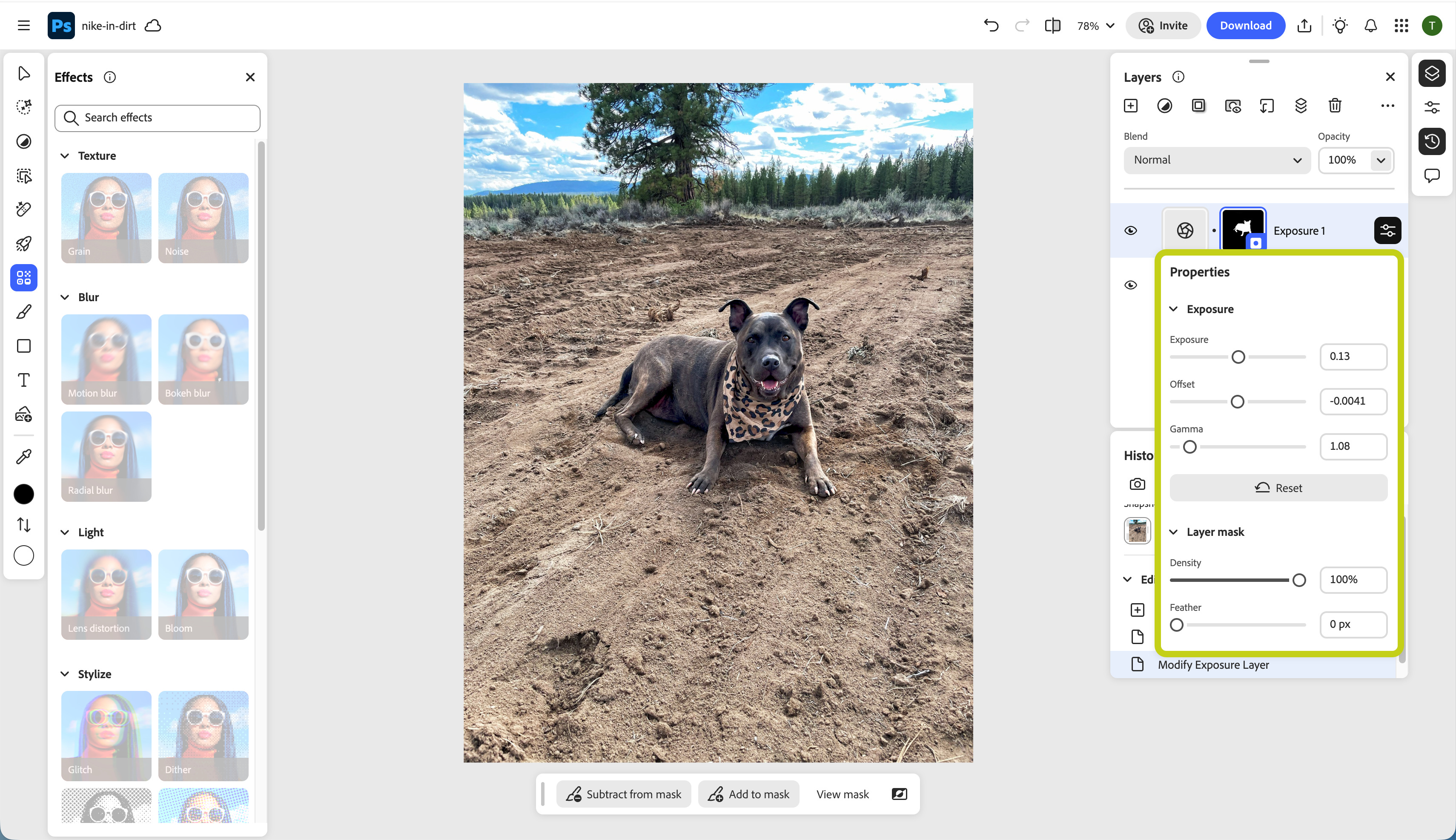
Here’s the part that surprised me most: the handoff to full Photoshop is seamless. Open your edit on Photoshop for web and everything is still live. Smart objects. Adjustable layers. Nothing flattened. If you want to take what you started in ChatGPT and go deeper with the full toolset, you can. Without starting over.

How to access: Type “Adobe Photoshop” + your request.
The guidance ChatGPT provides is contextual and specific to YOUR image (not generic tips)
Sliders appear automatically when you need hands-on control
Effects can be applied selectively (background only, subject only)
Quality preserved throughout edits
The handoff: Open in Photoshop on web and your edits are still live. Smart objects. Adjustable layers. Nothing flattened.
Adobe Express for ChatGPT: Stop Scrolling Canva
If you’ve ever lost 40 minutes scrolling through templates you’ll never use, Express inside ChatGPT fixes that.
I asked for an invitation for my dog’s birthday party this weekend and Express generated options instantly. I went with something cute, a dog wearing sunglasses.
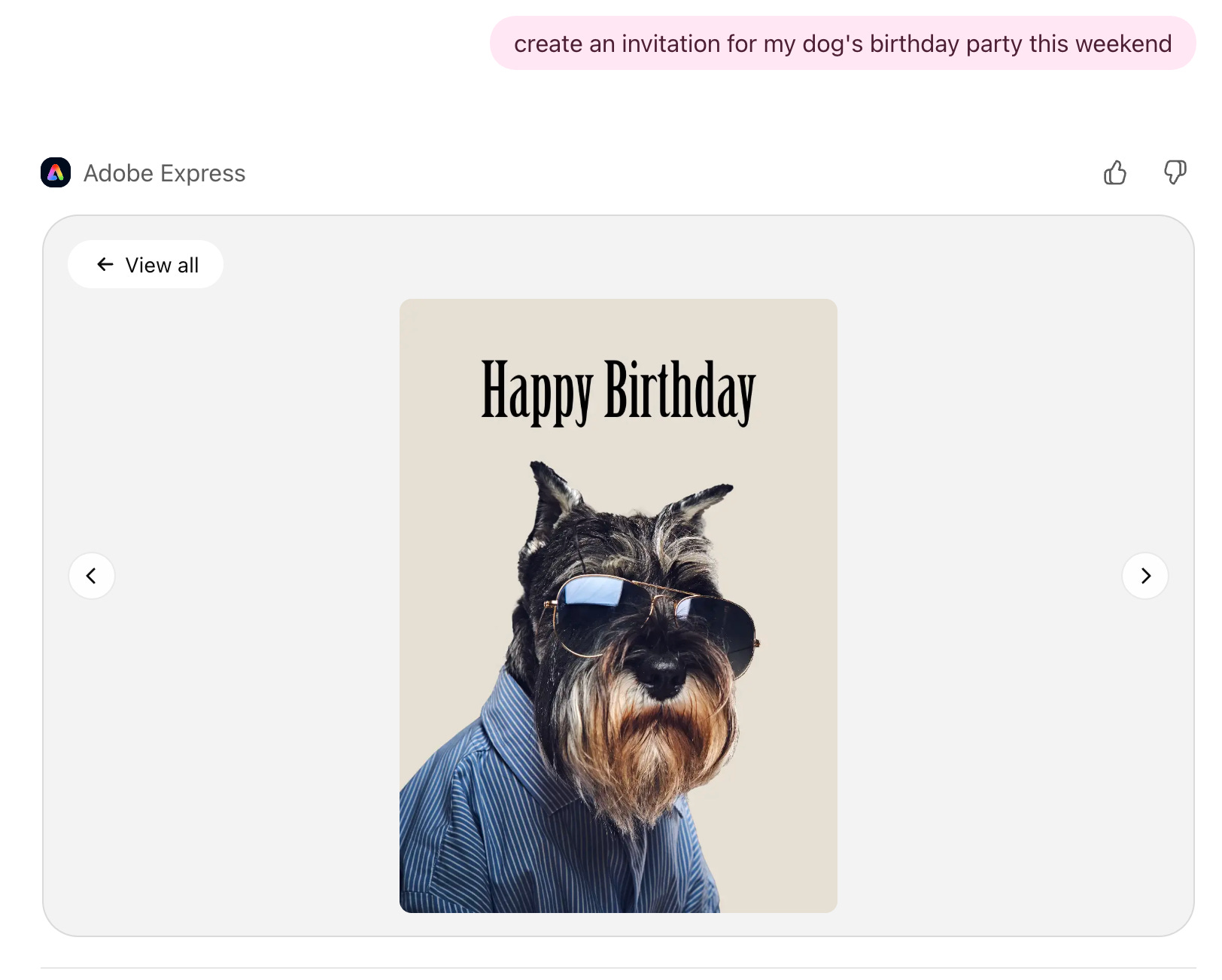
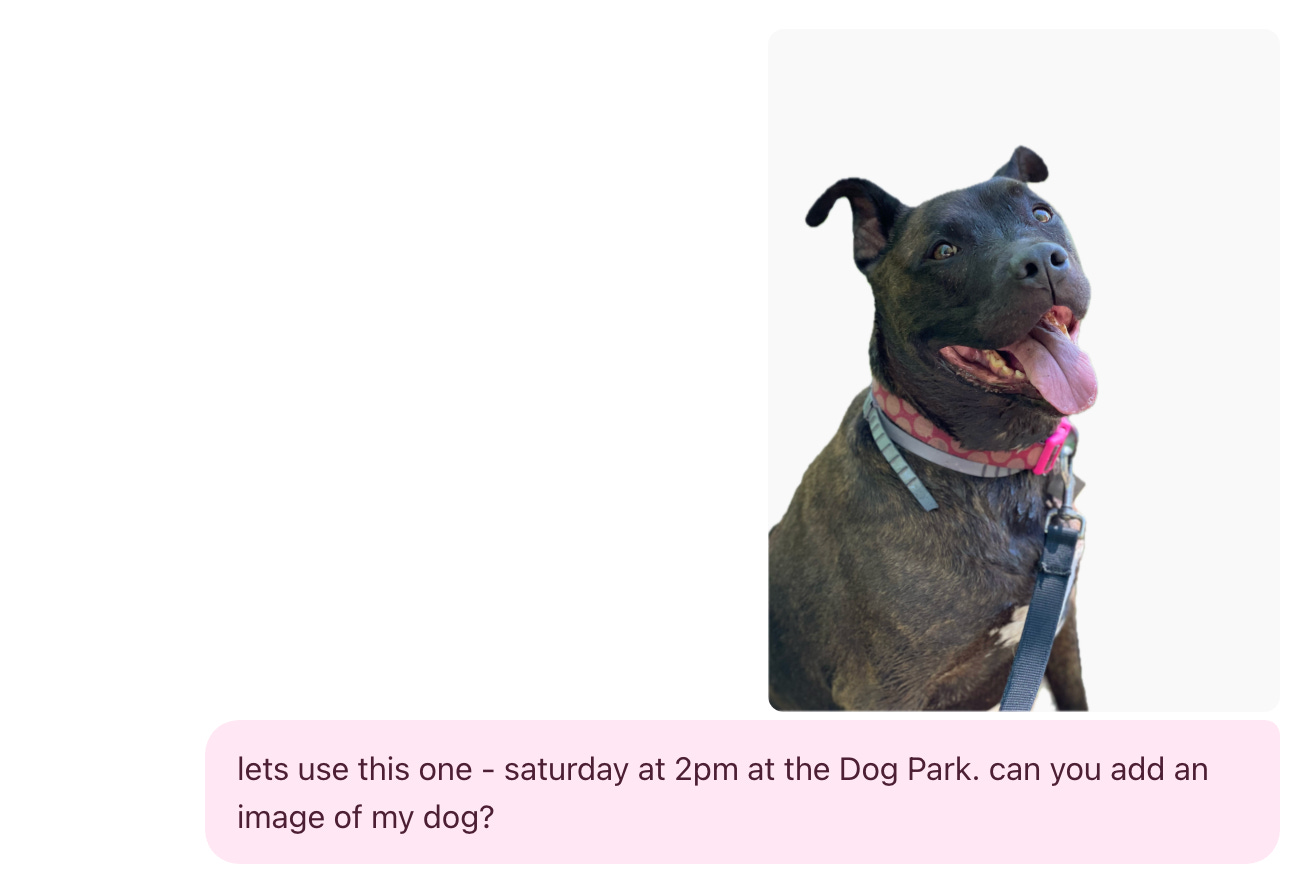
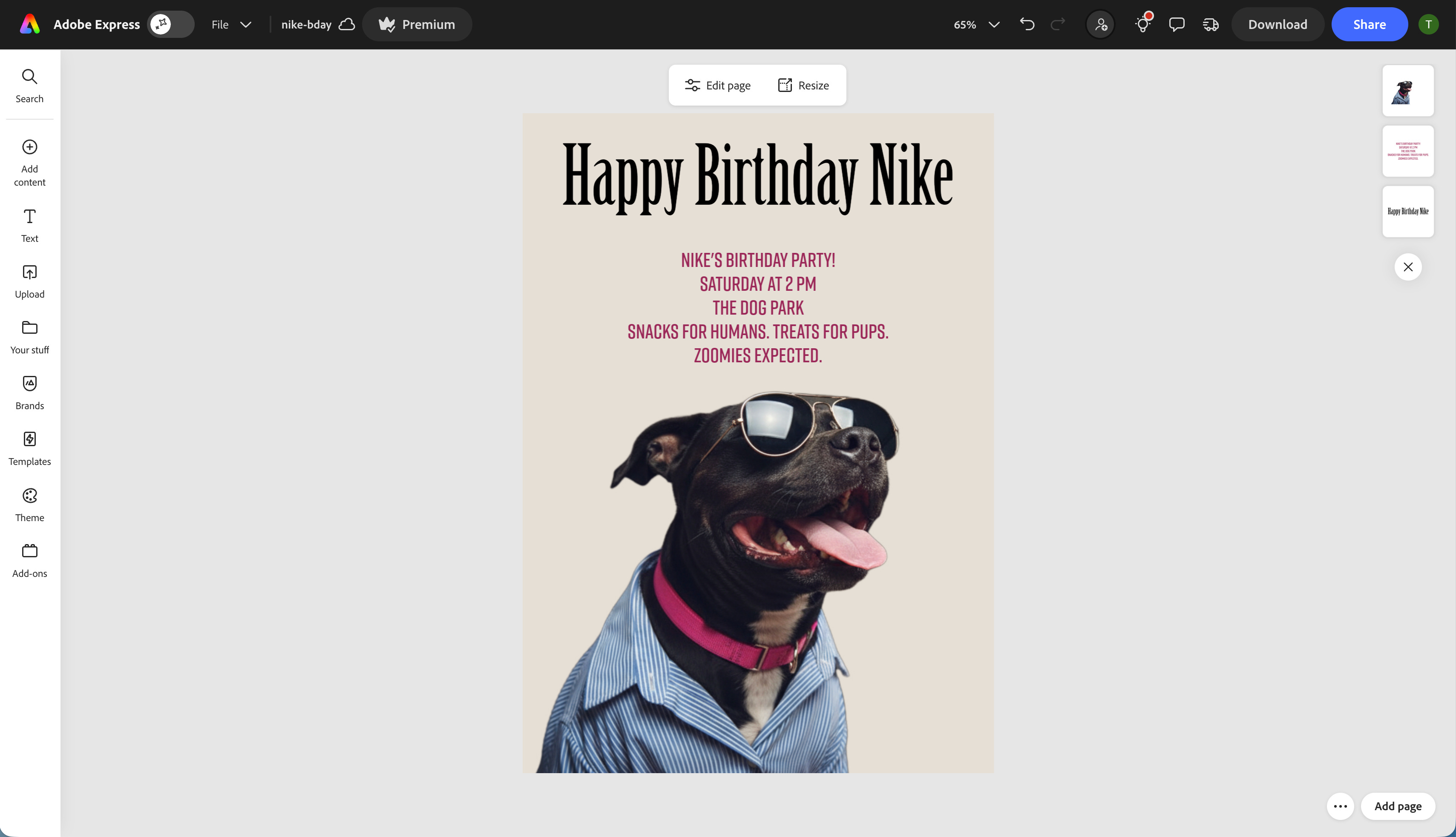
Then it generated an invite with the title, location, and time of her party. Here’s what made it useful: when I asked it to personalize with Nike’s details, it didn’t just swap text: it styled her in sunglasses and a shirt just like the template.
It actually generated new elements (sunglasses, a shirt, lighting) so Nike matched the aesthetic of the invite. That’s a completely different level of personalization.
Look past the cute dog for a second and realize what just happened. Adobe Express didn’t just crop a photo. It recognized the context (cool, sunglasses, vibe), analyzed my raw asset (Nike the dog), and generated new pixels to bridge the gap.
The Business ROI: If it can put sunglasses on my dog to match a birthday template, it can take your raw product shot and integrate it seamlessly into a seasonal campaign, or update your headshot for a specific event vibe: without a reshoot or a Photoshop tutorial. This workflow turns a 40-minute Canva struggle into a 40-second chat.

How to access: Type “Adobe Express” + your request.
What you can do:
Browse Adobe Express’ template library
Fill in text with your details
Replace images (it generates elements that match the design style)
Animate designs
Iterate on edits.
All inside the chat.
Acrobat for ChatGPT: The Quiet Powerhouse
This might be the most useful tool in the bundle for actual work.
I had five separate PDFs that needed to become one document. In the past, this meant either paying for Acrobat, finding a sketchy free tool online, or doing that thing where you print-to-PDF multiple times and hope the formatting survives.
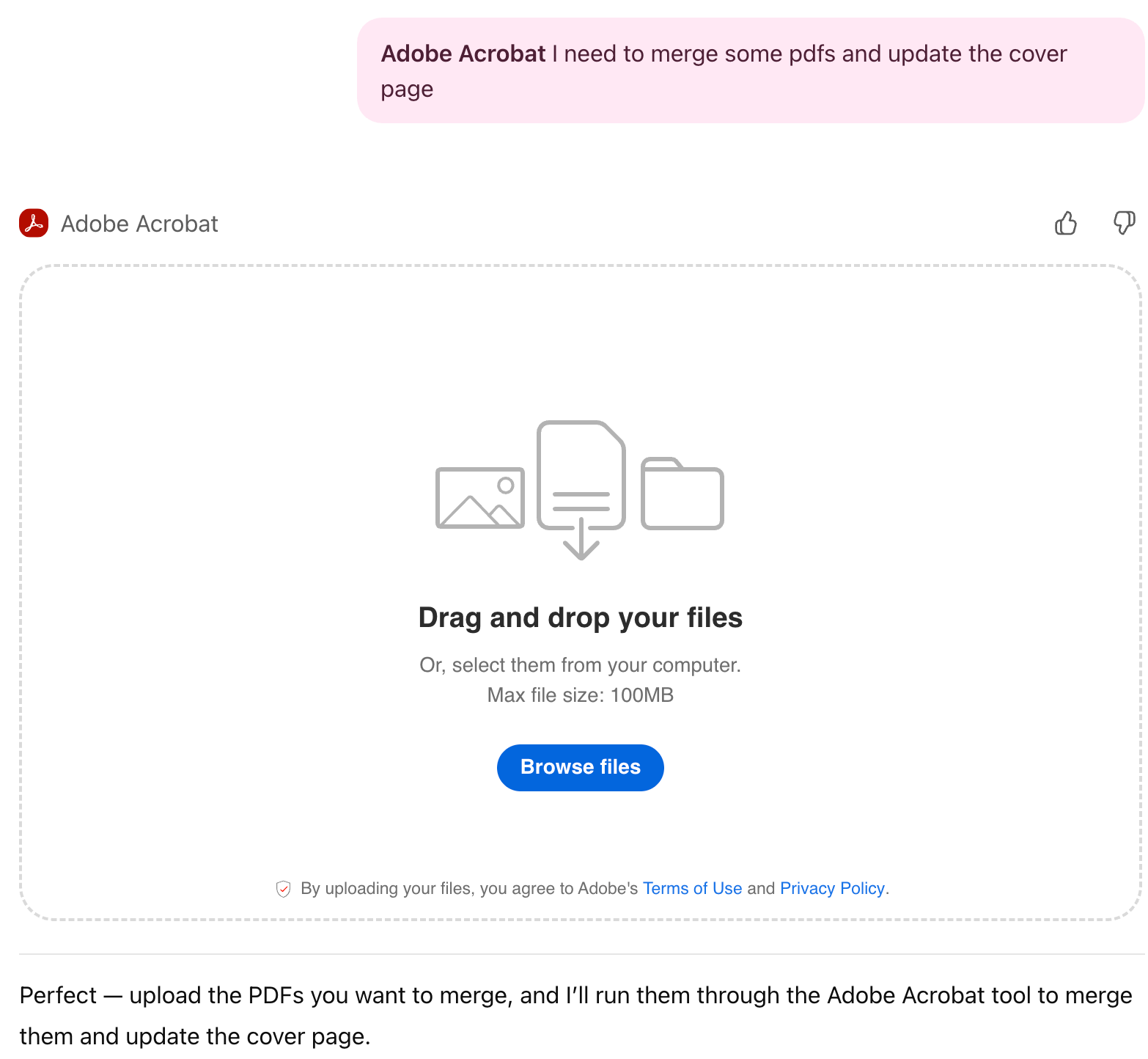
I told ChatGPT I needed to use Adobe to merge some pdfs and then update them. It loads Acrobat right in the chat, then you can drop your files in.
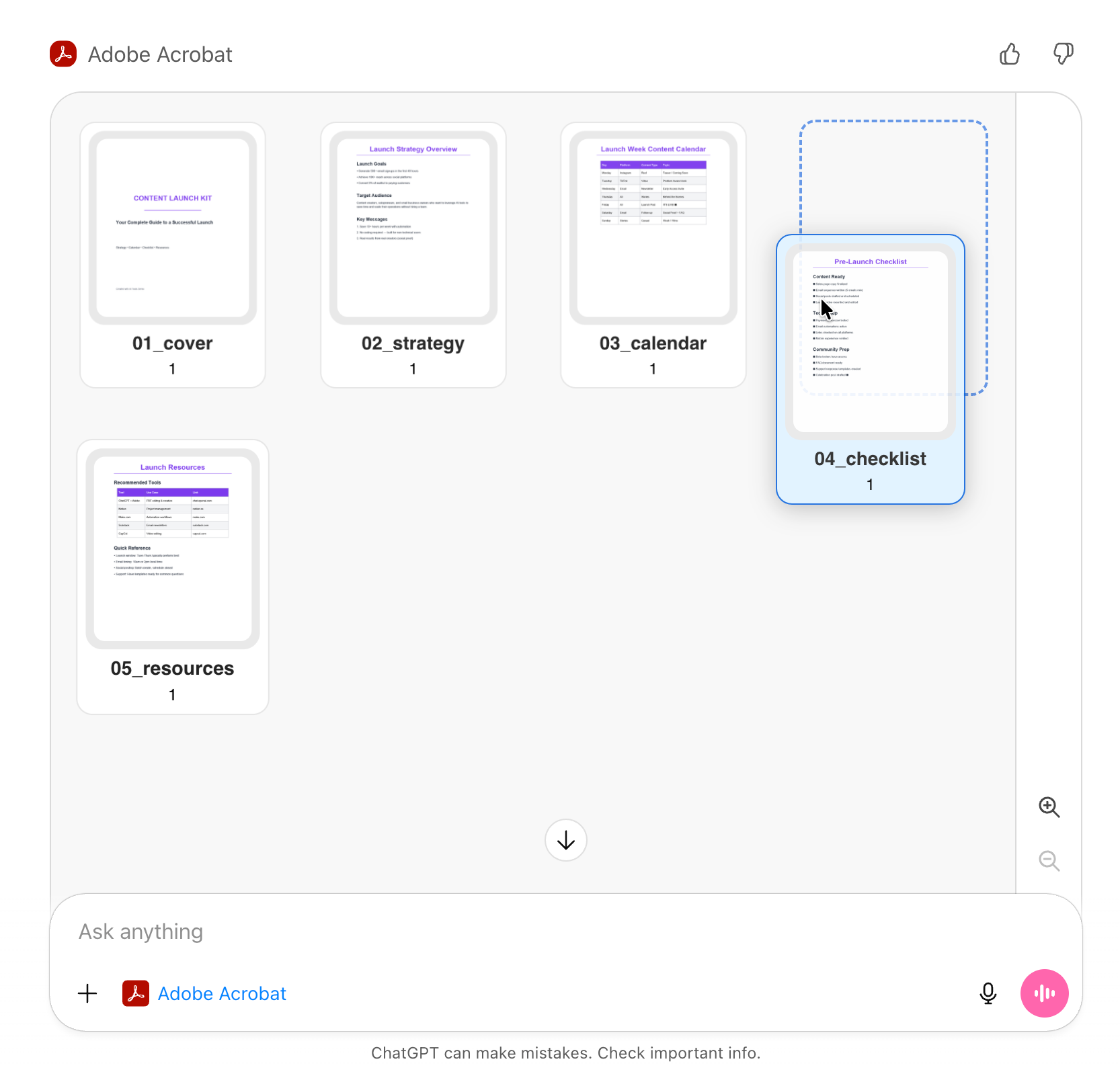
I uploaded all five files and it showed me the order. I dragged to rearrange. It combined them. Done.
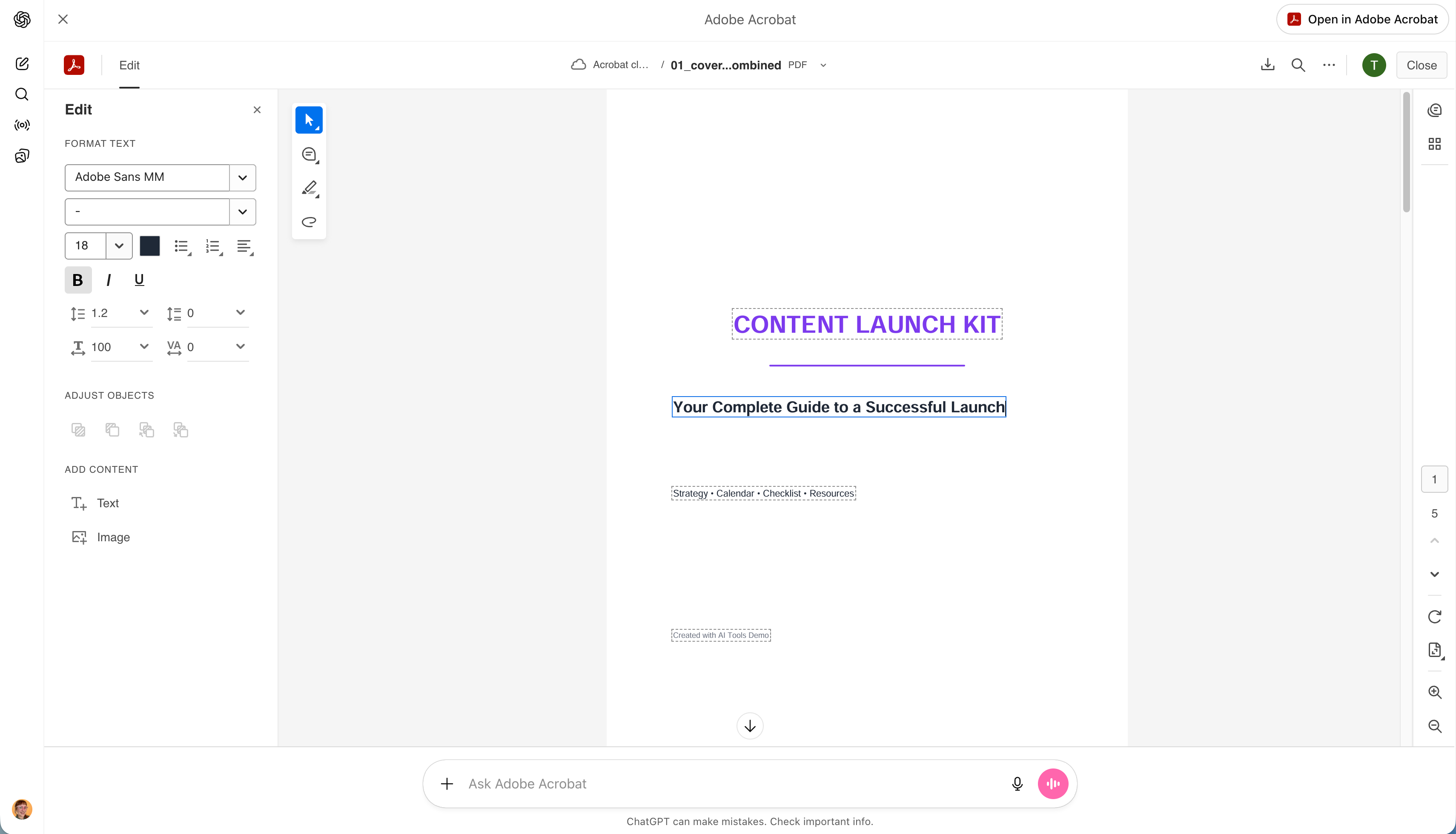
But here’s the part that surprised me: you can edit the actual text. Not just add comments or highlights, actually change what the document says.
How to access: Type “Adobe Acrobat” + your request.

What you can do:
Merge multiple PDFs into one
Reorder pages by dragging
Edit text directly — actually edit it
Extract text or tables
Compress files for email
Convert documents to PDF (formatting stays intact)
Redact sensitive information
For anyone who deals with contracts, reports, proposals, or any document workflow, this is quietly the most practical tool in the bundle.
Prompts to Start With
Photoshop for ChatGPT
“Clean up the background of this product photo and make it look consistent with my other product shots.”
“Adjust my headshot: fix lighting, sharpen features, and clean up the background.”
“Remove the distracting elements behind me and blur the background slightly.”
“Color correct this screenshot so it matches my brand colors (#xxxxxx + #xxxxxx).”
“Make this course thumbnail pop with subtle color and contrast adjustments — nothing overprocessed.”
Adobe Express for ChatGPT
“Create a carousel post announcing my new offer with these details: [offer, price, what’s included, deadline]. Use a clean, modern layout.”
“Design a lead magnet cover for my free guide called [title]. Keep it bold and on-brand.”
“Make a testimonial graphic using this client quote: [quote + name].”
“Create a webinar announcement graphic for [topic, date, time] with space for a photo.”
“Design a podcast ‘new episode’ graphic featuring [guest name + topic].”
“Take this photo and restyle it to match this template.”
“Turn this text into a branded announcement graphic.”
Acrobat for ChatGPT
“Merge my proposal, case studies, and pricing into one client PDF”
“Update the pricing on page 3 to reflect my new rates”
“Extract just the signature page from this contract”
“Redact my client’s personal information before I use this as a sample”
“Compress this 50MB presentation so I can actually email it”
“Convert this Word doc to PDF and keep the formatting intact”
“Reformat this PDF so the spacing and alignment look clean.”
“Extract all tables from this PDF into a new document.”
Pro tip: Be specific. The more detail you give, the better the output.
What This Actually Looks Like in Your Business
Features are nice. Workflows are what matter. Here’s how these tools fit into the work you’re already doing:
Launching something new?
Upload your product photo:
→ Photoshop cleans up the background
→ Express turns it into a carousel announcement
→ Acrobat merges your sales page PDF with testimonials into one client-ready doc.
One conversation. Three tools. Done before your coffee gets cold.
Onboarding a new client?
Take your proposal template, contract, and case studies:
→ Acrobat merges them into one professional PDF
→ Update the pricing and client name directly in chat
→ Compress it for email.
No more hunting through folders for the right version of each file.
Refreshing your brand materials?
Headshot needs updating:
→ Photoshop adjusts the lighting and sharpens
→ Express creates new social headers using your refreshed photo
→ Export in every size you need.
You just updated your entire visual presence without opening three separate apps.
Repurposing content?
Pull a quote from a client testimonial:
→ Express designs a branded graphic
→ Photoshop optimizes it for different platforms
→ You’ve got a week of social content from one conversation.
The shift isn’t learning new software, it’s thinking in workflows instead of tools. You describe the outcome, ChatGPT handles the tool-switching.
You’re Not Learning Software Anymore
The relationship with creative tools just changed.
You used to need to know where the masking brush lives. How layers work. Which blend mode does what. What the difference is between Exposure and Brightness. You’d watch a 15-minute YouTube tutorial, forget half of it, and spend another 20 minutes hunting for the right menu.
Now you describe the outcome. ChatGPT figures out which tool to use, surfaces the right controls, and guides you through it with advice specific to your image.
This is especially powerful if you’re someone with clear creative vision but limited technical training. You’ve always known what you wanted, you just couldn’t execute it without learning software that felt designed for someone else.
That barrier just collapsed.
And if you do want the full power of Adobe’s native apps? The handoff is seamless. Open your Photoshop edit on the web and your layers are still there. Nothing flattened. Nothing lost.
You’re not learning to be a better Photoshop user anymore. You’re learning to be a better creative director: someone who knows what they want and can communicate it clearly.
That’s the skill that matters now.
Try This Today
This is free. It’s live. And it’s the most intuitive way to use Adobe tools I’ve ever seen.
Pick one of these to test in the next 10 minutes:
Edit your pictures: Upload a photo. Ask ChatGPT to analyze it and suggest specific adjustments. Actually make the edits with the sliders it surfaces.
Design something: Tell Adobe Express you need an invitation, social post, or card. See how fast it goes from prompt to personalized design.
Fix your PDF situation: If you have documents sitting in a folder that need merging, compressing, or editing - now’s the time. Upload them and ask Acrobat to combine or compress.
You don’t need to be a designer. You don’t need to learn the software. You just need to know what you want, and ask for it.
Go Deeper
This is one workflow. I’ve got dozens.
Inside the AI Flow Club, I break down the exact systems I use to run my business. From content repurposing automations to client onboarding workflows to the iPhone Shortcuts that save me hours every week.
If you want the full playbook (not just the tools, but how to connect them into systems that actually work), join us.
Impressive! Integrating Photoshop, Express, and Acrobat directly into ChatGPT turns AI into a true creative workflow assistant, shifting the skill from mastering software to giving precise directions, a game-changer for both designers and non-designers.
This feels less like a “Photoshop inside ChatGPT” story and more like a shift in where creative decisions get made.
For power users, the value isn’t replacing hands-on tools. It’s front-loading judgment. Using conversation to clarify intent, spot distractions, and test direction before committing to craft. That alone can remove a surprising amount of friction.
What stood out to me is how this changes collaboration. When tools respond to outcomes instead of menus, the bottleneck moves from execution to decision-making. That’s great when the human knows what they want. Risky when they don’t.
This is a strong step toward thinking in workflows rather than apps. The teams that win won’t be the ones who “know Photoshop.” They’ll be the ones who can clearly direct it.